Reporting & Data Maintenance
Maintaining Clean Product Data
Congratulations 🎉 ! You’ve successfully linked your Swivel Sync sources consistently and values are actively updating your policies and accounts. What’s next?
Better Data Means Better Client Experiences
Section titled “Better Data Means Better Client Experiences”We strongly recommend reviewing and cleaning up your products and value configurations especially after Swivel Sync has begun syncing new values across your policies and accounts.
Benefits of Cleaning Up Product and Product Value Data include:
- Streamline and simplify your data
Reduce clutter and make it easier to understand and manage policy and account details by removing unnecessary or outdated product configurations. - Eliminate duplicates and redundancies
Prevent confusion and reporting errors by consolidating similar or duplicate product values, ensuring that each product type and value is clearly defined. - Ensure consistency in client-facing reports
Create a more professional and uniform experience when sharing your Swivel Summary or Portfolio Summary with clients, with standardized product names and values displayed across all policies and accounts.
Managing Policies and Accounts Data Migrated from an External CRM
Section titled “Managing Policies and Accounts Data Migrated from an External CRM”If your company or agency migrated data from another CRM (such as Redtail or Wealthbox), Swivel automatically carries over existing account and policy data.
Addressing Duplicate or Multiple Variations of the Same Products
Section titled “Addressing Duplicate or Multiple Variations of the Same Products”Unlike other CRMs, where storing a policy’s product information occurs in a free-text field, in Swivel, products can store additional data such as the product type, product line and unique values. Products can also trigger automations and workflows.
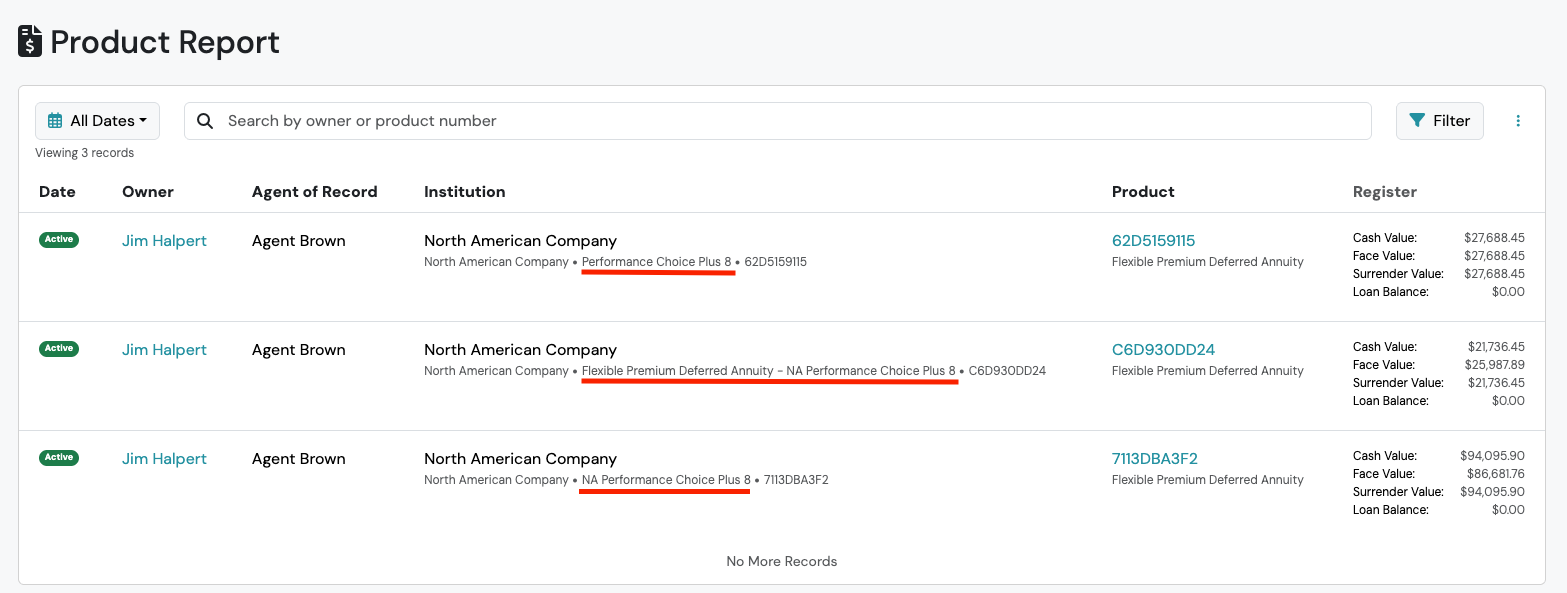
Due to the various ways products are used in Swivel, it’s important to deduplicate and consolidate multiple variations of products that represent the same thing to prevent redundancy and ensure consistency across your stored data.
Here is an example using the Product Report to identify duplicate product data carried over from another CRM.
Recommendations and Best Practices
Section titled “Recommendations and Best Practices”Deduplicating Product Names
Section titled “Deduplicating Product Names”- Identifying Duplicates The best way to identify duplicate product names is to run and export a Product Report and filtered by a specific carrier or institution. From the .csv export file, you can sort & filter by the product column.
- Define Naming Convention After you’ve identified duplicate product names, establish a naming convention for storing products moving forward. The recommended convention is to use the product name exactly as the insurance carrier names it (the same name shown on the carrier’s website or statements). Storing products with the carrier’s naming convention prevents downstream issues with Swivel Summary configuration.
- Handle Products Not in the Picklist If a product name doesn’t appear in the product selection picklist, store the product name as the carrier names it. This keeps your data consistent with the recommended naming convention even when a product isn’t pre-configured. To add a missing product, use the New Product Wizard or pre-configure it from Advanced Settings → Products (Owner role only).
- Merge Products Once you’ve identified a naming convention for your products, you are now ready to deduplicate and consolidate using the Merge Products feature. For more information, see Merge Products.
- Delete or Archive Unused Product Names Finally, delete or archive any unused product names. This will cleanup your Product picklist options when creating or editing policies.
Addressing Duplicate and Overlapping Value Names
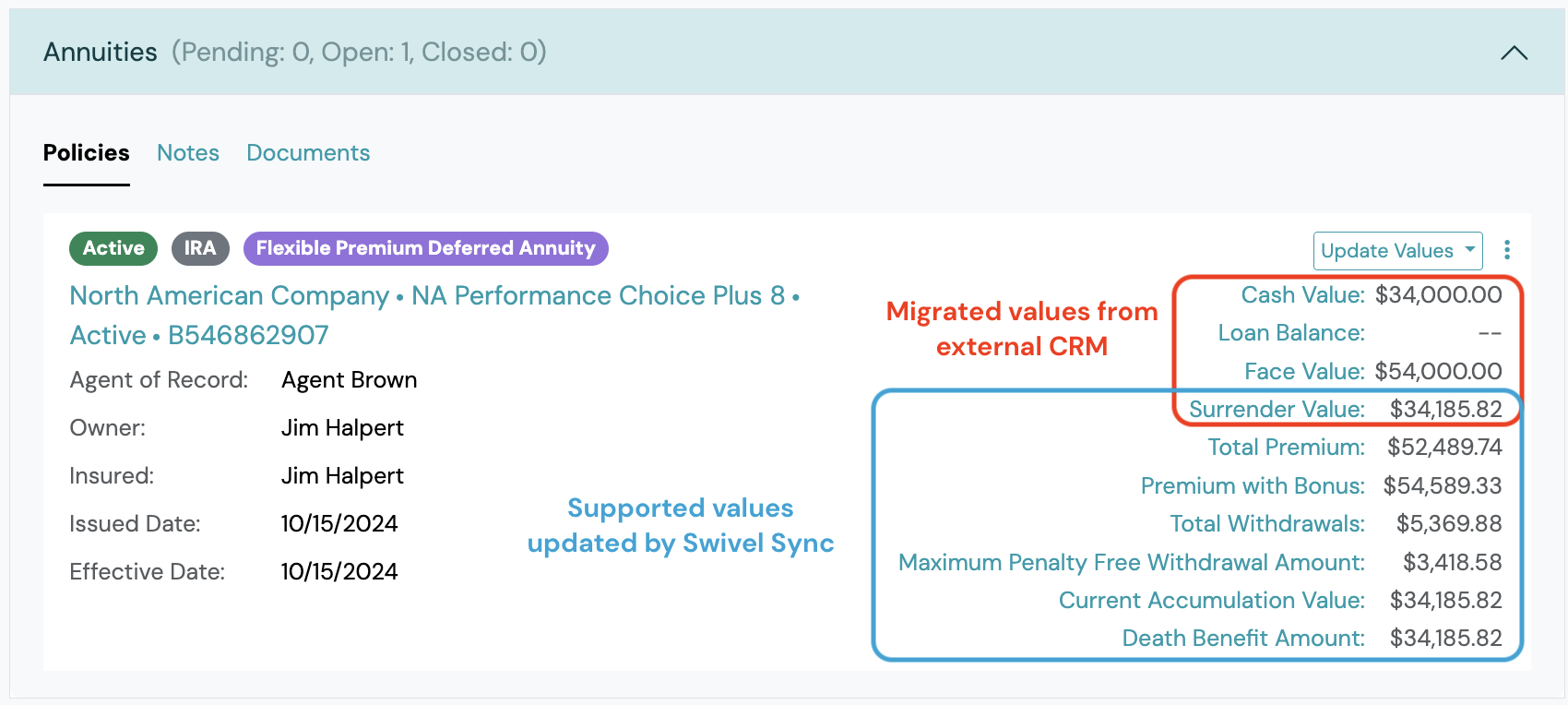
Section titled “Addressing Duplicate and Overlapping Value Names”When Swivel Sync updates these same policies or accounts, you may notice duplicate or overlapping value names. This is common when similar fields exist in both your previous CRM and data values supported by Swivel Sync.
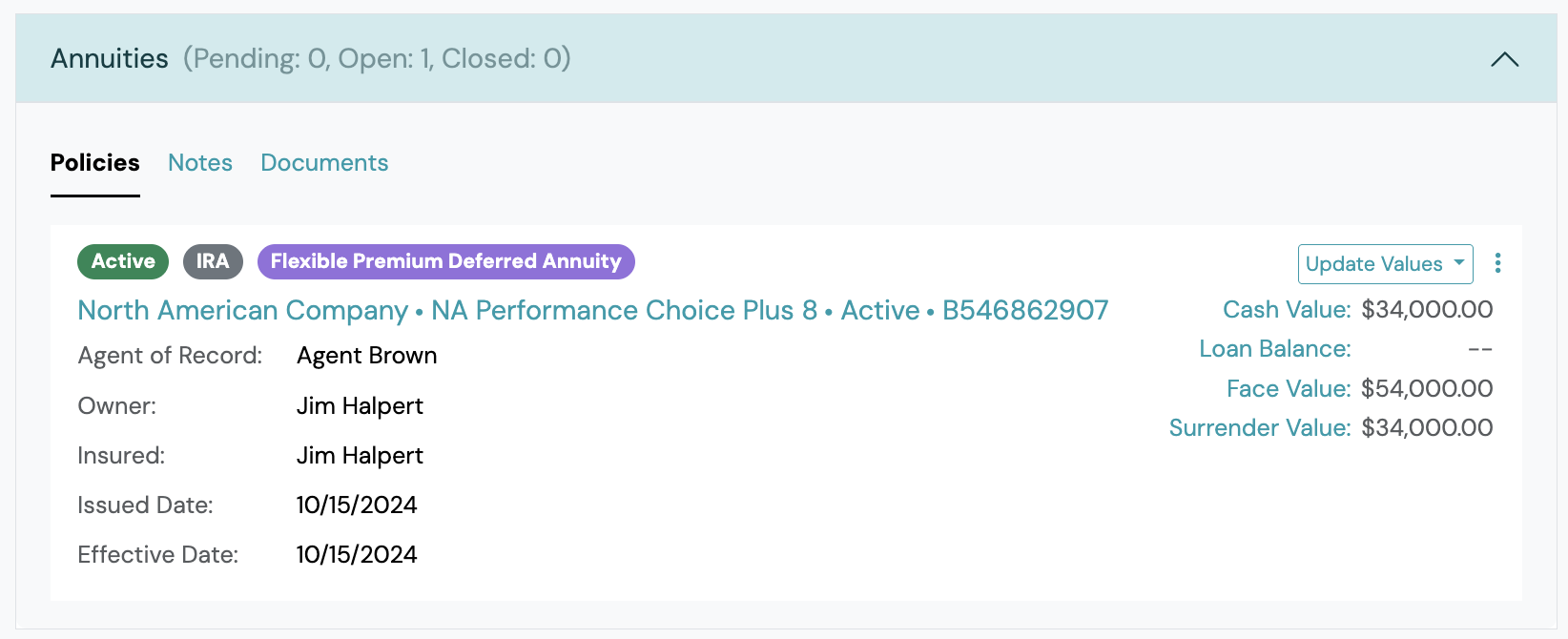
Here is an example policy of value data migrated from an external CRM (e.g. Redtail)
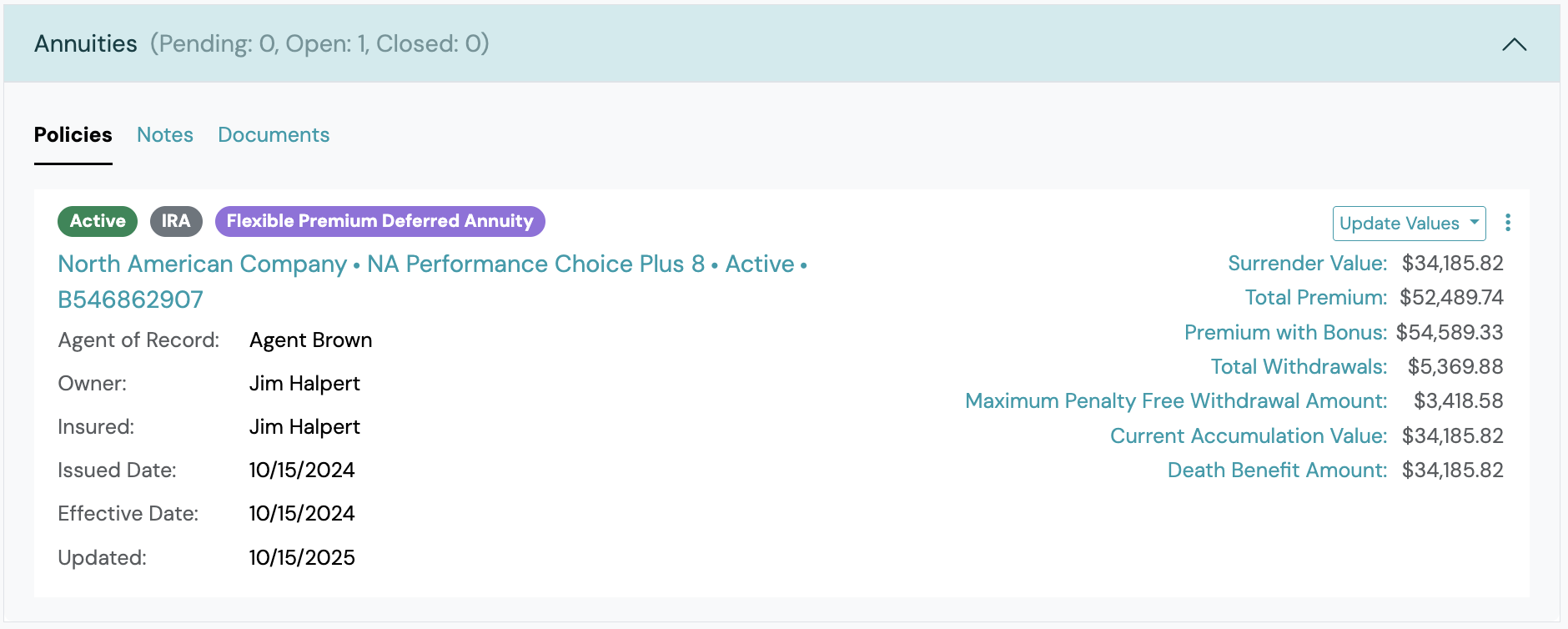
Here is an example of the same policy with additional values after being updated by Swivel Sync.
Recommendations and Best Practices
Section titled “Recommendations and Best Practices”Removing Unwanted Value Names
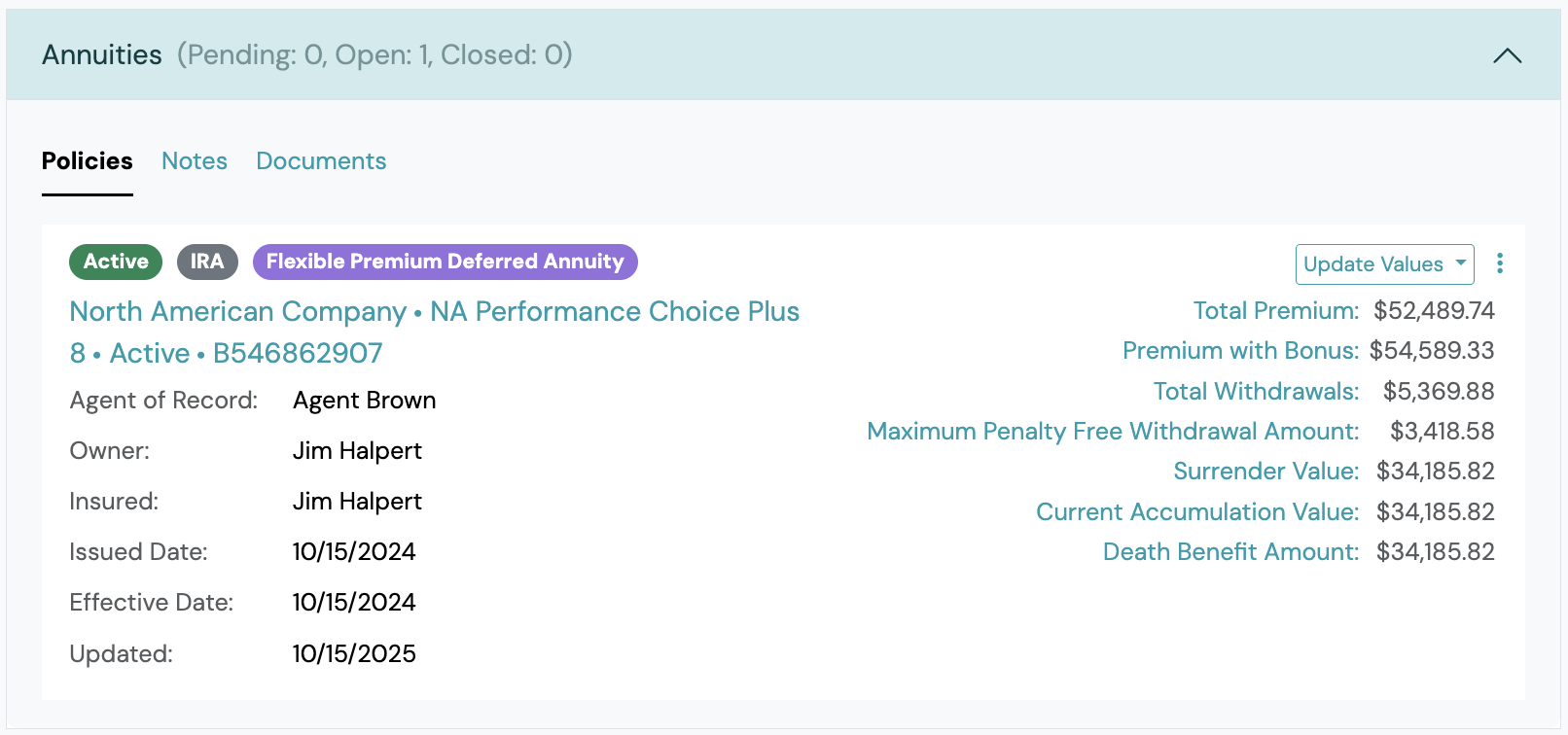
Section titled “Removing Unwanted Value Names”Using the same example from above, let’s say a user now wants to remove any duplicate or unwanted values. The user removes Cash Value, Loan Balance and Face Value.
When a Removed Value Keeps Coming Back After Sync
Section titled “When a Removed Value Keeps Coming Back After Sync”Occasionally you may remove a product value (for example Cash Value) only to see it reappear (often empty) every time Swivel Sync runs again. Because product values are configured on the product offering, a value that won’t stay removed is usually a sign that one or more policies are stored under the wrong product offering. Each sync re-applies that offering’s full value set, so the unwanted value keeps returning. The fix is to find the incorrectly stored policies, move them to the correct product offering, and then remove the value.
Step 1 - Identify the incorrectly stored policies with the Product Report
Section titled “Step 1 - Identify the incorrectly stored policies with the Product Report”Use the Product Report to spot policies that don’t belong to a product offering:
- Go to Reports > Product Report.
- Click Filter. Under Product Filters, add a Product filter for the affected product offering (for example, Products → Allianz Benefit Control Annuity), then apply it. The report now lists every policy stored under that product offering.
- Export the filtered report. The export downloads as a .csv file.
- Open the export in a spreadsheet and find the column header for the value that keeps reappearing (for example, Cash Value).
- For a correctly-configured offering, that column is blank for the vast majority of policies. Sort or filter the column to show only the rows where it is populated.
- The handful of outliers that do have a value (often just one or a few) are the policies most likely stored under the wrong product offering.
Step 2 - Correct the offering and remove the value
Section titled “Step 2 - Correct the offering and remove the value”- Confirm the correct product offering for each outlier on the carrier’s portal or website. Be especially careful with near-identical variants. For example, Allianz Benefit Control Annuity and Allianz Benefit Control+ Annuity are unique products with different product-value naming conventions.
- Update each policy to the correct product offering in Swivel.
- Remove the unwanted value from any policy on the corrected offering via Manage Values.
Identifying Swivel Sync Values vs. Migrated or Custom Values
Section titled “Identifying Swivel Sync Values vs. Migrated or Custom Values”When reviewing your product values, you may want to know whether a value was updated automatically by Swivel Sync or came from somewhere else (for example, before deciding whether to clean up a value or change a display name). The Sync Name field on the Manage Values screen tells you which is which.
For Swivel Sync values, the Sync Name field is populated with the value name as it appears on the carrier or institution side. Sync Name cannot be edited. It always reflects what Swivel Sync received from the source.
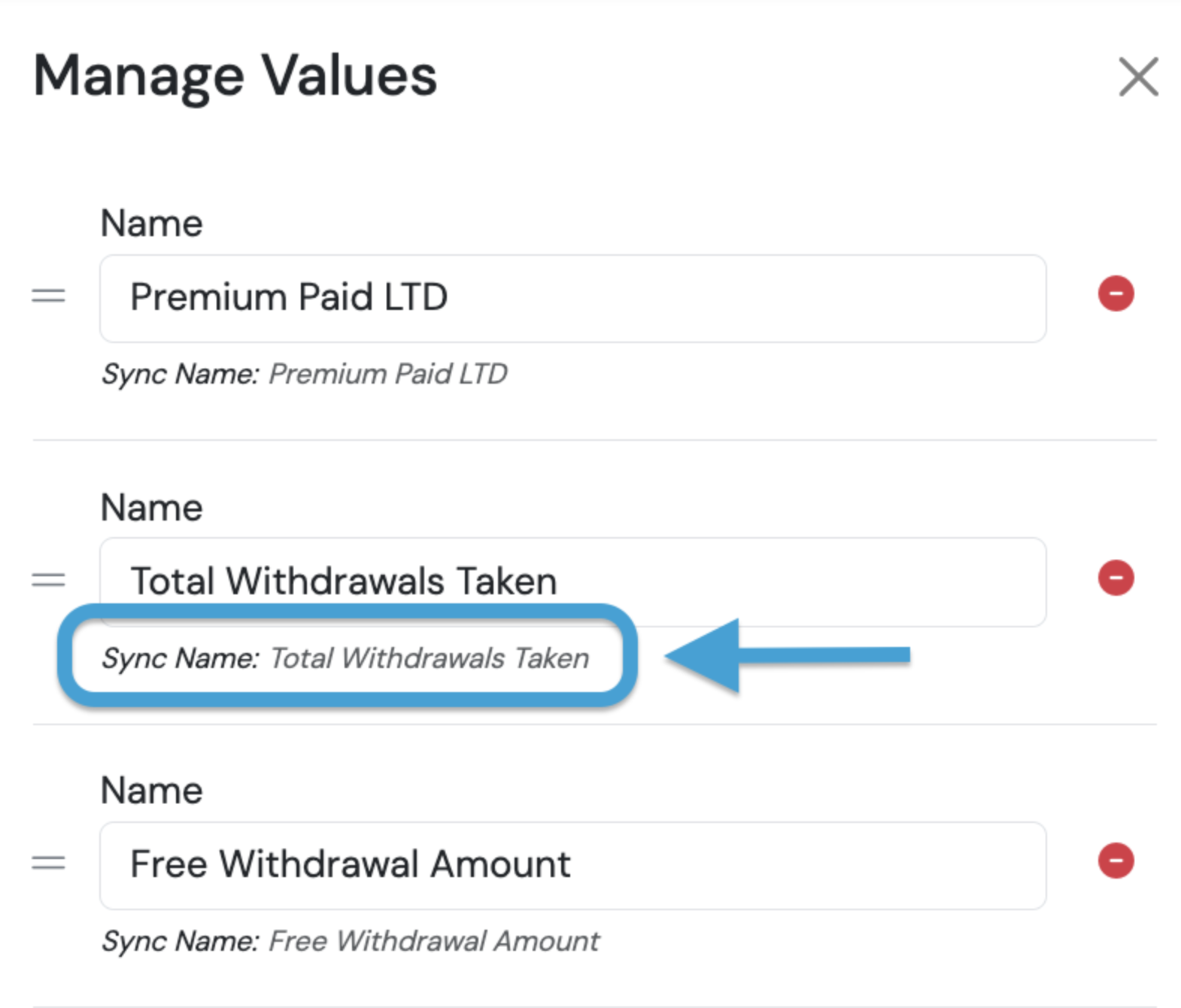
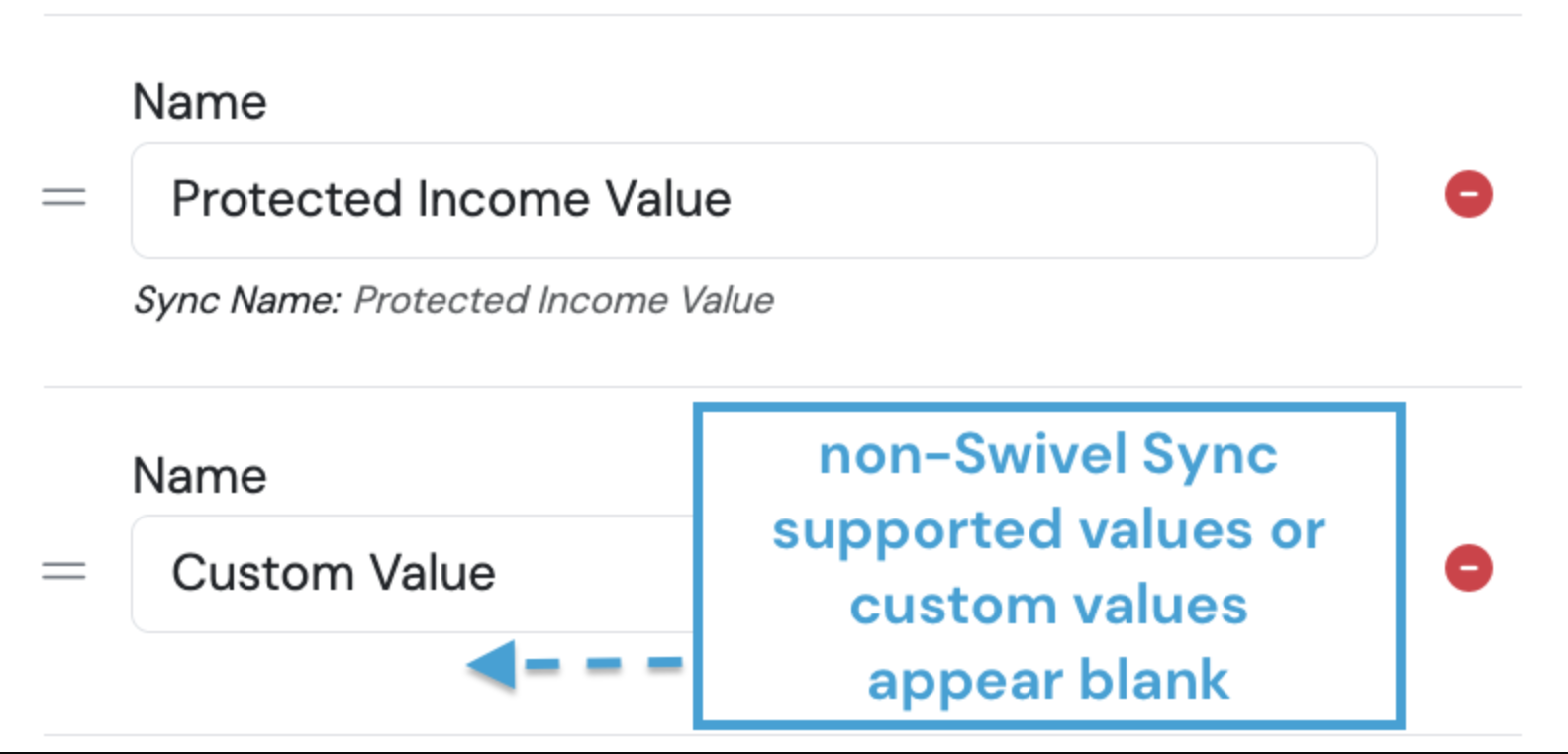
For migrated or custom values, the Sync Name field displays as blank. This applies to values imported from an external CRM (such as Redtail or Wealthbox) and to values manually configured on a product offering, including on Swivel Sync–supported product offerings. Only values retrieved from a carrier or institution have a Sync Name.
Repositioning Values Names
Section titled “Repositioning Values Names”Using the same example, a user now wants to move Surrender Value before the Current Accumulation Value.