

Daily Use
Force Syncing Policies & Accounts
Force Sync Overview
Section titled “Force Sync Overview”What does it mean to force a policy or account?
Section titled “What does it mean to force a policy or account?”To force sync a policy or account means to prioritize a policy or account to update upon request.
- Once you link a login source successfully, Swivel Sync builds a queue of all syncable policies and accounts that source has access to and works through it in the background while the source remains linked.
- Instead of waiting for Swivel Sync to reach a specific policy in the queue, you can prioritize it to be updated next.
When to Force Sync a Policy/Account
Section titled “When to Force Sync a Policy/Account”- Anytime you need to view updated values for a specific policy/account
- Updating the Swivel Summary
- Preparing for an upcoming client review appointment
- Per client request
Force Syncing Policies and Accounts
Section titled “Force Syncing Policies and Accounts”Force Sync from Contact Record
Section titled “Force Sync from Contact Record”-
Navigate to a contact record
-
Find the policy or account to sync.
-
Click the Sync button.
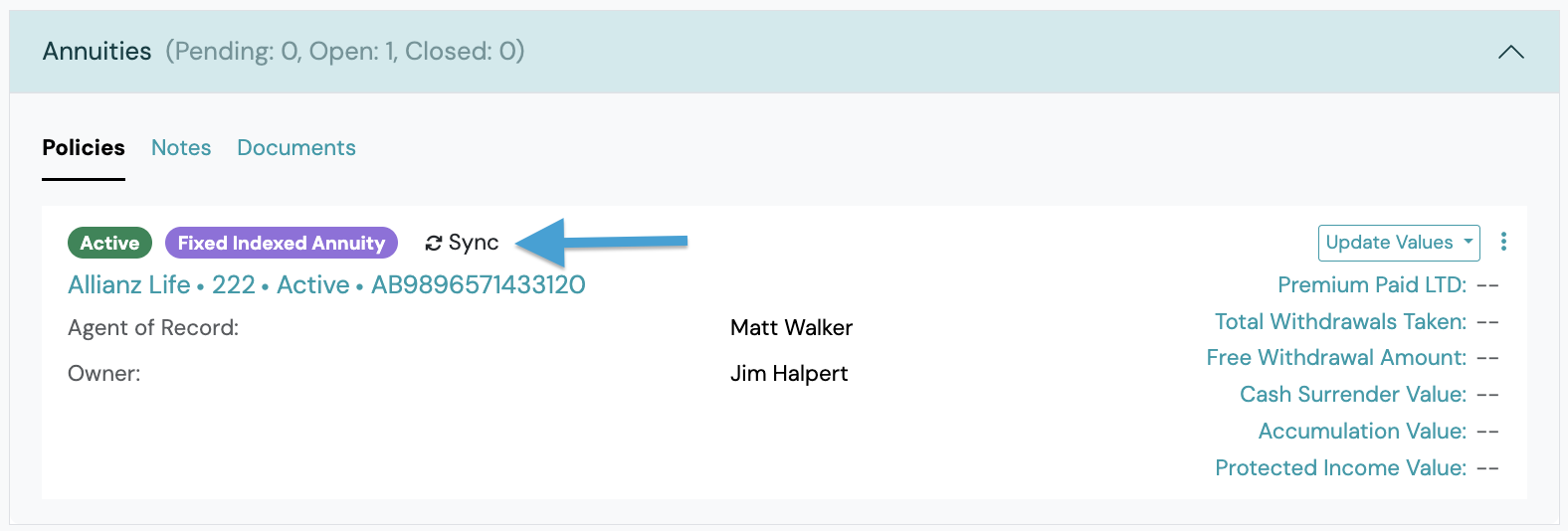
-
Sync pop-up window appears.
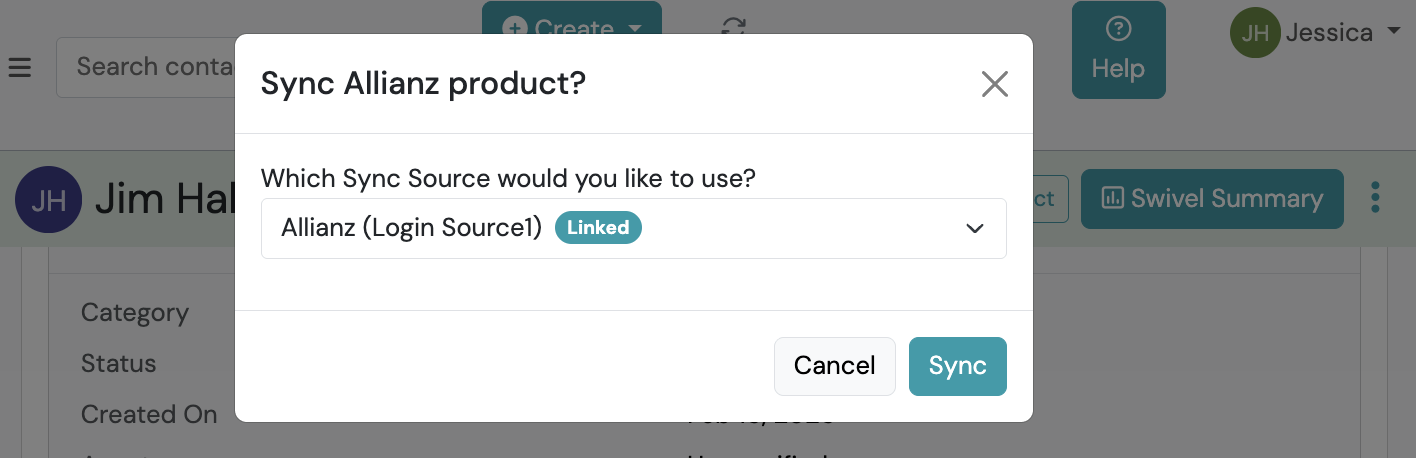
-
If multiple login sources exist, choose any linked source that has access to the policy on the carrier portal > click Sync.
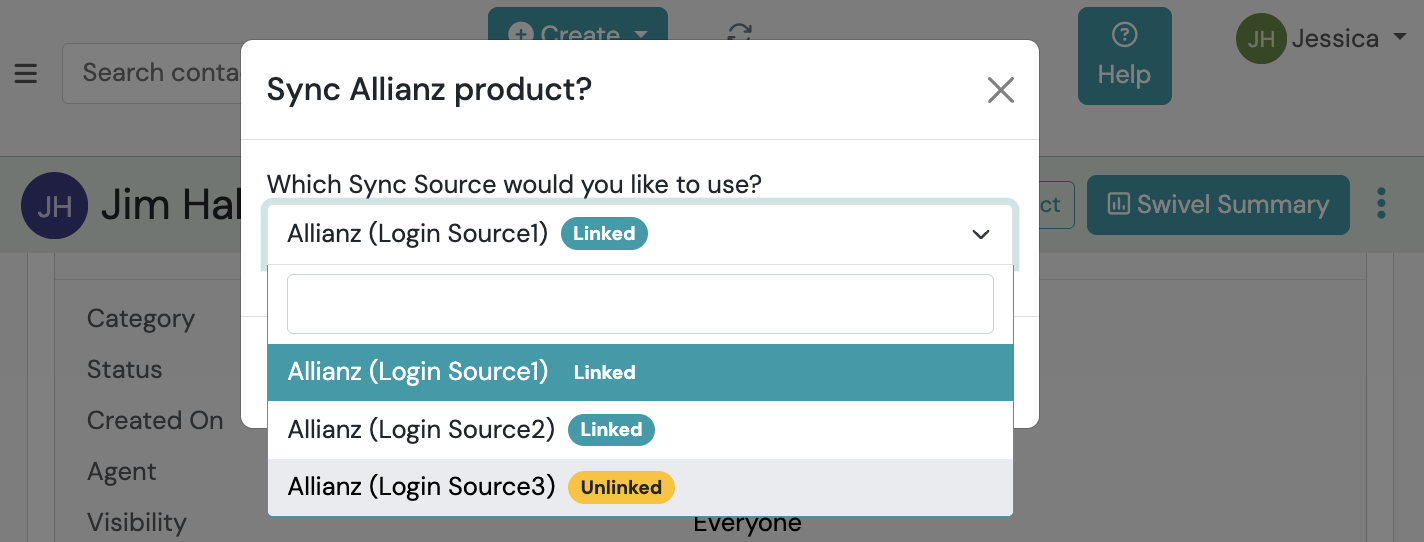
-
If the source you selected is Unlinked, you have two options:
-
Click Link to re-authenticate that source OR
-
Select a different linked source that also has access to the policy on the carrier portal.
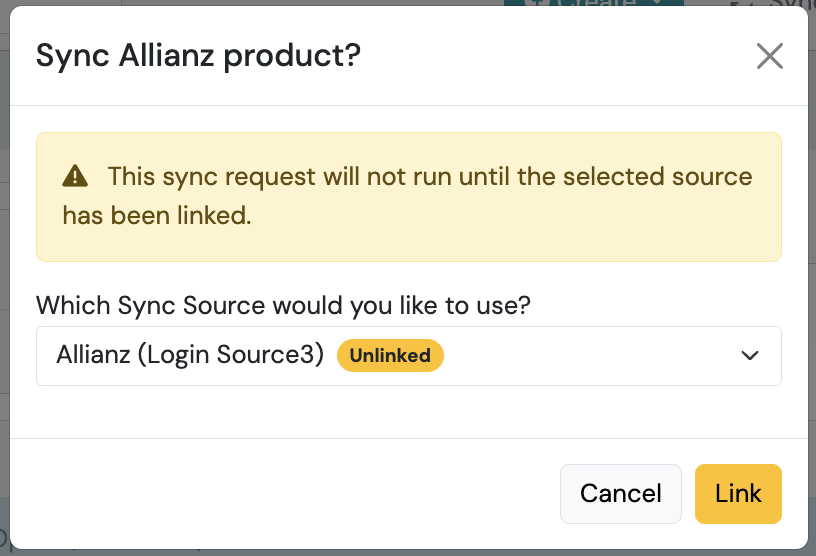
-
-
-
Once the policy begins syncing, it will display
 an in progress status.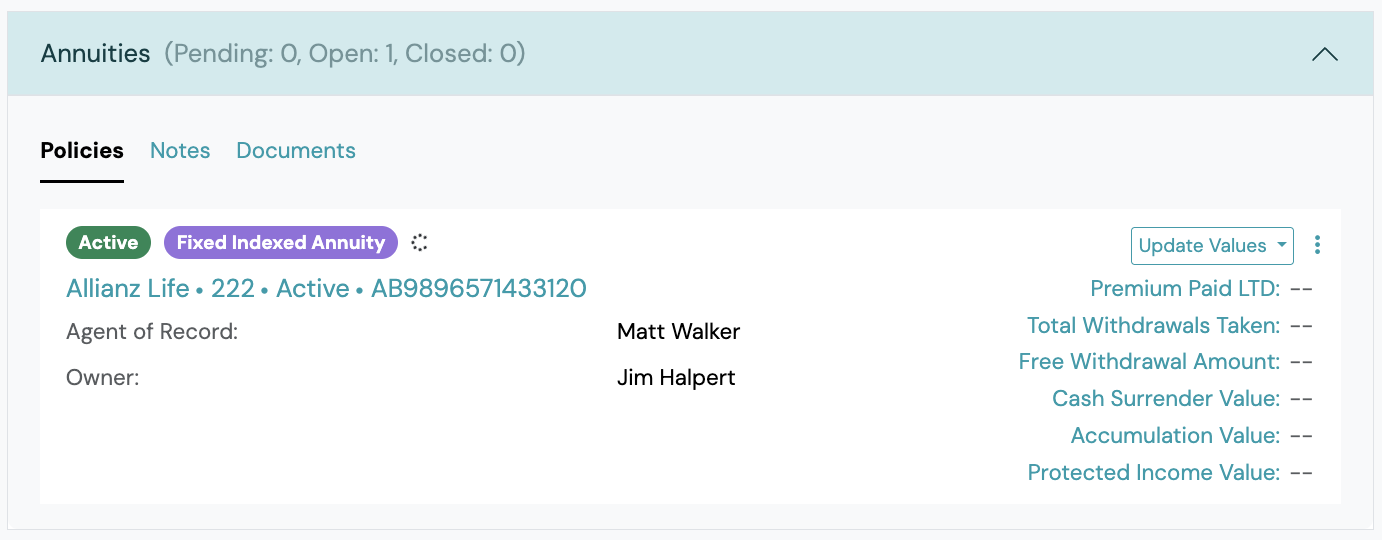
-
The policy may return a Queued status, if Swivel Sync is in the process of updating another policy(s).
-
Once a policy force sync request is verified, updated and completed, it will return a Success status.
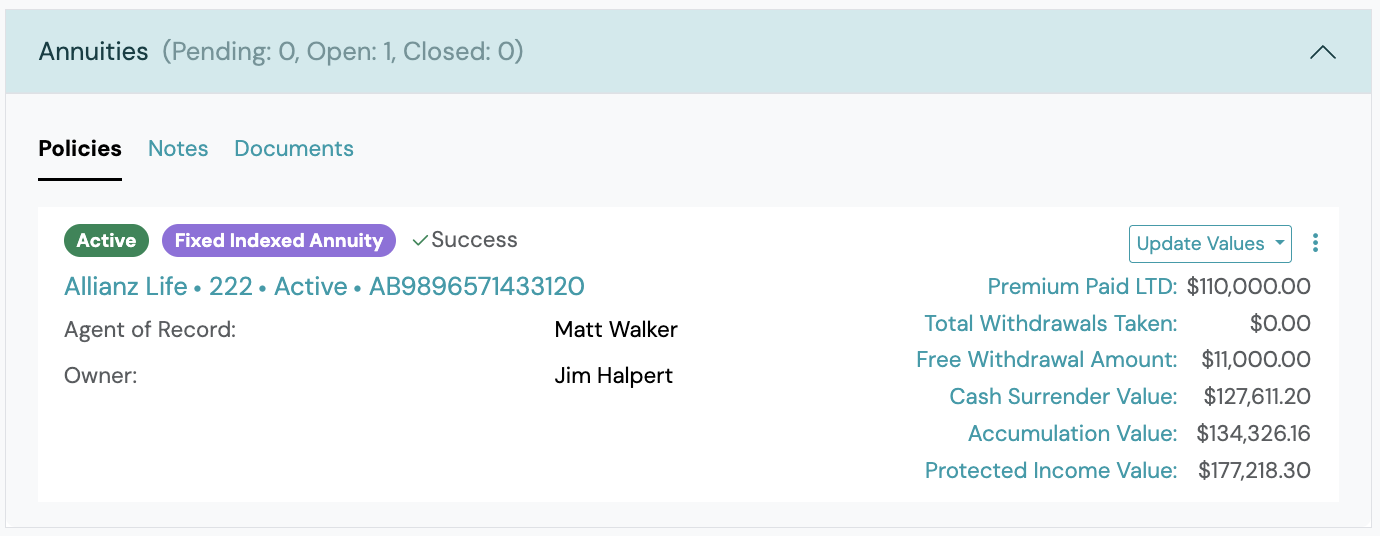
-
Force Sync from Swivel Sync Report
Section titled “Force Sync from Swivel Sync Report”-
From Main Menu, go to Reports > Swivel Sync Report.
-
Search by contact or product number to find a specific policy or account.
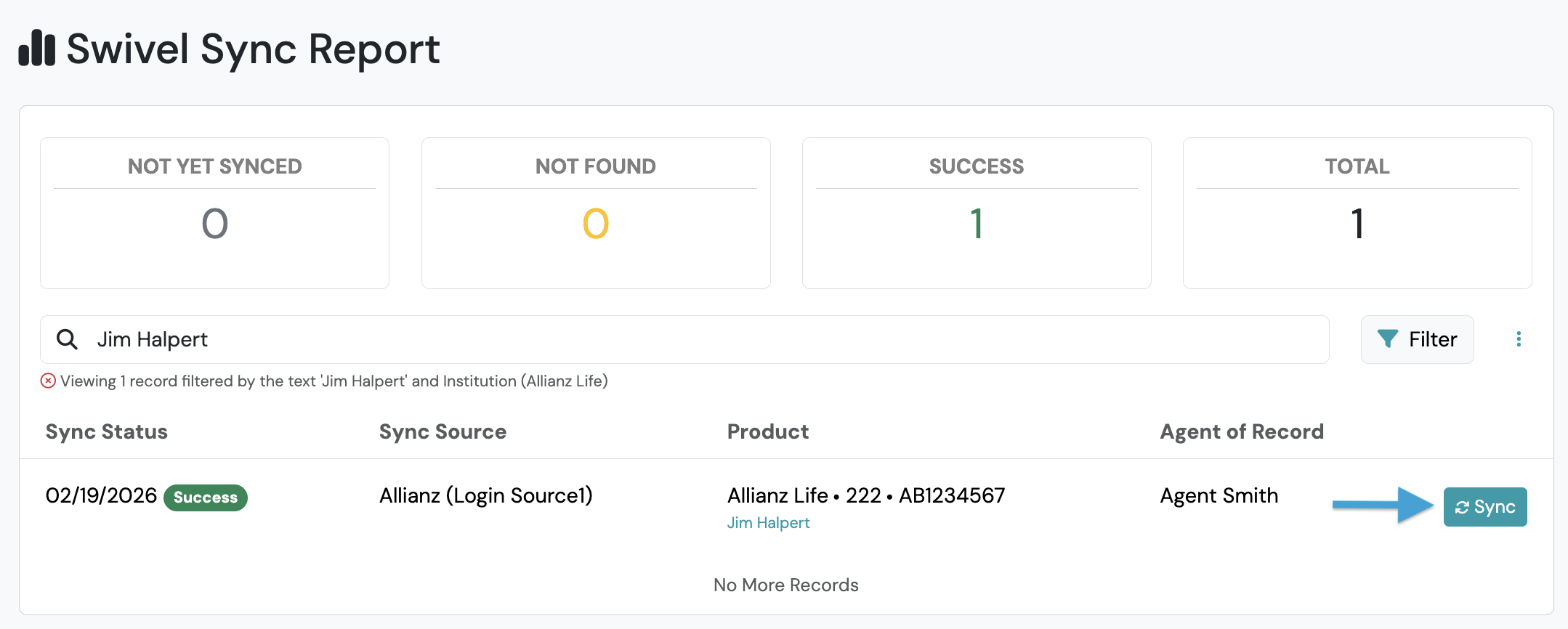
-
Click the Sync button.
Troubleshooting Force Sync Results
Section titled “Troubleshooting Force Sync Results”Force Sync returned Success, Not Found, or Unexpected values
Section titled “Force Sync returned Success, Not Found, or Unexpected values”If a force sync returns Success but values don’t update, or returns Not Found when you expected Success, the troubleshooting steps are the same as for background sync results and live in Investigating Unexpected Sync Results in the Swivel Sync Report article. A few force-sync-specific notes:
- Re-run after correcting the data. After updating the policy number or product status in Swivel, click Sync again from the contact record or the Swivel Sync Report to immediately verify the fix. You don’t need to wait for the next background sync.
- Retry once before investigating further. Less commonly, a temporary issue in the sync queue can cause a single attempt to return Not Found. A fresh force sync attempt will often return Success.
When the “Sync” button isn’t appearing on a syncable policy as expected (from a contact record)
Section titled “When the “Sync” button isn’t appearing on a syncable policy as expected (from a contact record)”If you expected to see a Sync button but don’t, the most common cause is duplicate institutions in your CRM: the policy is associated to a different institution than the one Swivel Sync is connected to.