Daily Use
Swivel Sync Dashboard
Overview
Section titled “Overview”We’ve redesigned the Swivel Sync experience to make setup and ongoing configuration simpler, faster, and fully self-service. Previously, users needed to navigate between multiple areas of the application to configure devices, update source settings, or view sync activity. With this release, all Swivel Sync actions are consolidated into a single, unified dashboard.
Dashboard
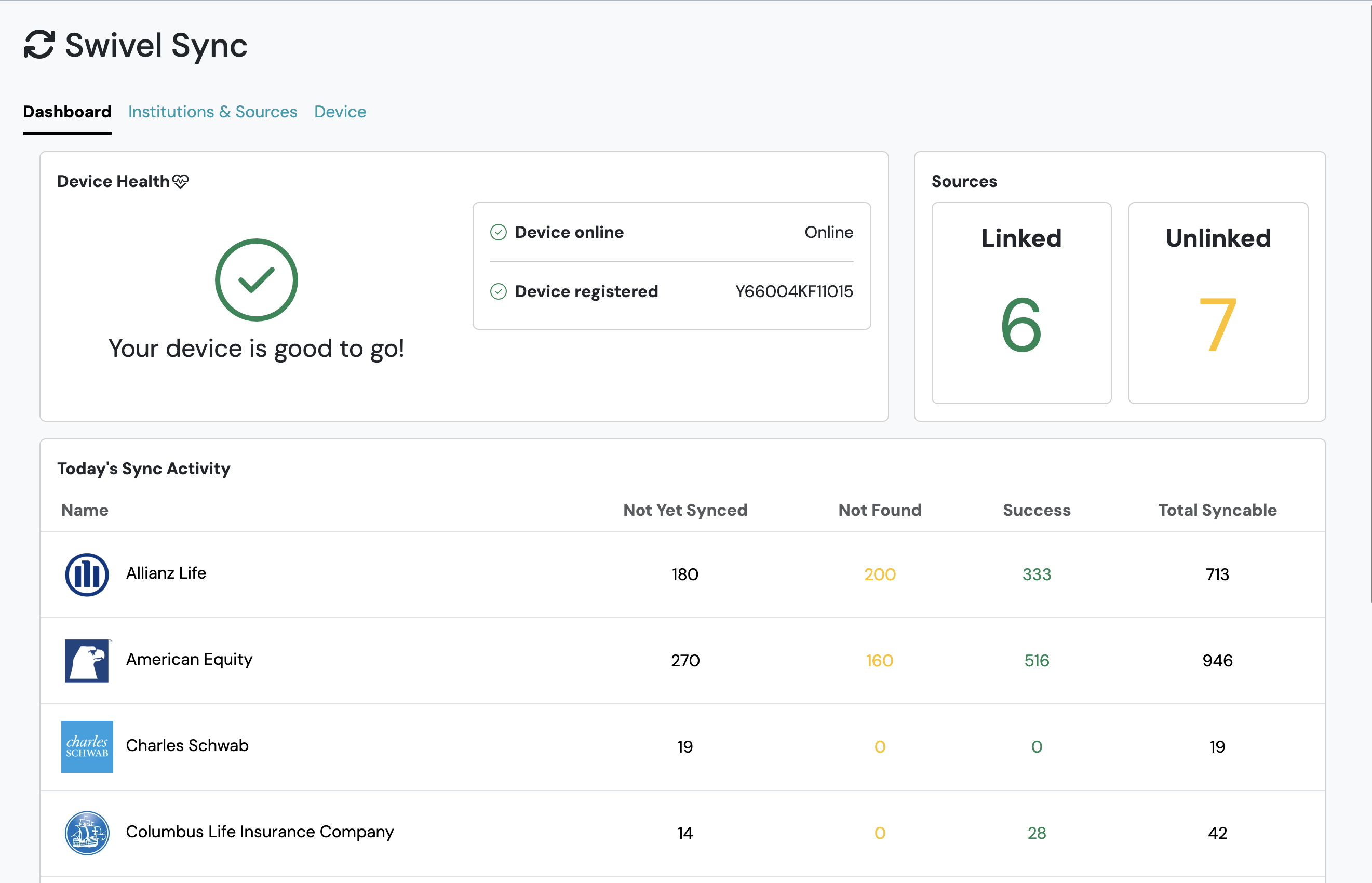
Section titled “Dashboard”The Swivel Sync dashboard gives you a clear view of the most important activity to monitor throughout your day. Each widget highlights key information about your device, sources, and sync activity so you can quickly identify where attention is needed.
Device Health
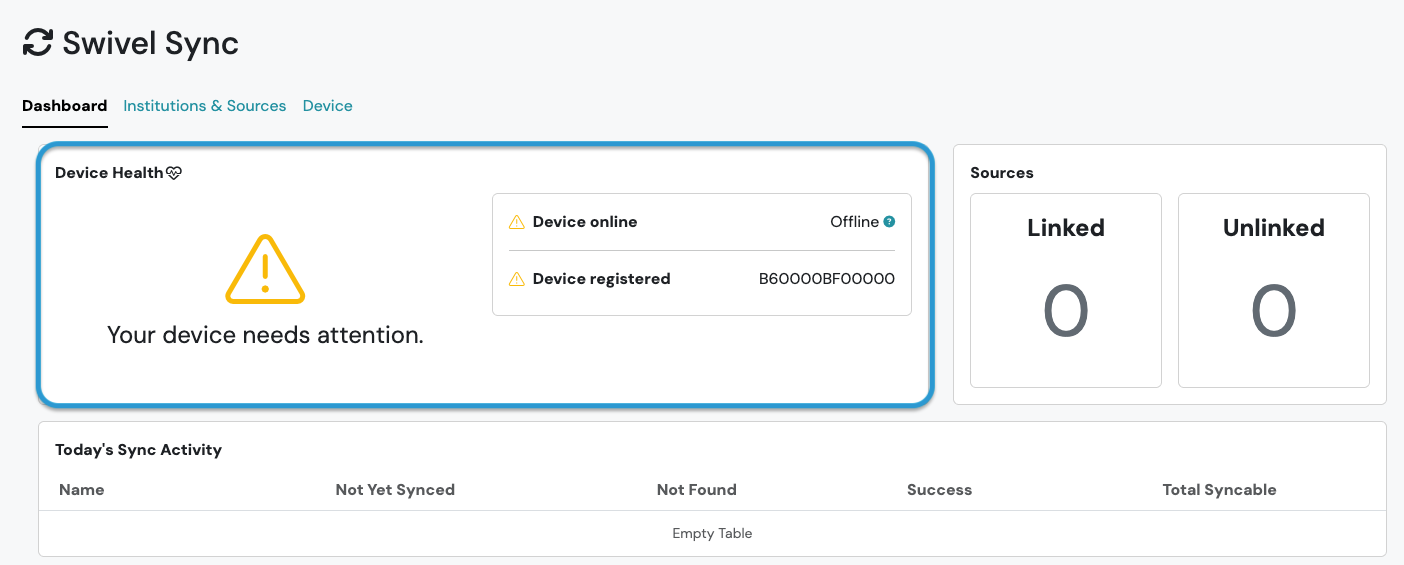
Section titled “Device Health”The Device Health widget displays the current status of your Swivel Sync device and alerts you when action is required (for example, when the device goes offline). If the device is offline, updates cannot sync to your connected policies and accounts.
Sources
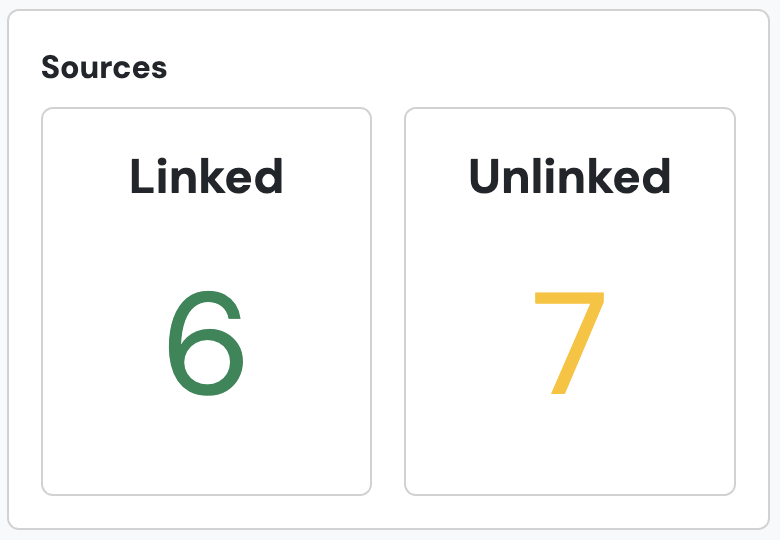
Section titled “Sources”The Sources widget shows which login sources are linked or unlinked.
Keeping sources linked ensures that all associated policies and accounts continue to update properly. If a source becomes unlinked, those policies will not sync until the source is reconnected.
Sync Activity
Section titled “Sync Activity”Sync Activity provides the most relevant sync attempt across all syncable policies within a rolling last 7-day period.
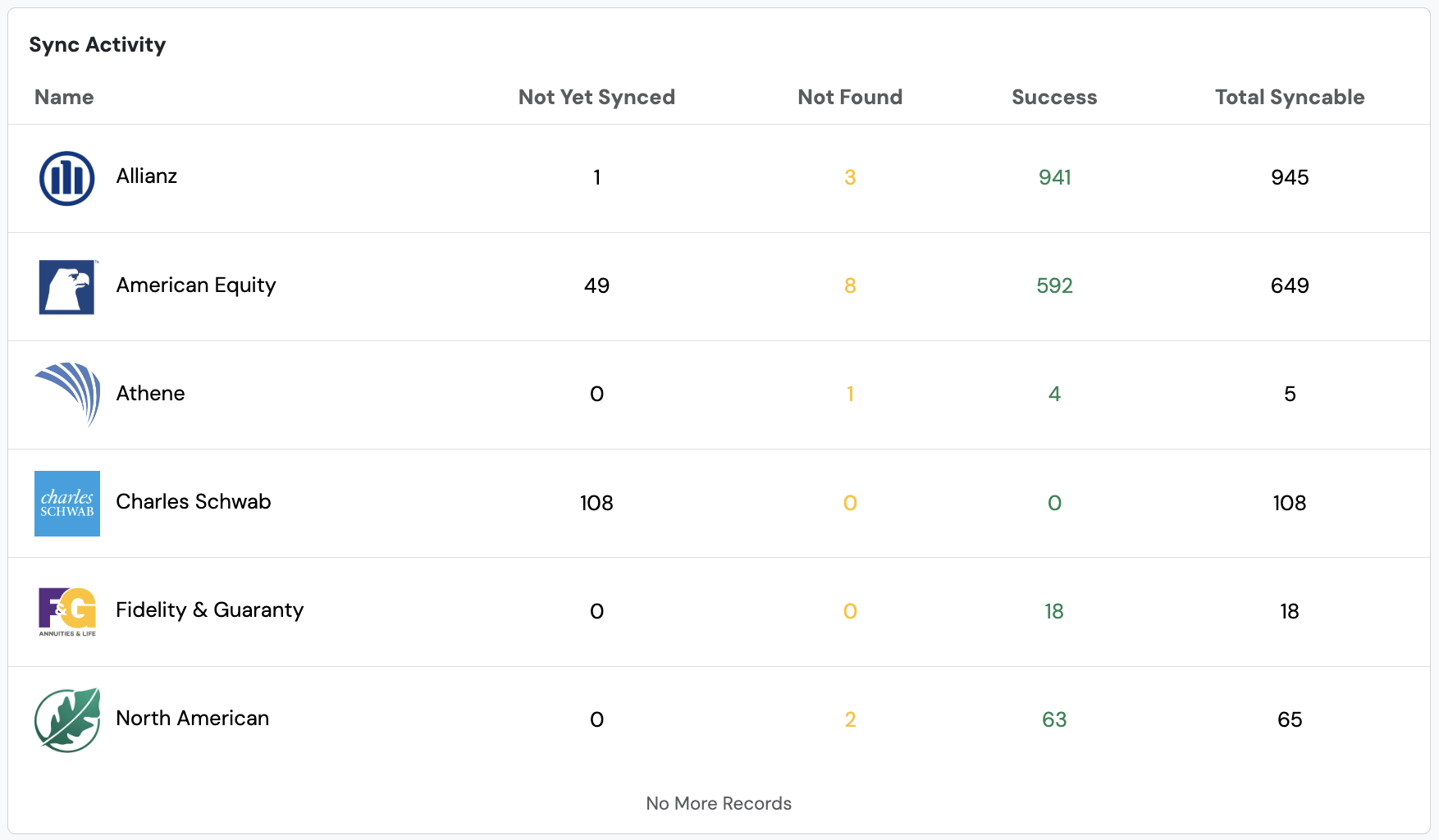
This breakdown gives you a clear picture of which policies have successfully updated, which may require follow-up, and which still need to be synced for the day.
| Not Yet Synced | • Policies and accounts that have not yet been successfully synced by any linked source within the last 7 days. |
|---|---|
| Not Found | • Policies and accounts that returned Not Found on every source that attempted them in the last 7 days, with no successful sync from any source. • Not Found means the policy or account can’t be identified or located on the carrier or institution website with the login sources provided |
| Success | • Policies and accounts that have at least one successful sync attempt from any linked source within the last 7 days. |
| Total Syncable | • Sum of all policies and accounts eligible to sync. • Syncable means eligible policies and accounts with pending or open product status type from a supported carrier or institution. |
Understanding Sync Activity Metrics
Section titled “Understanding Sync Activity Metrics”Your Sync Activity numbers move over time, and that’s expected. This section explains how the syncing engine fills those numbers, why the counts rise and fall from day to day, and how to tell the difference between normal fluctuation and a count that actually needs attention. For what each individual metric means, see the Sync Activity section.
How the Sync Queue is Prioritized
Section titled “How the Sync Queue is Prioritized”Each linked login source builds its own queue of all the policies and accounts it has access to. The queue is ordered by priority so the work that matters most is attempted first, and the source works through it continuously while linked.
Within a source’s queue, products are ordered like this:
- Policies with a manual force sync request
- Policies that have never been successfully synced by this source
- All other policies last synced successfully by this source
- Policies whose last attempt by this source did not return a value
- Policies whose last attempt by this source returned Not Found
A couple of things worth knowing about how the queue works:
Section titled “A couple of things worth knowing about how the queue works:”- Every policy stays in the queue. All eligible products are queued together and ordered by priority, including policies that previously returned Not Found.
- Each source operates on its own. Status is tracked per source, so a Success or Not Found result from one source does not stop another source from attempting the same product. If you have multiple login sources for the same carrier, each one works its own queue independently.
Why Your Sync Counts Change Day to Day
Section titled “Why Your Sync Counts Change Day to Day”If you’ve synced everything and noticed your “not synced” number still moving from one day to the next, that’s expected. It’s the system working as intended.
A changing count is normal and usually isn’t a sign of a problem. The number that actually warrants attention is Not Found.
The counts reflect a rolling 7-day window
Section titled “The counts reflect a rolling 7-day window”Every metric in Sync Activity (Not Yet Synced, Not Found, Success, and Total Syncable) is measured over the most recent 7 days, not since the beginning of time. A policy counts as a Success as long as it had at least one successful sync attempt during that window.
As each day passes, the window moves forward with it. Once a policy’s most recent successful attempt slips outside the last 7 days, that policy rolls back into Not Yet Synced until a source picks it up again. Because the window is always sliding forward, the counts move with it, even on a day when you haven’t touched anything.
Why a large batch can “reappear” about a week later
Section titled “Why a large batch can “reappear” about a week later”This is the most common reason the count jumps up unexpectedly. When you sync a large batch of policies on a single day, all of those successes share roughly the same “expiration date” in the rolling window. About 7 days later they age out together. Any that a source hasn’t successfully synced again in the meantime will move back into Not Yet Synced at around the same time, so the number can climb again even though nothing has gone wrong.
The remedy is simply continued, consistent syncing. As your sources stay linked and keep working their queues, those policies get attempted again and return to Success. This is also why running a manual sync on a group of policies one day can be followed, about a week later, by a brief rise in the Not Yet Synced count.
Some carriers fluctuate more than others
Section titled “Some carriers fluctuate more than others”How much of a source’s queue can be completed within any 7-day window depends on three things:
- (1) how long that carrier keeps a link session open,
- (2) how many policies the source covers, and
- (3) how consistently the source stays linked.
Carriers with shorter link sessions (or sources that only get linked once every day or two) are the most likely to not reach every policy within 7 days, so their counts fluctuate the most. For those carriers this is expected behavior.
When is syncing “complete”?
Section titled “When is syncing “complete”?”There isn’t a fixed “done” state, and that’s by design. Swivel Sync is built to keep your policy data current continuously, so the work is ongoing rather than a task you finish once, and the count never has to land on zero. Instead of waiting for Not Yet Synced to reach zero, read the dashboard this way:
- Not Yet Synced moving up and down: expected. The background process is doing its job across the rolling window.
- Success holding steady or trending up over time: a good sign that things are working.
- Not Found: this is the one to investigate. It means Swivel Sync attempted the policy but couldn’t locate it with the carrier using your current login sources.
Understanding Low Success Counts
Section titled “Understanding Low Success Counts”If your Sync Activity is returning lower success counts than you expect, the cause is usually one of two things:
Initial setup time
Section titled “Initial setup time”After a login source is first created and linked, Swivel Sync works through the queue of syncable policies in the background. Success counts will rise as those sync attempts complete.
Sources aren’t staying linked
Section titled “Sources aren’t staying linked”A source can only sync while it’s linked. If one of your sources drops or doesn’t get linked daily, the policies it covers won’t make progress through the queue, and your overall success counts will reflect that. Check the Sources widget on the Dashboard to confirm everything you expect to be linked actually is.
Institutions & Sources
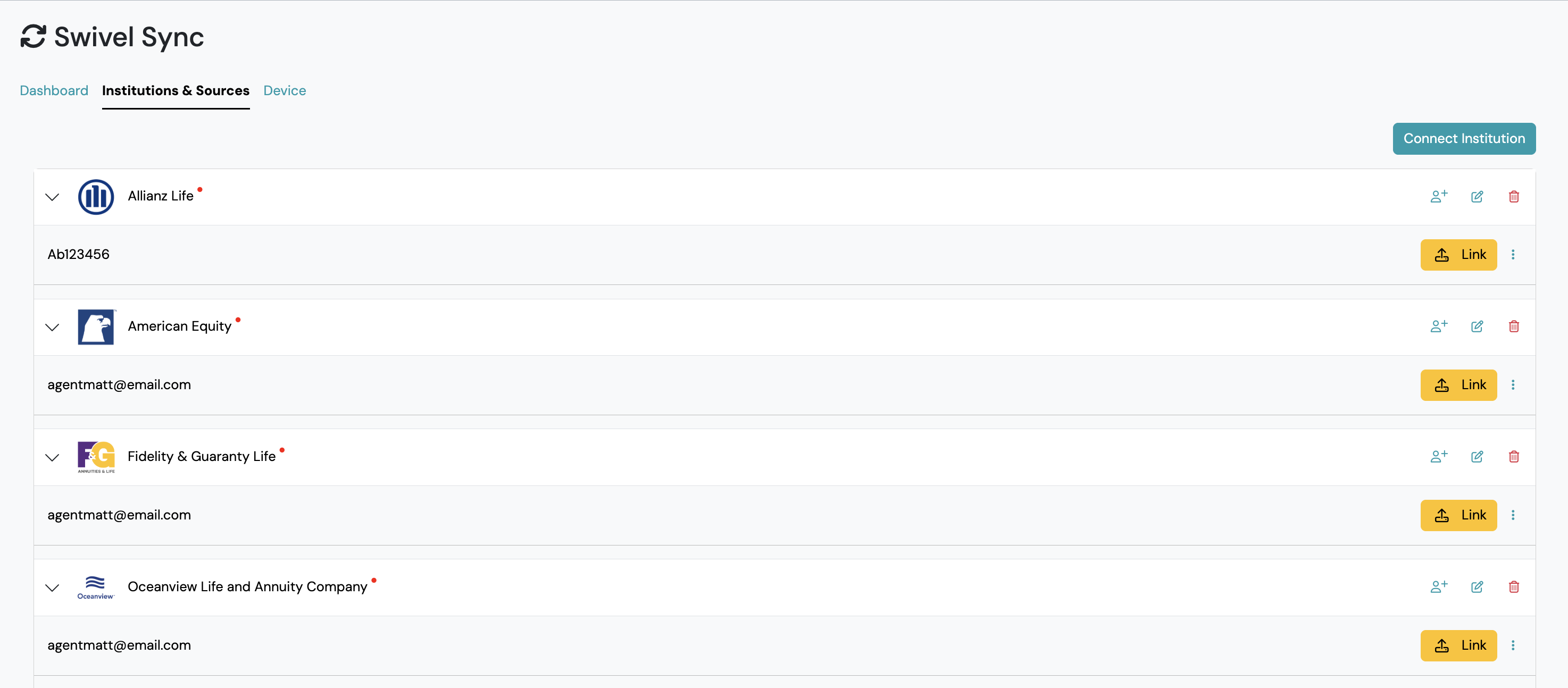
Section titled “Institutions & Sources”The Institutions & Sources tab provides the ability to manage and configure all connected institutions and login sources needed to sync and update your policies and accounts.
Device
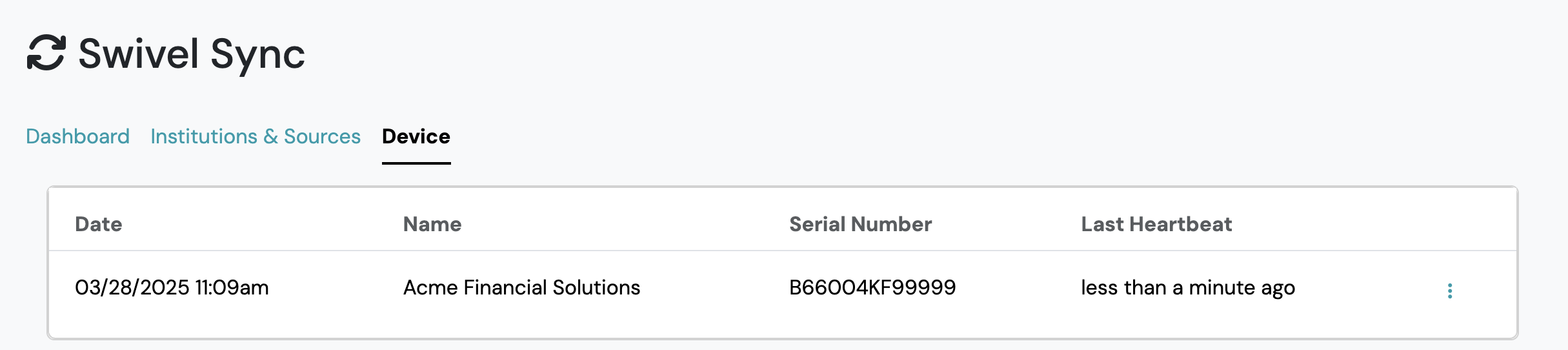
Section titled “Device”The Device tab provides the ability to configure and connect your assigned Swivel Sync device to your specific Swivel account.