Redtail to Swivel Import
Redtail Migration FAQs
General
Section titled “General”How long will it take to download my file from Redtail?
It depends on the size of your file, and ranges from a few minutes to several hours. Redtail will send you an email confirmation when your file has been prepared and ready for download. Please visit Redtail’s knowledgebase to learn more.
Mapping and Managing Imported Users
Section titled “Mapping and Managing Imported Users”Can I merge users?
No, you must archive or delete the user. Once an account user is deleted, the user is no longer a valid option for searching and filtering any existing record data associated to the deleted account user. Please visit Managing User Access to learn more.
Should I Delete or Archive users?
We recommend Archiving users for data integrity. To archive a user, please visit Archiving Users.
To learn more about deleting a user, please visit our FAQS: User Management
Why do most of the users say "disabled"?
During the user mapping, all users will default to disabled because Swivel brings over all users, including users who are no longer active in your account, to ensure data integrity. After the import is complete, simply Archive users who will not need access to Swivel. Next, you will enable and send a notification for any active users.
To Enable and Notify users:
Section titled “To Enable and Notify users:”-
From the main navigation menu, click > Settings > Account > Users
-
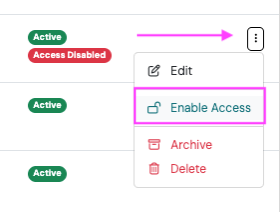
Click the three-dot Action Menu next to the user’s name and select Enable Access
-
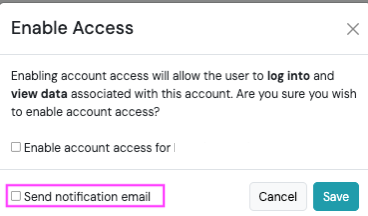
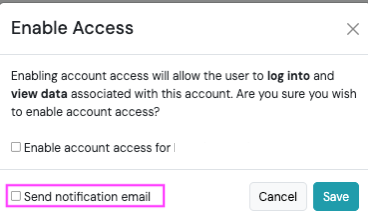
In the Enable Access pop-up, check Enable access and Send Notification Email
-
Click Save
Note, you must select Send Notification Email to generate the invitation for existing users to log into Swivel.
Should I send new user invite to current team members if they were already imported?
No, simply follow the steps to enable access for the user. Be sure to select “Send Notification Email”.
To Enable and Notify users:
Section titled “To Enable and Notify users:”-
From the main navigation menu, click > Settings > Account > Users
-
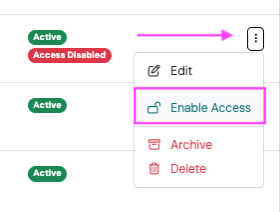
Click the three-dot Action Menu next to the user’s name and select Enable Access
-
In the Enable Access pop-up, check Enable access and Send Notification Email
-
Click Save
Note, you must select Send Notification Email to generate the invitation for existing users to log into Swivel.