Start Here: Contacts Basics
Understanding the Contact Record
What is the Contact Record?
Section titled “What is the Contact Record?”The Contact View is where all pertinent information about a contact is displayed. It’s like having a detailed profile page for each individual or organization in your account. It includes basic details like name, contact information, notes, and tags plus more dynamic data such as communications, their product information, and meeting history.
Contact Card
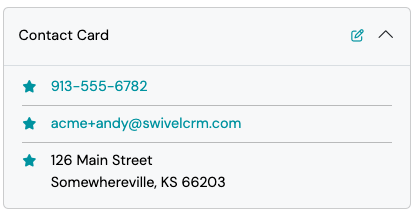
Section titled “Contact Card”The Contact Card is the first tile on the Contact View and displays the contact’s Phone Number, Email Address, and Address(es). It is also where you can mark a contact as DND.
Contact Details
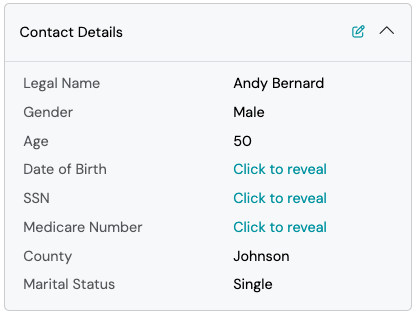
Section titled “Contact Details”The Contact Details tile displays the contacts name and other personal details such as DOB, SSN, and Gender.
General Information
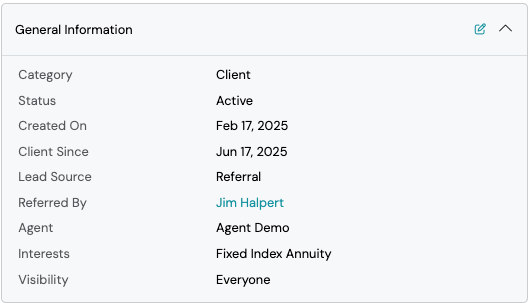
Section titled “General Information”The General Information tile displays the Contact Category, Contact Status, and other information relating to internal information for the contact.
Notes, Tasks, and Workflows
Section titled “Notes, Tasks, and Workflows”Contact Notes, Tasks, and Workflows display on the right panel
A Note allows you to log information about your contact as well as captures and displays the date, timestamp, and user who created the note. This is great for logging contact interactions such as phone calls and other information.
These are Tasks specific to the contact such as “call back on Friday.”
Workflows
Section titled “Workflows”These are workflows specific to the contact such as “Onboarding New Client.”
Additional Sections
Section titled “Additional Sections”Below the Contact Card, Contact Details, and General Information tiles you will find sections that display the contact’s products, appointments, events, opportunities, documents, communications log and client portal (if applicable).
You have the ability to rearrange these sections, as well as toggle sections on and off by utilizing the Configure button.
Contact Relationships
Section titled “Contact Relationships”Use View Associations to:
Section titled “Use View Associations to:”- Link related contacts (spouse, child, etc.)
- Manage relationships
Referrals
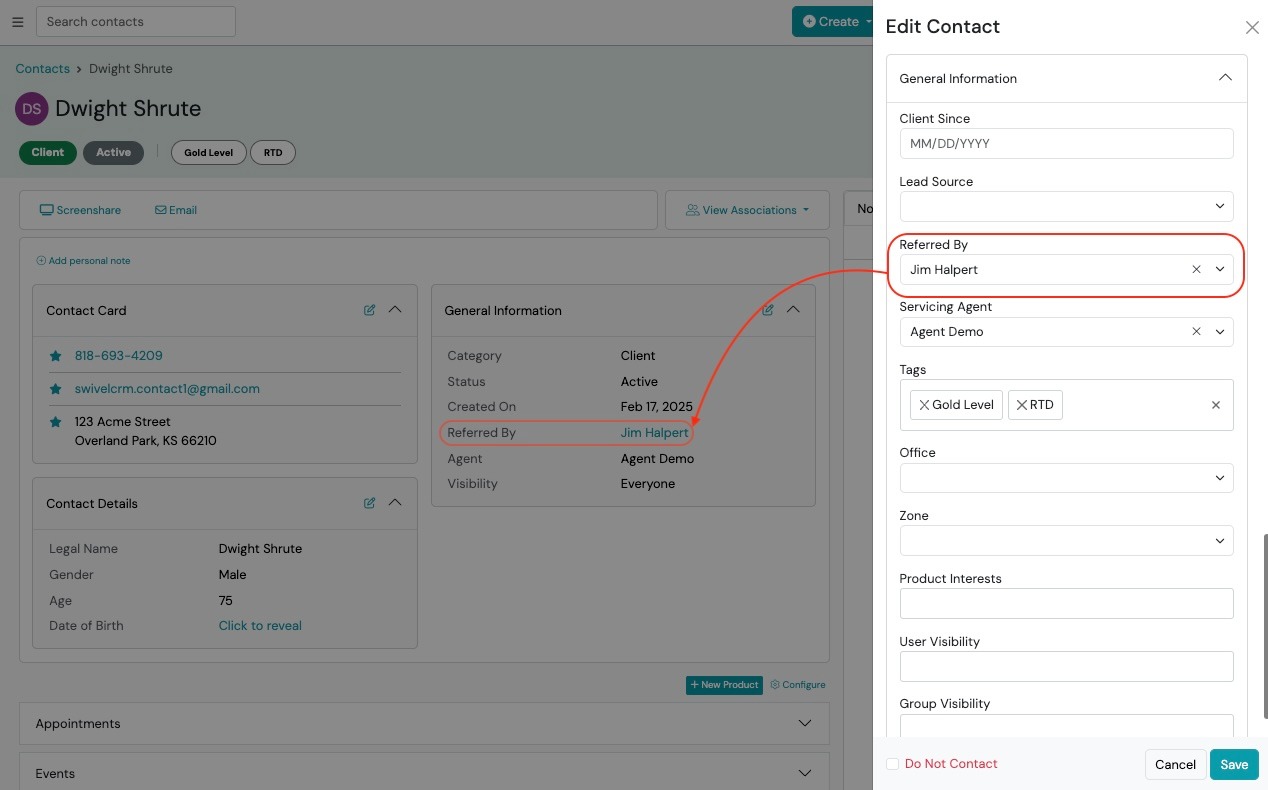
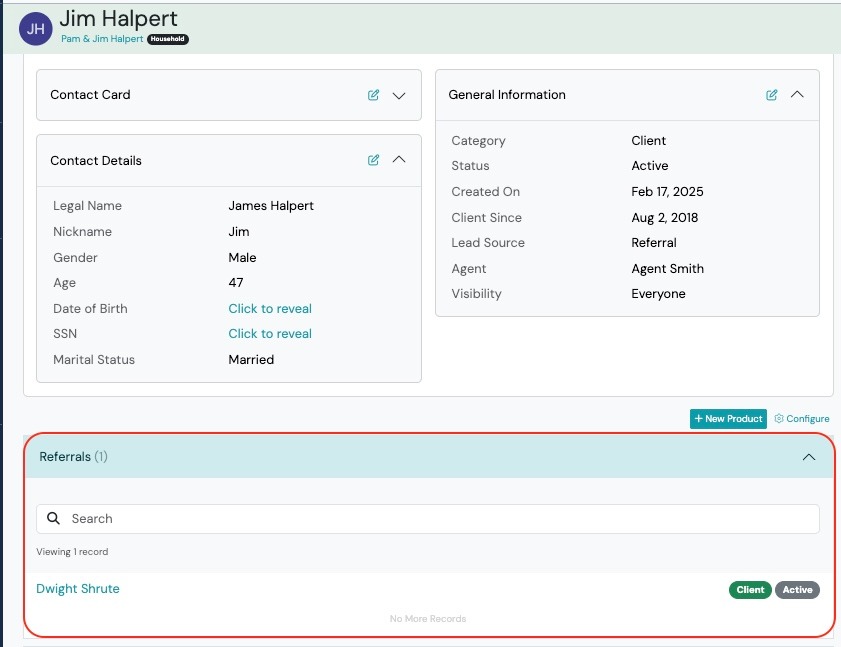
Section titled “Referrals”If a contact in Swivel has been attached as a referral in the “Referred By” field, all of their referrals will show under the “Referral” Accordion in their contact record.
For example, in the images below, Dwight Shrute was referred by Jim Halpert. In Jim Halpert’s Referrals Accordion, you can see Dwight Shrute’s name displayed as Jim was the source of that referral.