

Products
How to Fix an Incorrect Product on a Client Record
Learn to replace an incorrect product on a contact's record when product value entries prevent you from changing it. Delete the entries, then select the correct product or create a new one.
You may notice that the wrong product was entered or selected on a contact’s record. For example, the record shows Allianz 222 Annuity, but it should be Allianz 222+ Annuity.
You can update the product to the correct one, but you must first delete any existing product value entries.
When you try to update a product that has product value entries, you may see:
Cannot change between products when values are present
This message appears because the product has existing product value entries. If you see this message, delete the product value entries first. You can then update the product and select the correct one.
Delete the Product Value Entries
Section titled “Delete the Product Value Entries”- Go to the contact’s record.
- Find the product you want to replace.
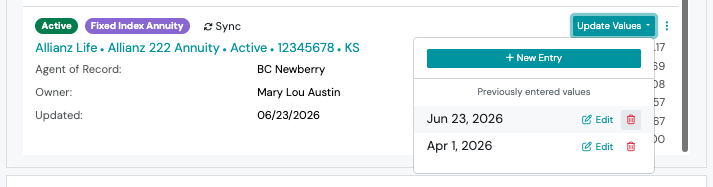
- Select Update Values.
- Select the trash can icon next to a product value entry.
- In the confirmation window, select Delete Entry.
- Repeat for each product value entry.
Update the Product
Section titled “Update the Product”- Open the product you want to update.
- Select the three-dot action menu > Edit.
- In the Product field, select the correct product from the dropdown. If the correct product isn’t available, highlight the current product name and type the correct product name. A New badge appears as you type, confirming that you’re creating a new product.
- Confirm that the Institution assigned to the product is correct.
- Select Save.