

Adding & Managing Policy and Account Values
Values for Policies and Accounts
What are Values?
Section titled “What are Values?”Values (formerly known as registers) represent the different types of values you can store for a given account or policy. For example, specific types of life insurance policies may capture the Premium, Cash Value, and Accumulation Value of the policy.
Swivel comes pre-configured with the following Values:
- Cash Value
- Face Value
- Surrender Value
- Death Benefit
- Account Value
- Total Premium
- Annual Premium
- Monthly Premium
Values display on the Product section of the contact’s page as well as their Swivel Summary.
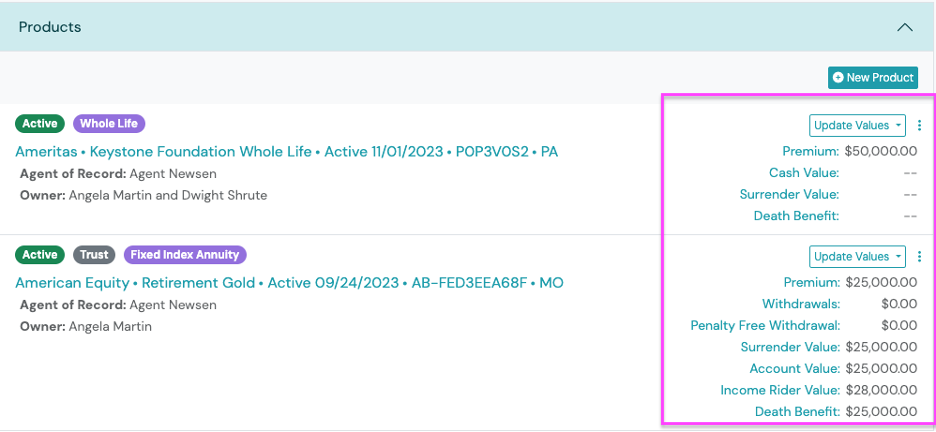
Update Values vs. Manage Values for Policies and Accounts
Section titled “Update Values vs. Manage Values for Policies and Accounts”For example, in the policy displayed above, this American Equity product has a Death Benefit (Value) of $25,000.000 (the balance of this Value as of a specific date).
Update Values
Section titled “Update Values”The Update Values button is used to enter the balance information for a given Value.
Update Product Values (on Contact page)
Section titled “Update Product Values (on Contact page)”-
From any contact record, navigate to the Products tab.
-
Find the desired product you have two options to update values:
- Option 1: Click the Update Values button then > click +New Entry.
- Option 2: Click the three dot Action Menu > select +Update Values
-
Enter a balance amount for each applicable value.
-
Click Save.
Manage Values
Section titled “Manage Values”The Manage Values button is used to track the different Values associated to a Product.
Add New Value(s) for Products
Section titled “Add New Value(s) for Products”- Navigate to the desired Contact and, if necessary, create the desired Product.
- From the Product > click the three-to action menu and select Manage Values
- Complete the Manage Values slide out form.
- Click Save.
Edit Value(s) for Products
Section titled “Edit Value(s) for Products”- From the Product tile on the contact page > click the three-to action menu and select Manage Values
- Complete the Manage Values slide out form.
- Click Save.
Sync Names (for Swivel Sync)
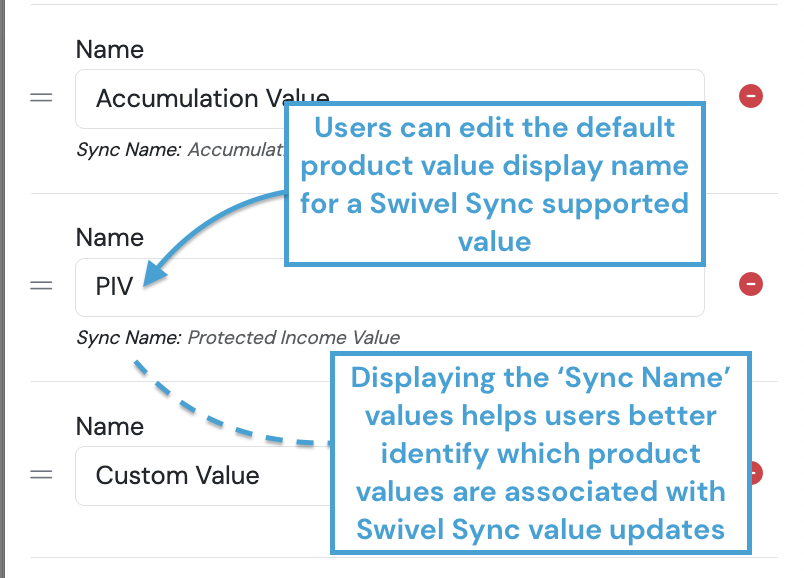
Section titled “Sync Names (for Swivel Sync)”For Swivel Sync supported products and carriers, the Manage Value screen will also display Sync Name information. Sync Name represents the value name retrieved from the corresponding product, carrier and/or institution.
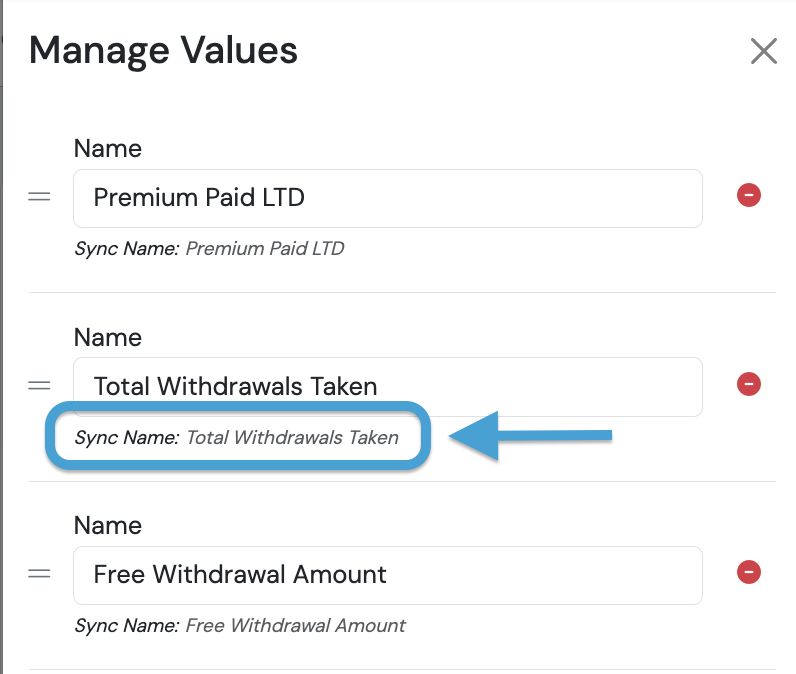
Users can customize the default product value display name for any Swivel Sync-supported product value.
Sync Name cannot be edited or changed.
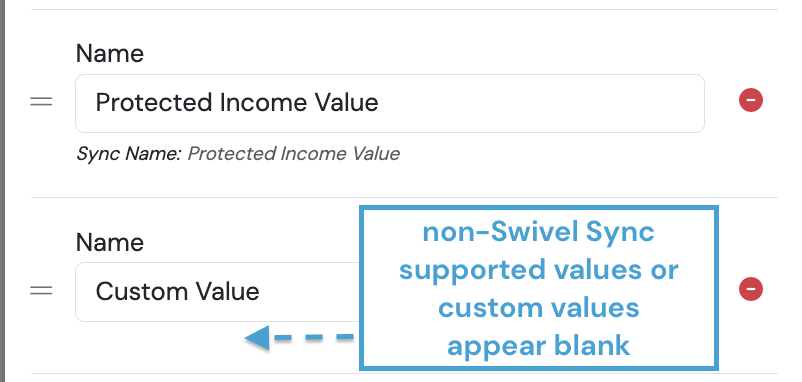
Custom Values do not have Sync Name information and will display as blank.
Delete Value(s)
Section titled “Delete Value(s)”Swivel will only allow you to delete Values that do not have associated data.
- To delete a Value, > click the three dot Action Menu > click the red toggle next to the value you wish to delete.
Can I change a product and keep the values?
Section titled “Can I change a product and keep the values?”To change the product for a given policy or account, users will need to delete any associated value entries that may exist.
Delete Value Entry Logs
Section titled “Delete Value Entry Logs”- To delete the value entry logs, click the value name (e.g. Account Value).
- Go to a specific value entry > action menu > select delete option.
- Continue this step until all entries are deleted for each value.
- Once all value entries are deleted, you can proceed to edit the product name for that respective account or policy.
Related Article: How to Fix an Incorrect Product on a Client Record