Adding & Managing Policy and Account Values
Values & Transactions
What are Values and Transactions?
Section titled “What are Values and Transactions?”Values and Transactions represent the ways we view, store and manage policy and account values in Swivel.
Values
Section titled “Values”A value (formerly referred to as register) represents the different types of values you can store for a given account or policy.
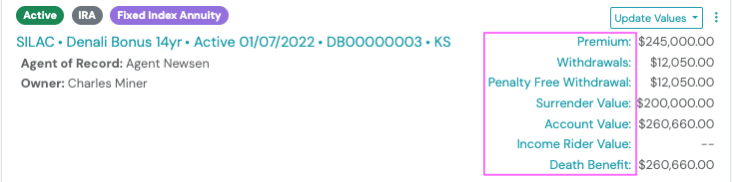
- Represent the values a client expects to see when viewing a typical policy or account statement, or when accessing their policies and accounts online.
- For example, specific types of life insurance policies may have Premium, Cash Value, Accumulation Values, etc.
Manage Values
Section titled “Manage Values”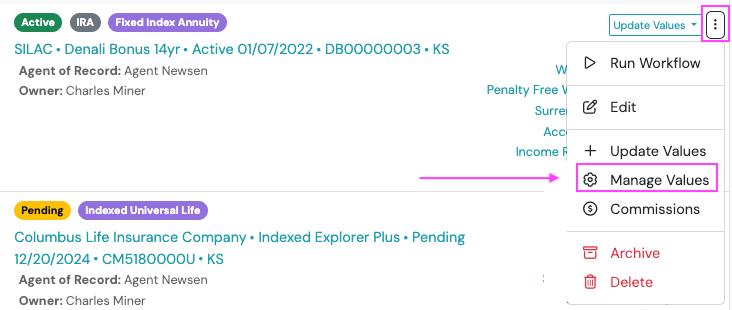
Creating and Editing Value Names
Section titled “Creating and Editing Value Names”-
Navigate to the product card > click the three dot Action Menu > select Manage Values
-
Complete the Manage Values form
- Edit the Name and/or
- Click the +Add Value button and enter the new Value Name
-
Once the desired changes have been made, > click Save.
Deleting Value Names
Section titled “Deleting Value Names”-
Navigate to the product card and > click the three dot Action Menu > select Manage Values
-
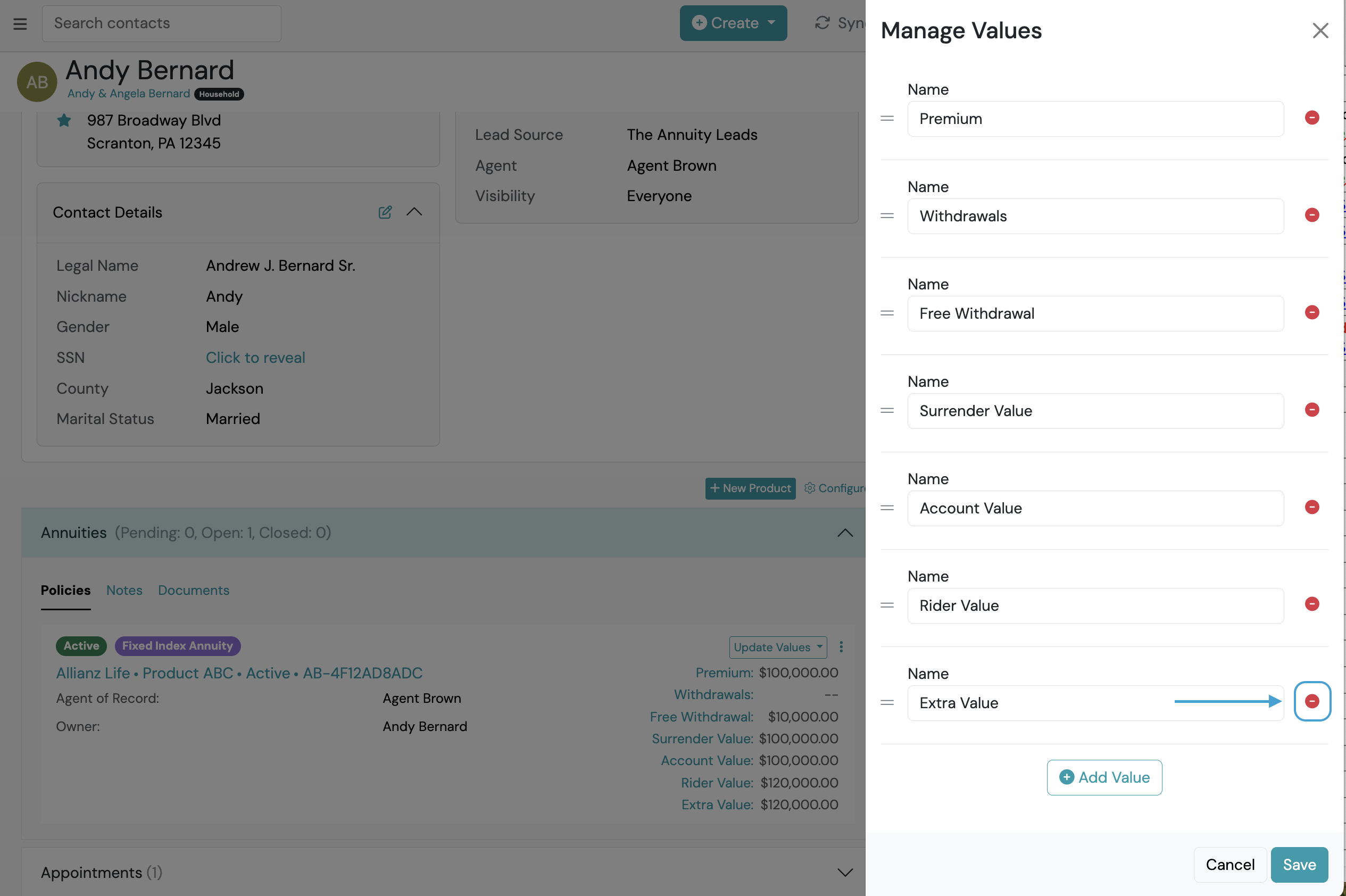
Find the value you want to delete > click the delete icon.
-
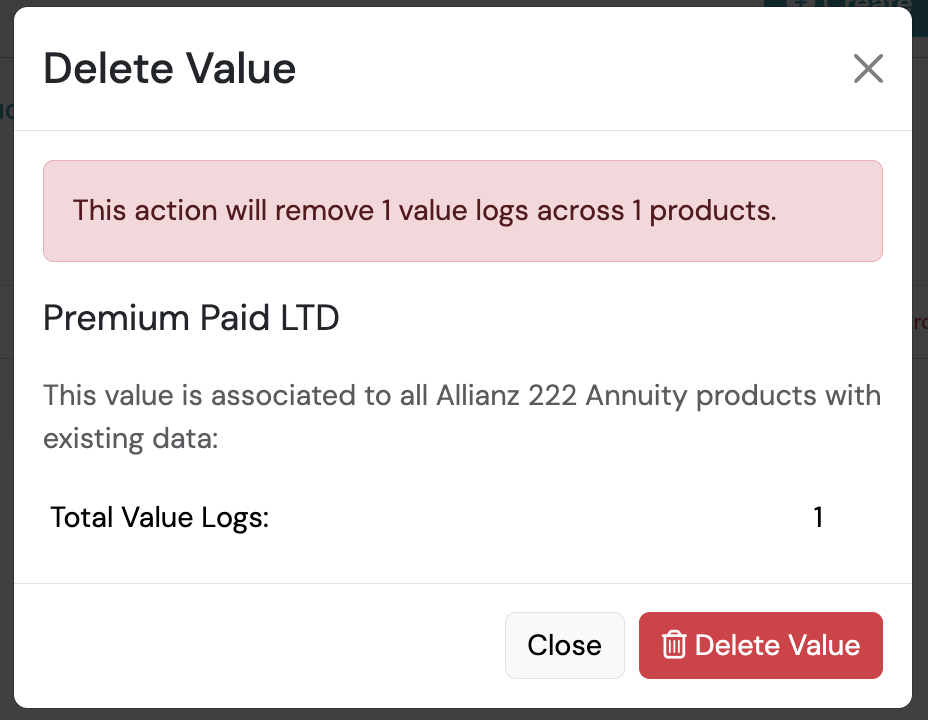
Delete Value pop-up appears. Confirm you want to delete all value entry logs associated to this value before proceeding.
-
Click Delete Value.
-
Repeat steps 3 and 4 as needed.
-
Click Close.
Contributions & Withdrawals
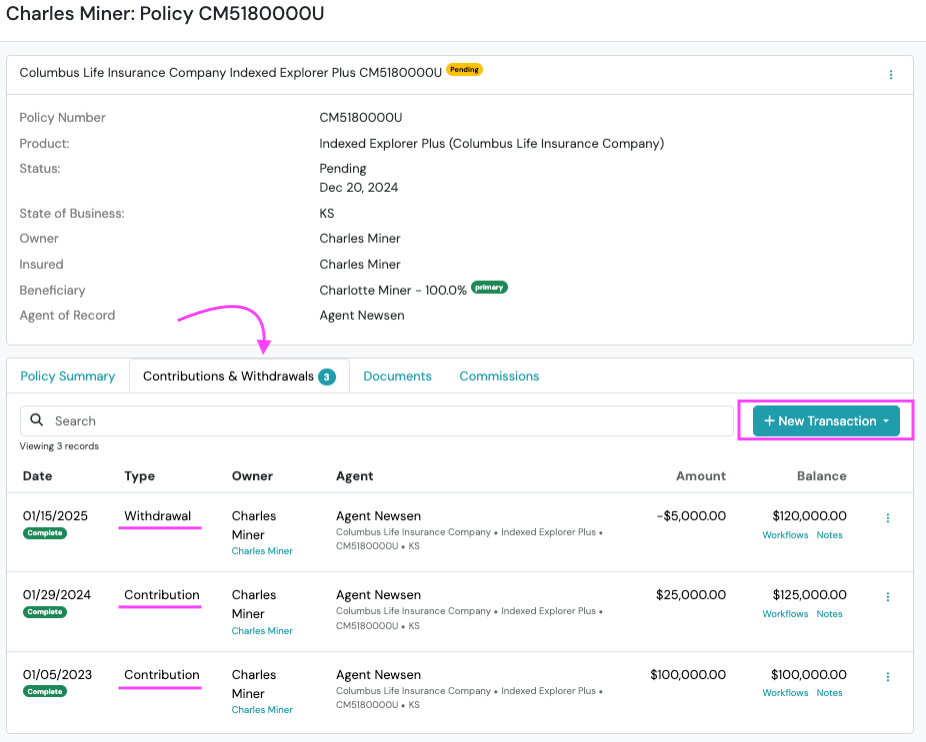
Section titled “Contributions & Withdrawals”A transaction type identifies the type of activity that occurs within an account or policy (ex. Withdrawal, Contribution, etc.), and is managed within the product’s Contributions & Withdrawals tab.
Add New Transaction
Section titled “Add New Transaction”- Navigate to the product card and < click the desired Product.
- Select the Contributions & Withdrawals and < click the +New Transaction button.
- Choose the Transaction Type from the dropdown and complete the Transaction slide out form.
- Click Save.
View Previous Value Entries
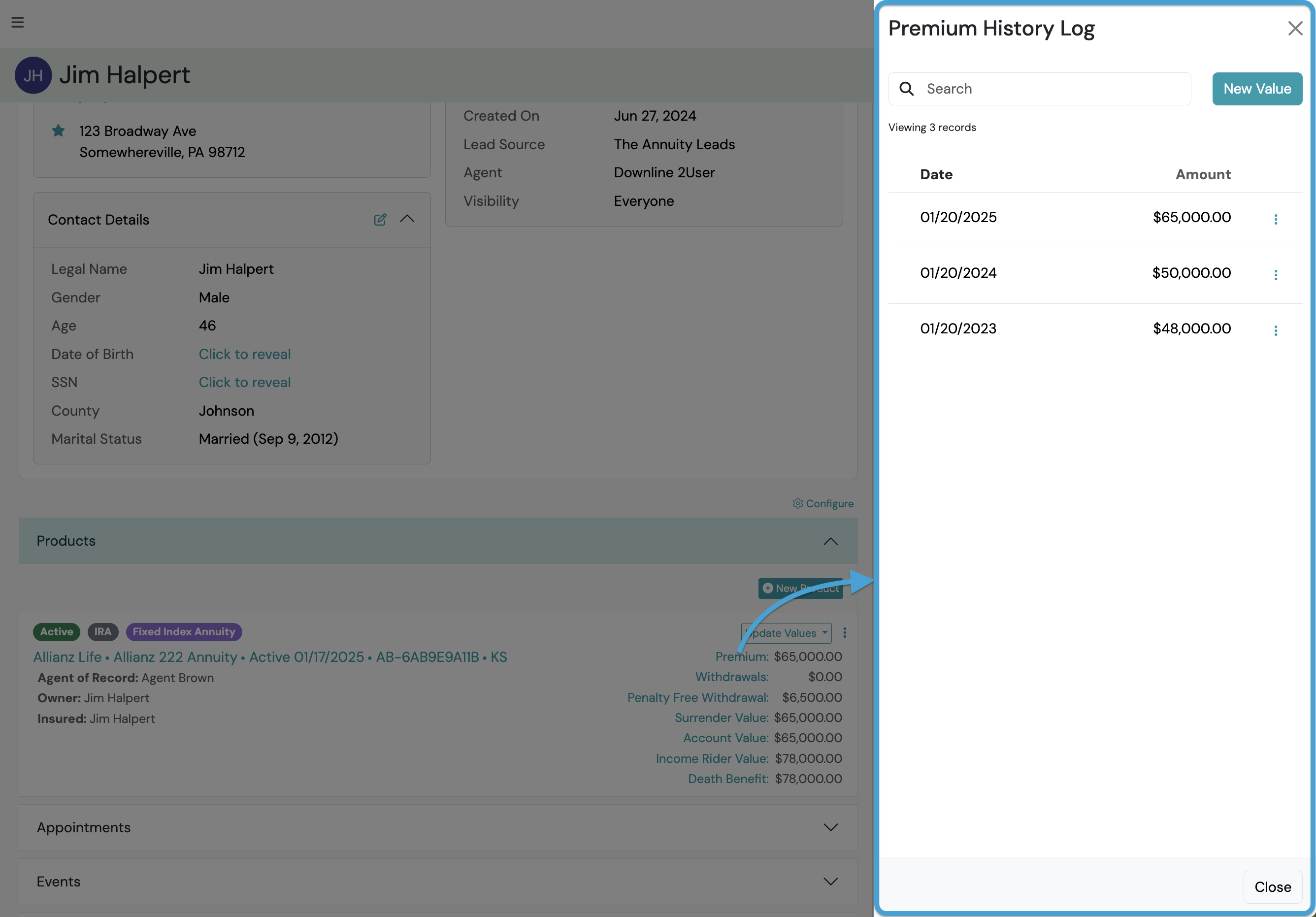
Section titled “View Previous Value Entries”To view a log of previous entires, > click the desired Value name and the history log will slide out.