Product
Products
A product is a specific offering within a product line and product type.
For example:
- Allianz 222
- American Equity IncomeShield
Adding a Product
Section titled “Adding a Product”-
From the left-side main menu, click the Settings tab > Advanced Setup
-
Select the Product section > click Products
-
From the Product page > click +New
-
Complete the New Product form
-
Product Offering Type
-
Name
-
Description
-
Institution
-
Default Statement Frequency
- None
- Monthly
- Quarterly
- Biannually
- Annually
-
Expire duration optional
-
Click Save.
-
Editing a Product
Section titled “Editing a Product”-
From the left-side main menu, click the Settings tab > Advanced Setup
-
Select the Product section > click Products
-
From the Product page > click or search for selected Product.
-
From the 3 dot action menu, select Edit or click the product name and then select Edit.
-
Complete the Edit Product form
-
Product Offering Type
-
Name
-
Description
-
Institution
-
Default Statement Frequency
- None
- Monthly
- Quarterly
- Biannually
- Annually
-
Expire duration optional
-
Click Save.
-
Manage Values
Section titled “Manage Values”Values represent what policy and account values are stored for a given product configured in Swivel. See also Values & Transactions.
Creating Value Names
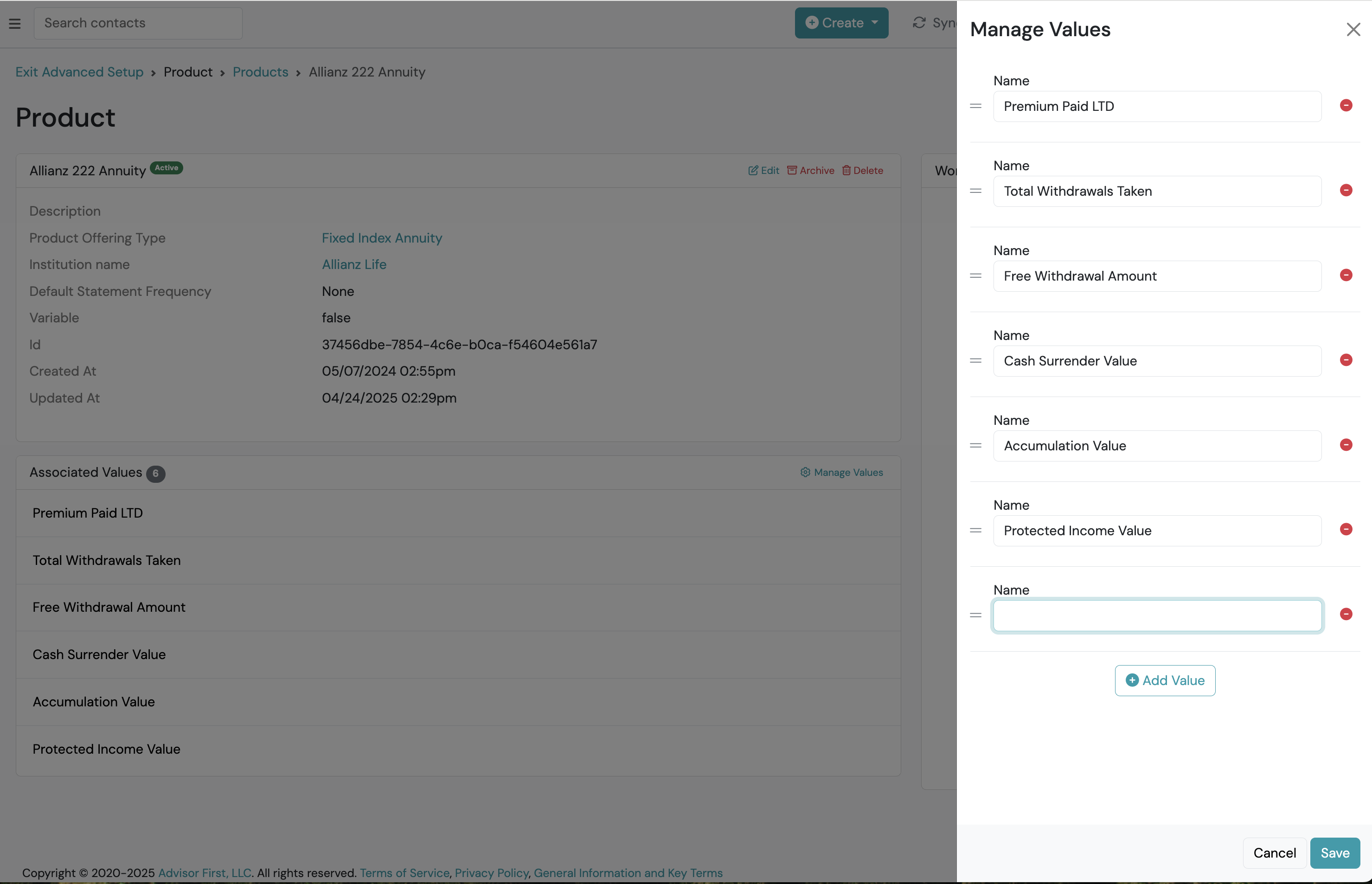
Section titled “Creating Value Names”Creating values for a specific product will allow users to store specific value data for any policy or account belonging to that respective product.
- From the product offering detail page, go to the Associated Values section > click Manage Values.
- To create a new value, click the +Add Value button > Type text in the Name field. Repeat this step as needed.
- Click Save.
Editing Value Names
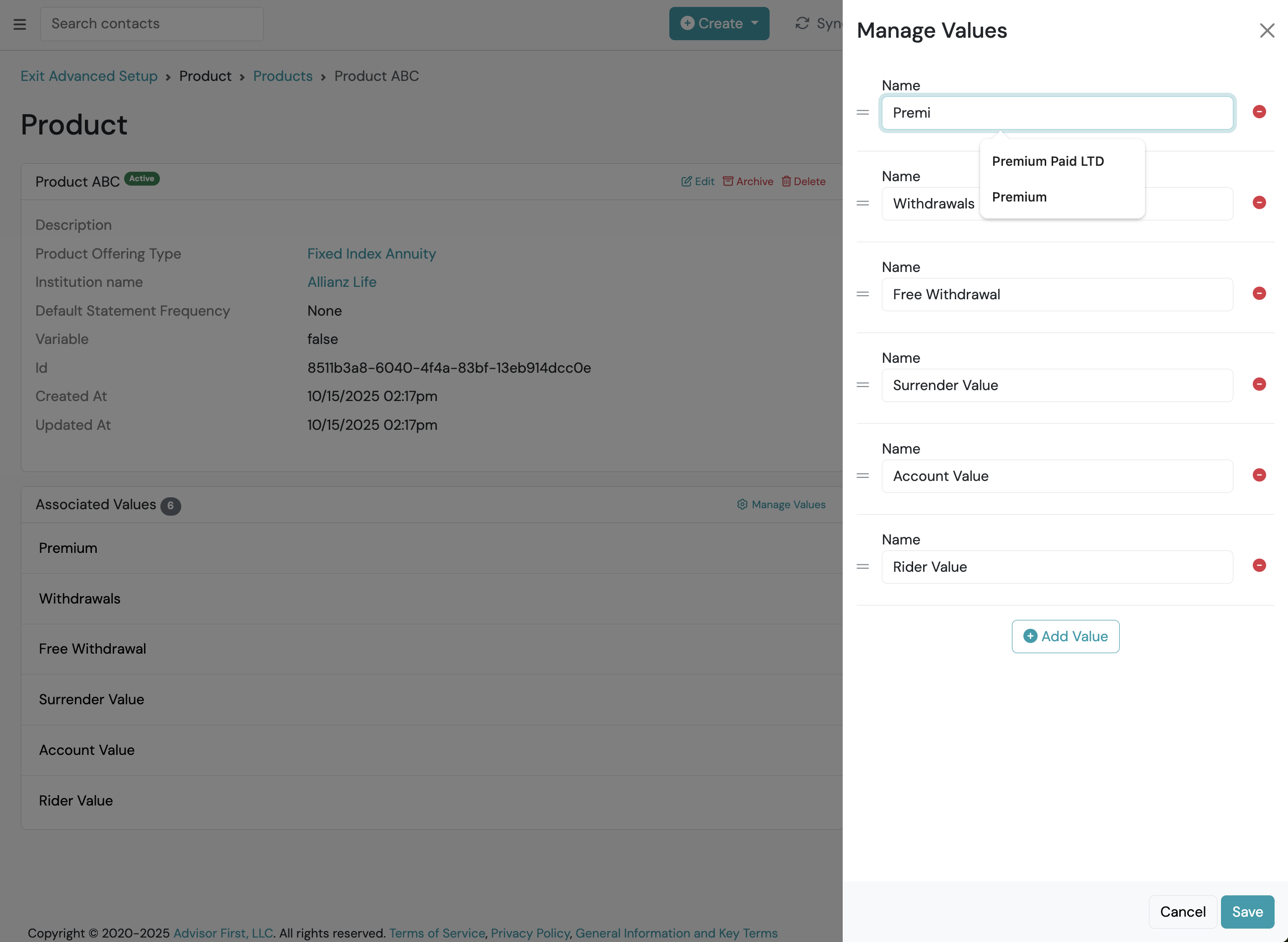
Section titled “Editing Value Names”- From the product offering detail page, go to the Associated Values section > click Manage Values.
- Find the value you want to update and click the Name field to edit. Repeat this step as needed.
- Click Save.
Deleting Value Names
Section titled “Deleting Value Names”-
From the product offering detail page, go to the Associated Values section > click Manage Values.
-
Find the value you want to delete > click the delete icon.
-
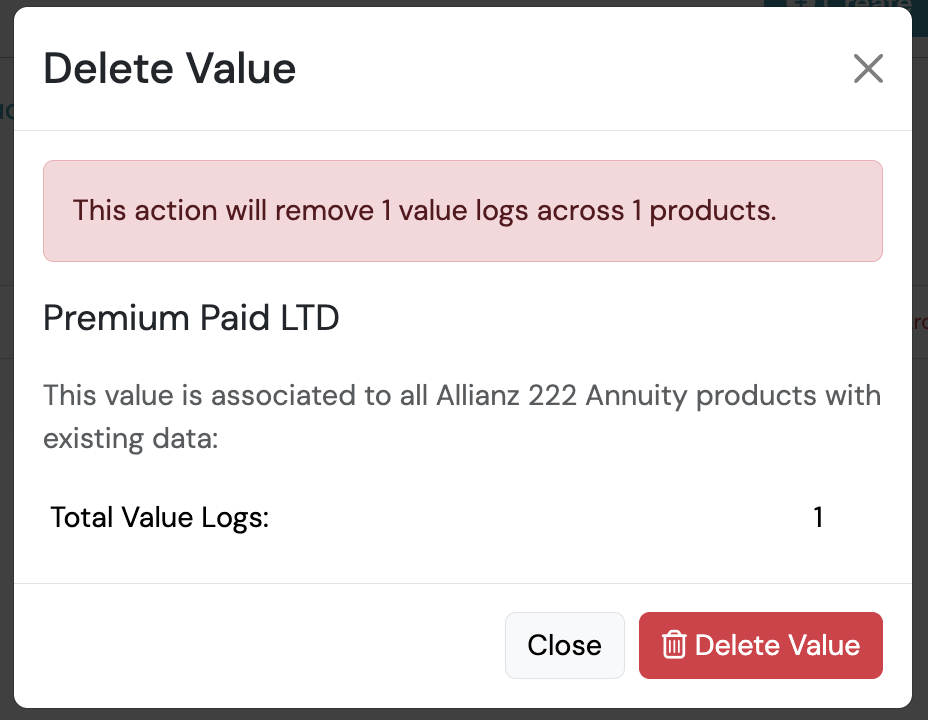
Delete Value pop-up appears. Confirm you want to delete all value entry logs associated to this value before proceeding.
-
Click Delete Value.
-
Repeat steps 3 and 4 as needed.
-
Click Close.
Merge Products
Section titled “Merge Products”-
Select the Product section > click Products.
-
From the Products page click

-
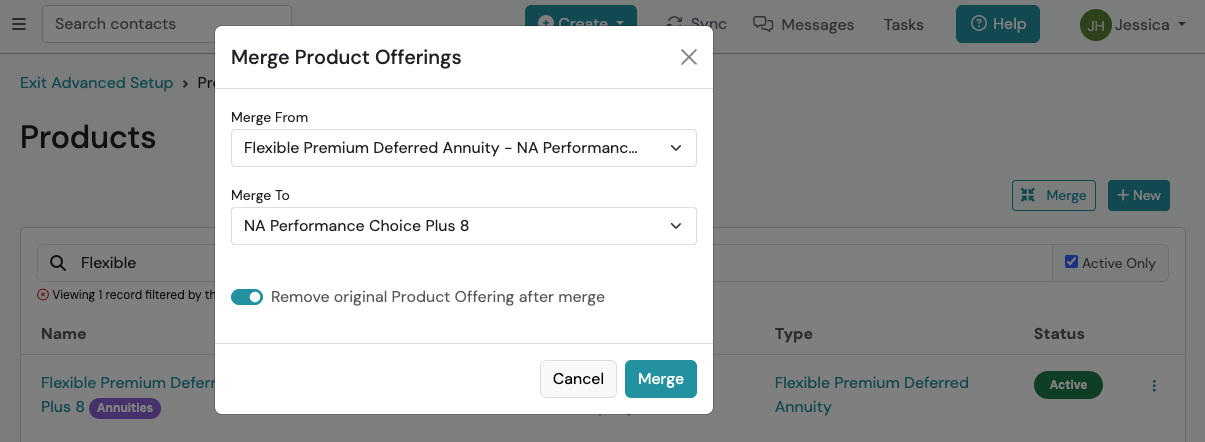
Complete the Merge Product Offerings form
- Merge From
- Merge to
- Remove original Product Offering after merge Recommended
-
Click Merge.
Example
Section titled “Example”A user wants to merge the following product to another product name.
| Original | Target |
|---|---|
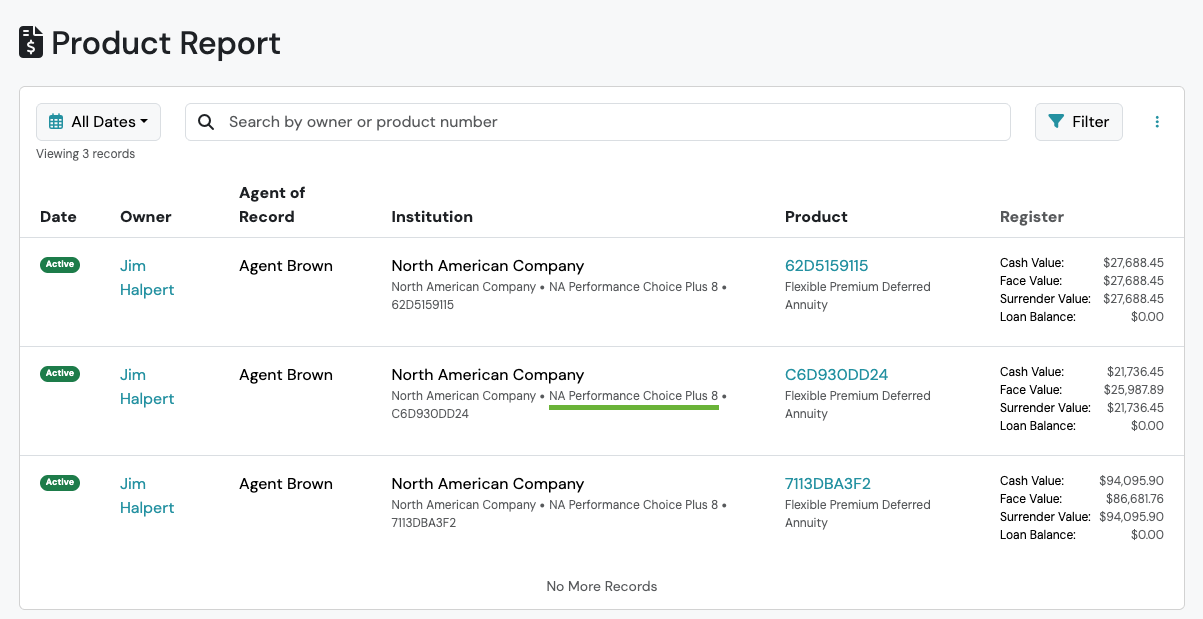
| Flexible Premium Deferred Annuity - NA Performance Choice Plus 8 | NA Performance Choice Plus 8 |
The Merge Product Offerings form is completed as the following:
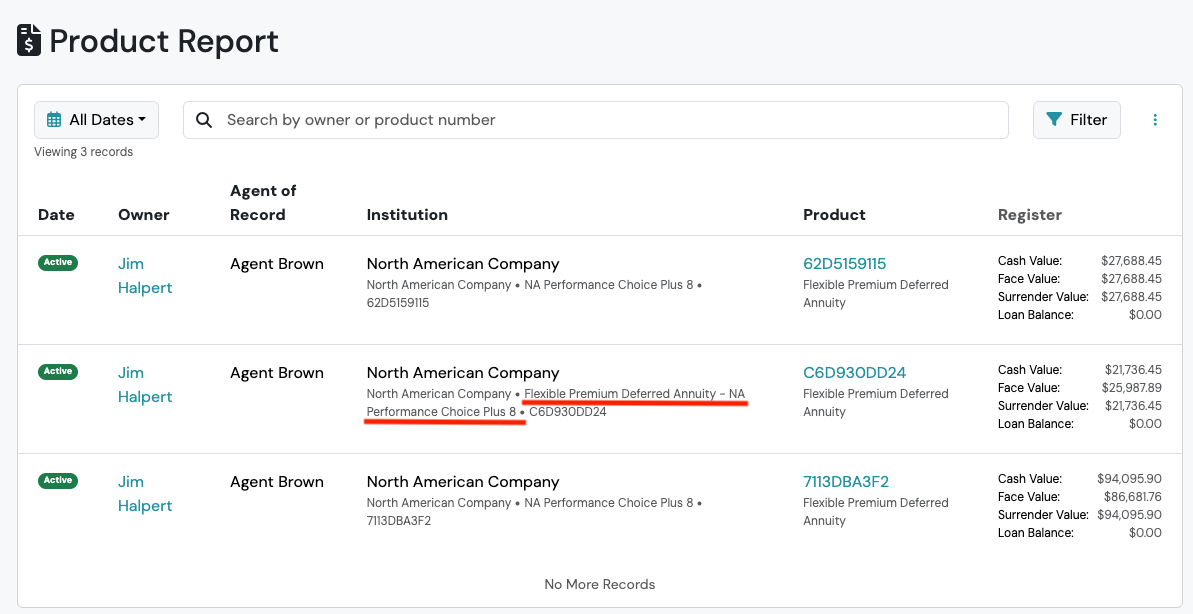
Here is a policy BEFORE the merge:
Here is the same policy AFTER the merge: