Vendor
Vendor Types
Advanced Setup options for Vendor Types.
What are Vendor Types?
Section titled “What are Vendor Types?”Vendor Types refer to different categories or classifications of suppliers or sellers based on the types of products or services they offer.
For example, your account is pre-configured with the following vendor types:
- Professional Services
- Restaurant
- Venue
Adding Vendor Types
Section titled “Adding Vendor Types”-
From the left-side main menu, click the Settings tab > Advanced Setup
-
Select the Vendor section > click Vendor Types
-
From the Vendor Types page > click +New
 button
 -
Complete the New Vendor Type form
- Name
- Description optional
- Click Save
Edit Existing Vendor Types
Section titled “Edit Existing Vendor Types”-
From the left-side main menu, click the Settings tab > Advanced Setup
-
Select the Vendor section > click Vendor Types
-
Go the Action Menu
 > select Edit for the Vendor Type you wish to edit.
 -
Complete the Edit Vendor Type form
- Name
- Description Optional
- Click Save
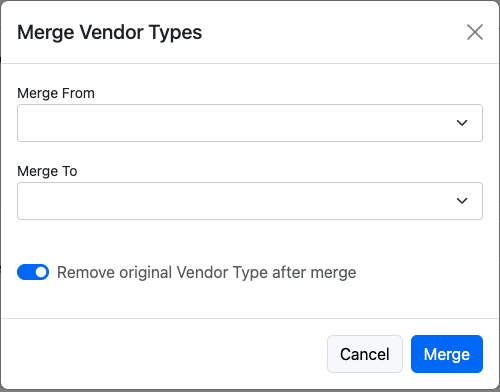
Merging Vendor Types
-
From the left-side main menu, click the Settings tab > Advanced Setup
-
Select the Vendor section > click Vendor Types
-
From the Vendor Types page > click

-
Complete the Merge Vendor Types form
- Merge From
- Merge To
- Remove original Lead Source after merge recommended
- Click Merge