

Accounts & Users
Notification Center
Stay informed about important activity in Swivel with the Notification Center.
Overview
Section titled “Overview”The Notification Center keeps you informed when something in Swivel needs your attention.
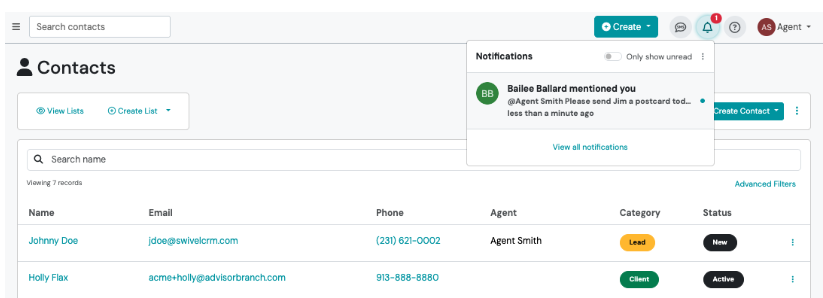
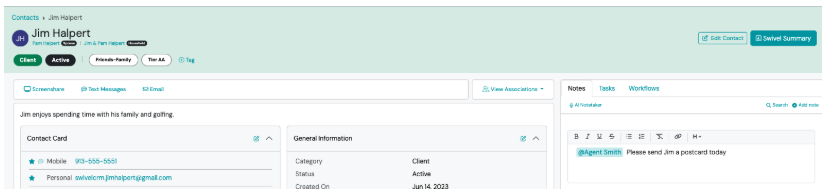
Instead of checking notes, tasks, or workflows for updates, Swivel automatically notifies you when another user interacts with you. The first notification type available is @Mentions.
When to Use
Section titled “When to Use”Use the Notification Center to:
- Stay informed when another user mentions you
- Quickly access items that require your attention
- Reduce missed follow-up
How It Works
Section titled “How It Works”When someone @mentions you:
- A notification appears in the Notification Center.
- Your unread notification count updates automatically.
- A notification popup appears in the corner of your screen.
- If you don’t view the notification in Swivel, you’ll receive an email reminder (if enabled).
View Notifications
Section titled “View Notifications”Select the Notifications bell in the top navigation.
From here you can:
- View recent notifications
- Filter to unread notifications
- Mark notifications as read
- Mark all notifications as read
- Open Notification Preferences
- View your complete notification history
Manage Notification Preferences
Section titled “Manage Notification Preferences”Go to: Settings > Notification Preferences
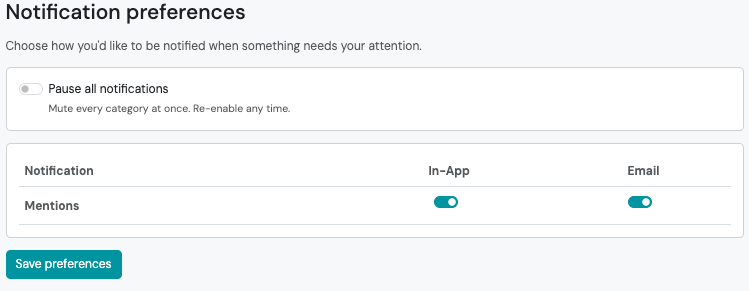
You can control:
- In-App notifications
- Email notifications
- Pause all notifications
Pause All Notifications
Section titled “Pause All Notifications”Turn on Pause all notifications when you don’t want to be interrupted.
While enabled:
- No notification popups appear.
- Email notifications are paused.
- Notification badges are hidden.
Your notifications are still saved and will be available when Pause all Notifications is toggled off.
Frequently Asked Questions
Section titled “Frequently Asked Questions”Why didn’t I receive an email notification?
Section titled “Why didn’t I receive an email notification?”Swivel waits a few minutes before sending email notifications. If you open the notification in Swivel before the email is sent, the email is automatically canceled to reduce unnecessary notifications.
Why don’t I see a notification?
Section titled “Why don’t I see a notification?”Check the following:
- Is Pause all notifications enabled?
- Is the notification type enabled in your Notification Preferences?
- Were you actually @mentioned?
- Do you still have permission to access the related record?
Why can’t I open a notification?
Section titled “Why can’t I open a notification?”Notifications only open records you have permission to access. If your access has changed since the notification was created, you may no longer be able to open that record.
Why did my notification disappear?
Section titled “Why did my notification disappear?”Selecting a notification marks it as read.
To view previously read notifications, open the Notification Center and turn off the Only Show Unread filter.
Can I turn off email notifications but keep in-app notifications?
Section titled “Can I turn off email notifications but keep in-app notifications?”Yes. Notification preferences are managed independently, allowing you to receive in-app notifications, email notifications, both, or neither.
What notifications are currently supported?
Section titled “What notifications are currently supported?”The Notification Center currently supports @Mentions.
More notification types will be added in future releases.
Best Practices
Section titled “Best Practices”- Review your Notification Preferences when you first begin using Swivel.
- Leave in-app notifications enabled for the fastest response.
- Use Pause all notifications only when you intentionally want to pause interruptions.
- Mark notifications as read after you’ve completed the requested action.