User Management
🙋 FAQs: Managing Additional Users
Inviting Users
Section titled “Inviting Users”See the How do I invite a new user to my account page for more information on inviting users to Swivel.
Managing User Access
Section titled “Managing User Access”See the How do I change a user’s access page for more information on managing, archiving, and deleting your users.
Managing User Roles & Permissions
Section titled “Managing User Roles & Permissions”See the User Roles & Permissions page for more information about managing permissions associated to a user.
To Enable and Notify users
Section titled “To Enable and Notify users”-
From the main navigation menu, click > Settings > Account > Users
-
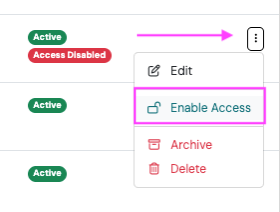
Click the three-dot Action Menu next to the user’s name and select Enable Access
-
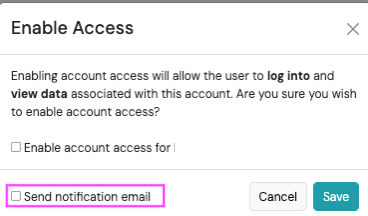
In the Enable Access pop-up, check Enable access and Send Notification Email
-
Click Save
Note, you must select Send Notification Email to generate the invitation for existing users to log into Swivel.