

User Management
🙋 How do I invite a new user to my account?
Inviting New Users
Section titled “Inviting New Users”User invitations and roles are managed under the Users tab of your account settings.
Create the Invite and Assign Role(s)
Section titled “Create the Invite and Assign Role(s)”- From the left-side main navigation menu, click the Settings tab
 .
. - Under Account Settings, select Users.
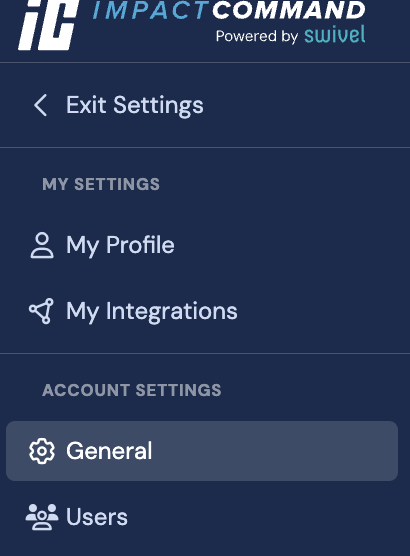
\3. Click the +Invite User button 
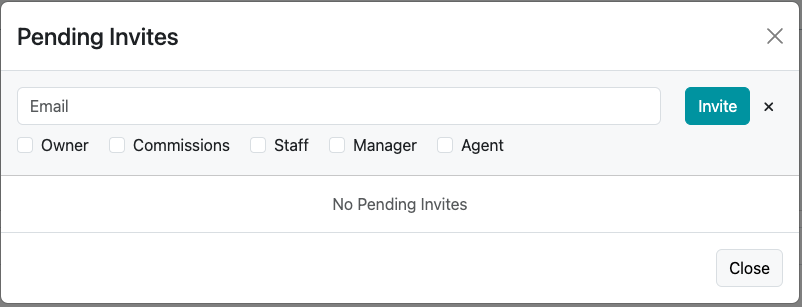
\4. Complete the Pending Invites modal pop-up
-
Enter the user’s Email
-
Select the user roles to assign
-
Once the modal pop-up is complete > click Invite.
FAQs & Troubleshooting
Section titled “FAQs & Troubleshooting”My user has not received the invitation email. What should I do?
If the user has a Gmail account, have them check the Promotions tab for the invite. For other email providers, check Spam folders as well as search for any emails from support@swivelcrm.com.
Be sure to check with your company’s IT manager in case the invite was flagged and sent to a Quarantine folder. If the user has not received the email within 24hrs, contact support@swivelcrm.com.
My user received the email, but the invitation expired. What should I do?
If the user has successfully received the email, but is unable to create their account because it has expired, navigate to the Users section of your account, > click the Pending Invites button and delete the expired invitation. Once deleted, > click the +Invite User button and enter their email.
Please advise your users to accept their invitation within 24hrs.
Can I create a role apart from the ones already listed in Swivel?
At this time Swivel only supports user roles of Owner, Commissions, Staff, Manager, and Agent. For more information on user roles, please visit User Roles & Permissions.
Where can I monitor the actions and changes performed by users on my account?
At this time Swivel does not track changes made by users. For more information on user roles and capabilities, please visit User Roles & Permissions.