

User Management
Managing User Access
Control who can access your Swivel account by disabling access, archiving users, updating roles, or deleting users.
Quick Guide: Which Option Should I Use?
Section titled “Quick Guide: Which Option Should I Use?”| If you want to… | Use |
|---|---|
| Prevent someone from logging in temporarily | Disable Access |
| Remove a former employee from dropdowns and user selections | Archive User |
| Change what a user can see or do | Edit User Roles |
| Permanently remove a user from your account | Delete User |
Disable User Access
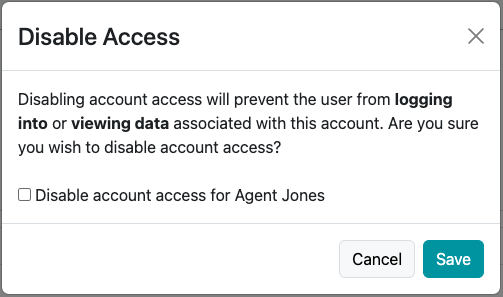
Section titled “Disable User Access”Disabling access prevents a user from logging into Swivel while preserving all of their data and assignments.
When to Use This
Section titled “When to Use This”- Temporary access suspension
- User should no longer log in but may return later
Disable Access
Section titled “Disable Access”- Navigate to Settings > Users
- Locate the user
- Open the Action Menu
- Select Disable Access
- Confirm the action and click Save
✅ The user can no longer log in to Swivel.
Re-Enable Access
Section titled “Re-Enable Access”- Navigate to Settings > Users
- Locate the user
- Open the Action Menu
- Select Enable Access
- Confirm and click Save
✅ The user can log in again immediately.
Enable Access and Send a New Login Invitation
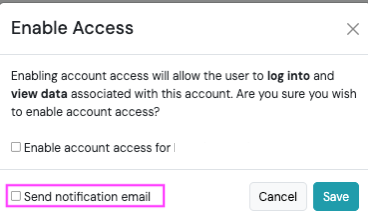
Section titled “Enable Access and Send a New Login Invitation”If a user needs a new invitation email or has never completed their account setup, you can enable access and send a notification email at the same time.
-
Navigate to Settings > Users
-
Locate the user
-
Open the Action Menu
-
Select Enable Access
-
Check both:
- Enable Access
- Send Notification Email
-
Click Save
The user will receive a new email with instructions to access their account.
Edit User Roles & Permissions
Section titled “Edit User Roles & Permissions”User roles determine what areas of Swivel a user can access.
Update User Roles
Section titled “Update User Roles”- Navigate to Settings > Users
- Locate the user
- Open the Action Menu
- Select Edit
- Update the desired role(s)
- Click Save
Changes take effect immediately.
Archive a User
Section titled “Archive a User”Archiving removes a user from most user-selection lists throughout Swivel while preserving their historical data.
When to Use This
Section titled “When to Use This”- Employee has left the organization
- User should no longer appear in assignment dropdowns
- You need to preserve historical records
What Happens When a User Is Archived?
Section titled “What Happens When a User Is Archived?”When a user is archived:
- Login access is automatically disabled
- Historical records remain intact
- Existing assignments remain associated to the user
- The user is removed from active user selection lists
- The user’s Swivel Calendar is removed from calendar picklists
- You will no longer see their appointments on the calendar
Archive a User
Section titled “Archive a User”- Navigate to Settings > Users
- Locate the user
- Open the Action Menu
- Select Archive
- Confirm the action
Unarchive a User
Section titled “Unarchive a User”- Navigate to Settings > Users
- Locate the archived user
- Open the Action Menu
- Select Unarchive
- Confirm the action
Common Error: 403 Access Denied
Section titled “Common Error: 403 Access Denied”If you attempt to enable access for an archived user, Swivel will return a 403 Access Denied error.
Resolution:
- Return to the Users page
- Unarchive the user
- Enable access after the user has been restored
Delete a User
Section titled “Delete a User”Delete a User
Section titled “Delete a User”- Navigate to Settings > Users
- Locate the user
- Open the Action Menu
- Select Delete
- Confirm the deletion
Best Practice: If you plan to restore a deleted user and want to preserve their historical record ownership, always re-invite them using the same email address that was associated with the original account.
Best Practice & FAQs
Section titled “Best Practice & FAQs”What is the difference between Disable, Archive, and Delete?
Section titled “What is the difference between Disable, Archive, and Delete?”| Action | Can Log In? | Appears in User Lists? | Historical Data Kept? |
|---|---|---|---|
| Disable | ❌ No | ✅ Yes | ✅ Yes |
| Archive | ❌ No | ❌ No | ✅ Yes |
| Delete | ❌ No | ❌ No | ✅ Yes |
Former Employee Best Practice
Section titled “Former Employee Best Practice”For most organizations, we recommend:
- Disable Access immediately when the employee leaves
- Archive the User once responsibilities have been reassigned
- Delete the User only if you no longer need the user account in your tenant
This approach preserves historical reporting while keeping your user lists clean.
Can you delete an account user with associated data in a tenant?
Yes – Unlike the previous state where record deletion (including users) is guarded when data associations or relationships exist, deleting account users with and without associations are now allowed.
What happens to record data still associated to a deleted account user?
The deleted account user will still display in the respective data object user field (e.g. contact, event, appointment, opportunity, product, workflow, task).
Can you search or filter deleted account users still associated to record data?
No – Once a user is deleted, they are no longer available as a filter or search option within Swivel.
If you need to analyze records associated with a deleted user, export the data and filter within the exported file. Valid exports include: Contacts, Opportunities, Agent Commissions, Sales Report and Product Report.
Can I recover a deleted account user?
Yes. To restore a deleted user:
- Re-invite the user using the same email address
- The user accepts the invitation
- Swivel restores the user profile
Will historical data reconnect when I recover a deleted user?
Yes, as long as the user is re-invited using the same email address that was associated with their account before deletion.
Recovered Using the Same Email Address
Section titled “Recovered Using the Same Email Address”If the user accepts a new invitation using the same email address that existed when the account was deleted:
✅ Historical record ownership is preserved
✅ Existing data associations remain intact
✅ The user will regain access to records previously associated with their account
Recovered Using a Different Email Address
Section titled “Recovered Using a Different Email Address”If the user is re-invited using a different email address:
⚠️ Swivel treats the new email address as a completely new user account.
Any contacts, opportunities, appointments, tasks, products, workflows, or other records associated with the original email address will remain linked to the original user account and will not automatically transfer to the new account.