

Adding & Managing Policy and Account Values
Add and Manage Compensation
Compensation Overview
Section titled “Compensation Overview”Swivel makes it easy to add and track expected agent compensations per policy and/or account.
Video Tutorial: Creating a New Compensation Entry
Section titled “Video Tutorial: Creating a New Compensation Entry”Add Compensation Entry (For Owner and Compensation Roles Only)
Section titled “Add Compensation Entry (For Owner and Compensation Roles Only)”-
From the contact’s record, navigate to the Products tile.
-
Click the three-dot Action Menu next to the desired product and select Compensations.
-
Click the +New Compensation button and complete the New Compensation slide out form.
-
Compensation Type
-
Date
-
Status: Options include Pending, Complete, and Canceled. The Status reflects the tile the amount will display (i.e. a Pending Status displays on the Pending tile).
-
Repeat Frequency
-
Compensationable Amount (aka premium paid amount, sales amount, purchase amount)
-
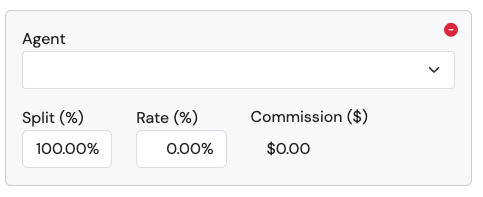
Agent
- Split
- Rate*
- Compensation*: Displays the Net Compensation calculated using the Compensationable Amount, Split, and Rate.
-
Add Split Compensation: Allows you to add additional Agent’s Splits (as needed)
-
-
Click Save.
Add Compensation Entry
Section titled “Add Compensation Entry”-
From the contact’s record, navigate to the Products tile.
-
Click the three-dot Action Menu next to the desired product and select compensation.
-
Click the +New Compensation button and complete the New Compensation slide out form.
-
Compensation Type
-
Date
-
Status: Options include Pending, Complete, and Canceled. The Status reflects the tile the amount will display (i.e. a Pending Status displays on the Pending tile).
-
Repeat Frequency
-
Compensationnable Amount (aka premium paid amount, sales amount, purchase amount)
-
Agent
- Split
-
Add Split Compensation: Allows you to add additional Agent’s Splits (as needed)
-
-
Click Save.
Compensation Types
Section titled “Compensation Types”Compensation Types represent the type of compensation tracked. Swivel includes the following pre-configured compensation Types: Compensation, Bonus, and Fee.
Create New Compensation Type from Product
Section titled “Create New Compensation Type from Product”- From the desired Product entry, > click the three-dot Action Menu and select Compensations.
- Click the +New Compensation Type button and complete the New Compensation Type slide out form.
- Click Save.
🙋 Compensation FAQs
Section titled “🙋 Compensation FAQs”What is the difference between Split and Rate for on the new compensation form?
Compensation splits and Compensation rates are assigned in percentages (%) on a given product record. The split(s) reflect how compensation should be allocated and the rate(s) identify the percent of the compensationable amount to be paid. Together, this calculates the expected next compensation for the agent (assigned in the drop down box).
How do I enter a flat-rate or flat-fee compensation?
If you receive a flat or set amount, enter your anticipated payment in the Compensationable amount and set both the split and the rate to 100%.