

Take Action on Contacts
Export Contact Notes
Export notes associated with your contacts for audits, record reviews, or other reporting needs.
The Notes Audit Export creates a CSV containing notes connected to the contacts currently displayed on your Contacts page.
This includes notes from the contact record as well as related households, products, opportunities, transactions, appointments, and workflow steps.
How to Export Contact Notes
Section titled “How to Export Contact Notes”-
Go to Contacts.
-
If needed, use the search or Advanced Filters to narrow the contacts included in your export.
-
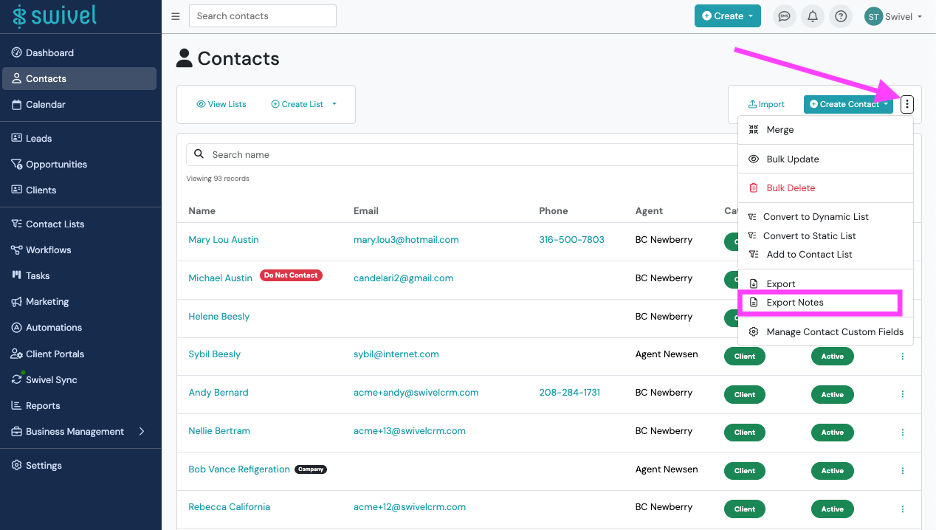
Select the three-dot menu in the upper-right corner of the Contacts page.
-
Select Export Notes.
-
Review the export details, then select Export.
-
Keep the browser tab open while Swivel prepares the file. When the export is complete, select the download link to download the CSV.
If you close the tab, navigate away, or lose your connection before the export finishes, you’ll need to run.
What’s Included in the Export?
Section titled “What’s Included in the Export?”For the contacts included in your export, Swivel gathers notes associated with:
- Contact records
- Households
- Products
- Transactions
- Opportunities
- Appointments
- Related workflow steps
The CSV also provides information such as the contact name, source of the note, note text, tags, creation and update dates, and the user who last updated the note.
What Isn’t Included?
Section titled “What Isn’t Included?”The Notes Audit Export does not currently include:
- Note edit history: The export shows the note’s current text, along with when and by whom it was last updated. It does not show previous versions.
- Note date-range filtering: You can filter which contacts are exported, but not notes by date before running the export. You can use the
created_atcolumn to filter the CSV afterward. - Note titles or pinned status
- Attachments or documents: Only the note text is exported.
Best Practices
Section titled “Best Practices”Before Exporting a Large Number of Contacts
Section titled “Before Exporting a Large Number of Contacts”We recommend filtering your Contacts list before exporting whenever possible.
Notes exports can become large because a single contact may have notes associated with multiple related records. For larger accounts, narrowing the Contacts list by criteria such as advisor or category can make the resulting file easier to work with.
Keep the Export Window Open
Section titled “Keep the Export Window Open”Your download link appears in the export progress window when the file is ready. It is not sent by email or saved to a download history.
If you close the tab, navigate away, or lose your connection before the export finishes, you’ll need to run the export again.
Frequently Asked Questions
Section titled “Frequently Asked Questions”Why Do Some Notes Appear More Than Once?
Section titled “Why Do Some Notes Appear More Than Once?”The export contains one row per contact and note.
For example, if a household note applies to three contacts in the household, that note will appear once for each contact. This allows you to filter the CSV to an individual contact and still see all notes associated with that person.
If you need to determine the number of unique notes, use the note_id column. Rows with the same note_id represent the same note associated with multiple contacts.
I don’t see Export Notes. Why?
Section titled “I don’t see Export Notes. Why?”Export Notes is available to account Owners. If you don’t see the option, ask an Owner at your firm to run the export.
Can I export notes for a specific date range?
Section titled “Can I export notes for a specific date range?”Not currently. Narrow the contacts before exporting if needed, then use the created_at column in the CSV to filter notes by date.
Are archived notes included?
Section titled “Are archived notes included?”Yes. Use the state column to identify active and archived notes.
Why does the same note appear more than once?
Section titled “Why does the same note appear more than once?”Notes associated with multiple contacts, such as household notes, may appear once for each applicable contact. Check the note_id column: rows with the same ID represent the same note.
Can I see whether a note was edited?
Section titled “Can I see whether a note was edited?”The export shows when a note was last updated and who updated it, but it does not provide the note’s previous text or full edit history.
I closed the export window. Where can I find my download?
Section titled “I closed the export window. Where can I find my download?”You’ll need to run the export again. The download link is only available from the progress window after the export finishes.