

Take Action on Contacts
Record Live Audio and Create an AI Note
Swivel’s Recording feature allows you to capture live audio from a conversation and save the recording directly to a contact. You can then use AI Notetaker to transcribe the recording into a note.
The Recordings feature lets you record and store audio directly inside a contact’s profile. This makes it easy to capture voice notes, document client conversations, and save important audio for future reference.
Recordings automatically generate a transcript, which is added as a note on the contact’s record. You can also generate a structured AI Summary, which can be customized using AI Templates.
How to Record Live Audio
Section titled “How to Record Live Audio”- Open the Contact Record for the person whose conversation you want to record.
- Open the Recording drawer.
- Click Start Recording to begin capturing the live audio.
- Click Pause if you need to temporarily stop, or Stop & Save when finished and to save the recording to the contact.
The recording is saved to the contact’s record and appears immediately with a timestamp.
How to Play a Recording
Section titled “How to Play a Recording”- Open Recordings on a contact record
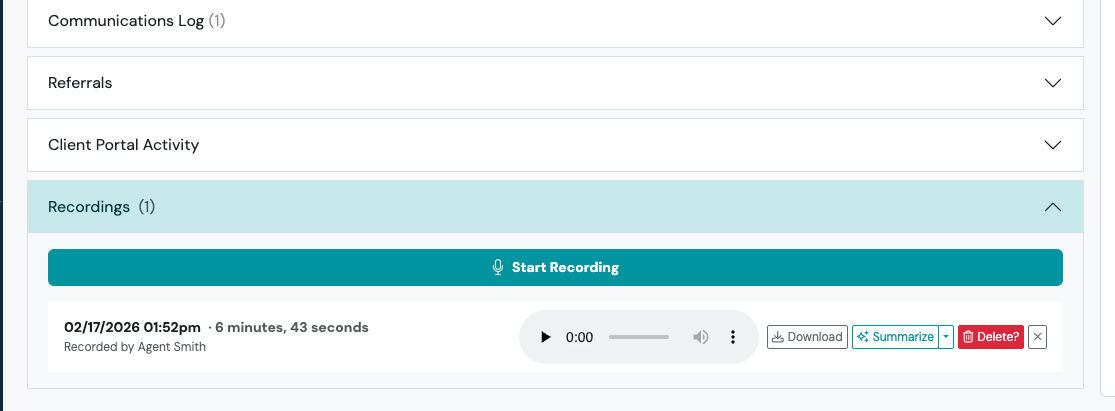
- Click the Play button on a recording
- Use the controls to pause, scrub through the audio, or adjust volume
- Click the three-dot action menu to adjust the playback speed or download the recording as an .mp4 file
How to Summarize a Recording
Section titled “How to Summarize a Recording”- Generate an AI summary by clicking Summarize, or use the dropdown arrow to apply an AI Template
Where to Find Recordings
Section titled “Where to Find Recordings”Once saved, you can access the recording in either of these locations:
Contact Record
Section titled “Contact Record”View recordings associated with that specific contact.
- Open any contact
- Click Recordings at the bottom of the page
Business Management
Section titled “Business Management”- Click Business Management
- Recordings to view all saved recordings.
What can I do from Recordings?
Section titled “What can I do from Recordings?”- Start a new recording
- Play existing recordings
- Download recordings
- Summarize recordings
How to Play a Recording
Section titled “How to Play a Recording”- Open Recordings on a contact record
- Click the Play button on a recording
- Use the controls to pause, scrub through the audio, or adjust volume
- Click the three-dot action menu to adjust the playback speed or download the recording as an .mp4 file
How to Summarize a Recording
Section titled “How to Summarize a Recording”- Generate an AI summary by clicking Summarize, or use the dropdown arrow to apply an AI Template
Browse All Recordings in Your Account by Contact
Section titled “Browse All Recordings in Your Account by Contact”- Navigate to Business Management in the left-hand navigation menu
- Click Recordings
- Click on any recording to view details, download, or summarize
Why Don’t I Have Access to Recordings?
Section titled “Why Don’t I Have Access to Recordings?”The Recordings feature may not be available for all accounts. If your organization belongs to a compliance network that restricts audio recording, the Recordings feature will be hidden and unavailable throughout the platform.