

Organize & Segment Contacts
How to Use Tags to Organize and Segment Contacts
Learn how to create, add, find, replace, and remove tags in Swivel. Use tags to organize and segment contacts, manage imported tags, filter contacts, and update tags in bulk.
Overview
Section titled “Overview”Tags help you organize and filter contacts based on information specific to your business. You can use tags to group contacts, create segments, and find contacts with something in common.
How Tags Work
Section titled “How Tags Work”Swivel does not have a dedicated tag library for creating or managing tags. A tag is created when you add it to a contact.
Once a tag is created, it is available throughout Swivel and can be added to other contacts. A tag remains available as long as it is assigned to at least one contact.
When to Use Tags
Section titled “When to Use Tags”Use tags to organize or filter contacts based on information specific to your business that isn’t already captured by a dedicated contact field or feature.
For example, you might use tags to identify a client tier, membership group, specialty, or another characteristic that is unique to your business.
For information that Swivel already has a dedicated field or feature for, use that instead of a tag:
- Lead or Client → use the Contact Category field
- New or In Progress → use the Contact Status field
- Do Not Contact → use the Do Not Contact field
- Deceased → use the Deceased field
- Event or Seminar Attendance → register the contact for an Event
Add a Tag to a Contact
Section titled “Add a Tag to a Contact”You can add a tag directly from a contact record.
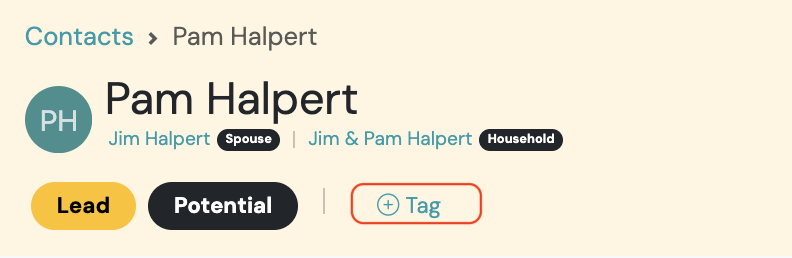
- Open the contact you want to update.
- Click +Tag at the top of the page.
- Select an existing tag or create a new tag.
- Click Add.
You can also add a tag by editing the contact record and navigating to the Tags field in the contact form.
When you create a new tag on a contact, it becomes available throughout Swivel and can be added to other contacts.
Find Contacts Using Tags
Section titled “Find Contacts Using Tags”Use Advanced Filters to find contacts based on their tags.
- Go to Contacts.
- Select Advanced Filters.
- Select Contact Filters.
- Choose Include Tags to find contacts who have a specific tag.
- Choose Exclude Tags to find contacts who do not have a specific tag.
- Select the tag you want to use as your filter.
Swivel will display the contacts that match your criteria.
Manage Tags in Bulk
Section titled “Manage Tags in Bulk”Use Bulk Update to add, remove, or replace tags on multiple contacts at once.
First, use Advanced Filters to find the contacts you want to update. Then:
- Click the three-dot action menu at the top of the page.
- Select Bulk Update.
- Choose the tag action you want to perform.
You can:
- Add Tag: Add an existing tag to the selected contacts.
- Remove Tag: Remove a tag from the selected contacts.
- Replace Tag: Replace an existing tag with another existing tag.
Remove Old or Imported Tags
Section titled “Remove Old or Imported Tags”To remove an old or unused imported tag, remove it from every contact it’s assigned to.
- Go to Contacts.
- Select Advanced Filters.
- Select Contact Filters.
- Select Include Tags.
- Select the tag you want to remove.
- Click the three-dot menu at the top of the page.
- Select Bulk Update.
- Select Remove Tag.
- Complete the Bulk Update.
Once the tag has been removed from all contacts, it will no longer exist in Swivel or appear as an available tag.