

Reporting & Data Maintenance
Swivel Sync Report
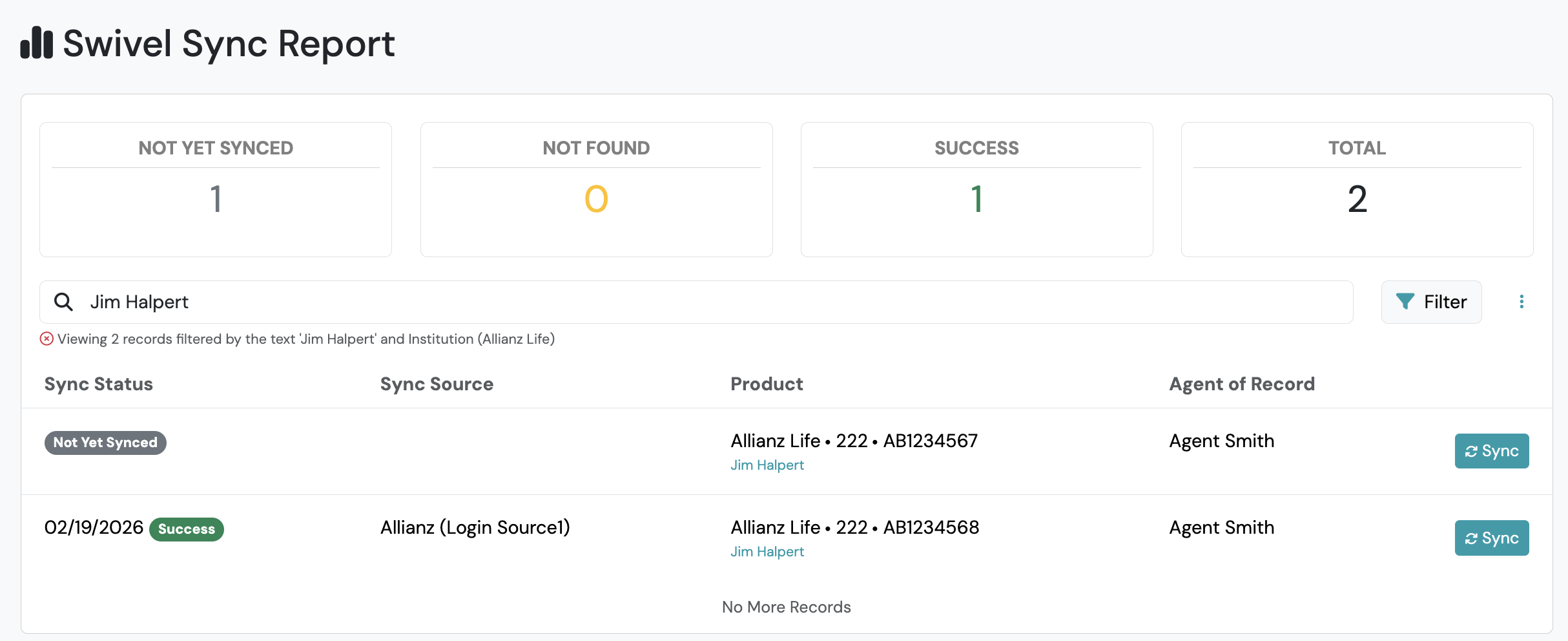
Use this report to review the sync status for all applicable policies, accounts, carriers and institutions.
What the Report Includes
Section titled “What the Report Includes”The Swivel Sync Report shows products that meet both of the following criteria:
- The policy has a status indicator of Pending or Open, and
- The policy is associated to a connected institution in Swivel Sync
Running the Report
Section titled “Running the Report”-
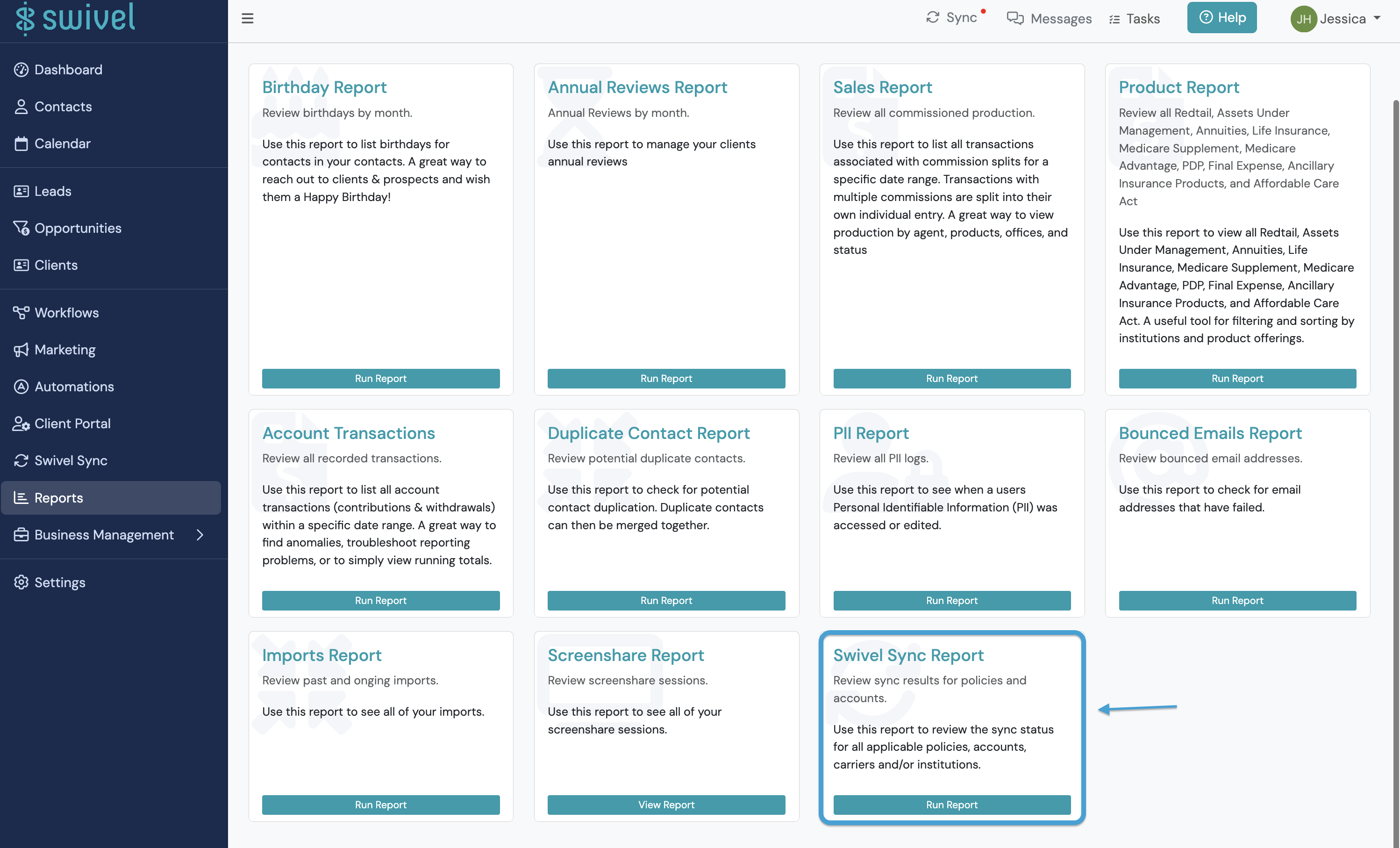
From the main menu, go to Reports.
-
Find the Swivel Sync Report tile > click Run Report.
-
Go to Search bar > enter a contact or product number to find a specific policy or account.
-
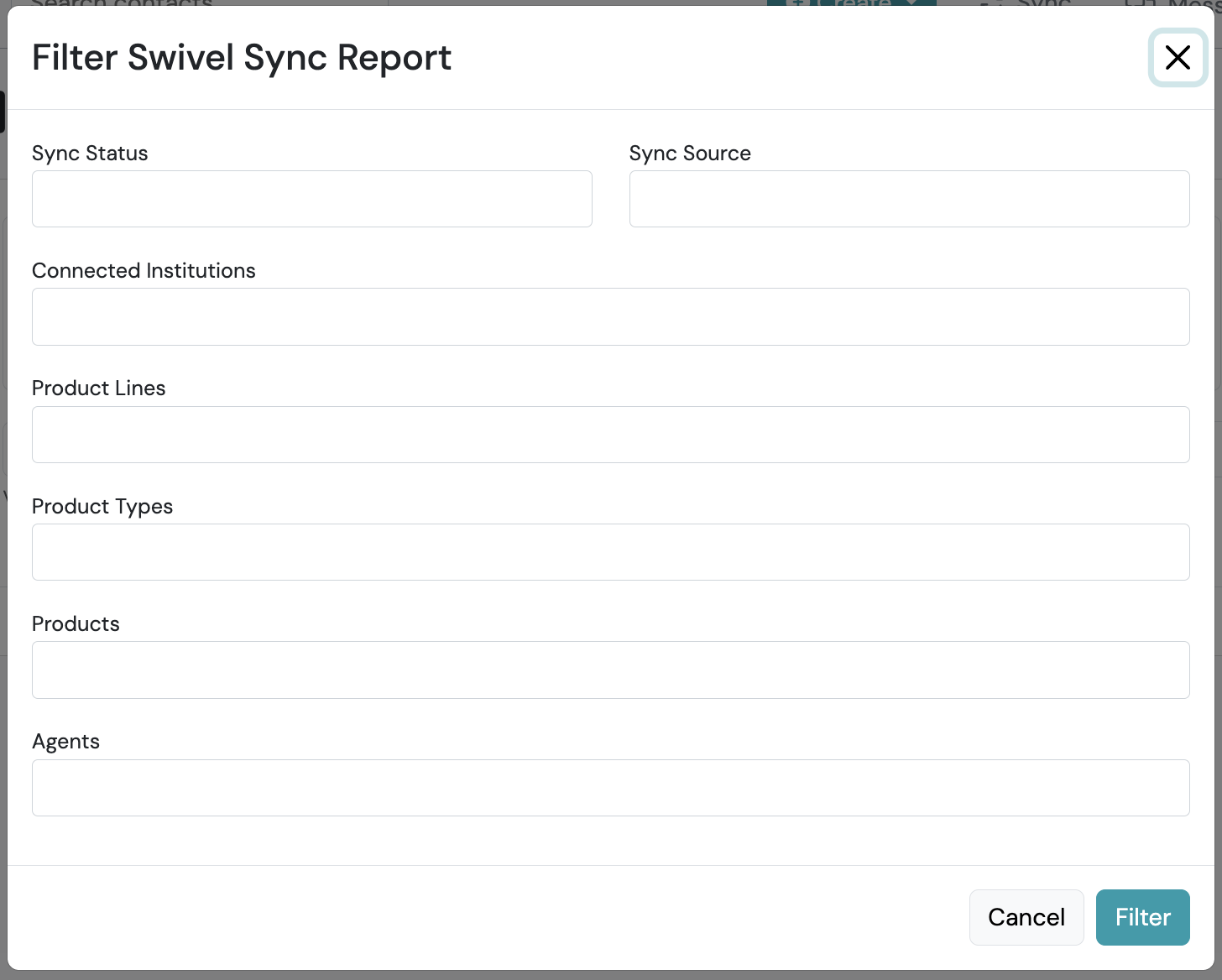
Click the Filter button > Select any additional criteria to drill down your results using the following options > click Filter.
-
Sync Status
-
Sync Source
-
Connected Institution
-
Product Line
-
Product Type
-
Products
-
Agents
-
-
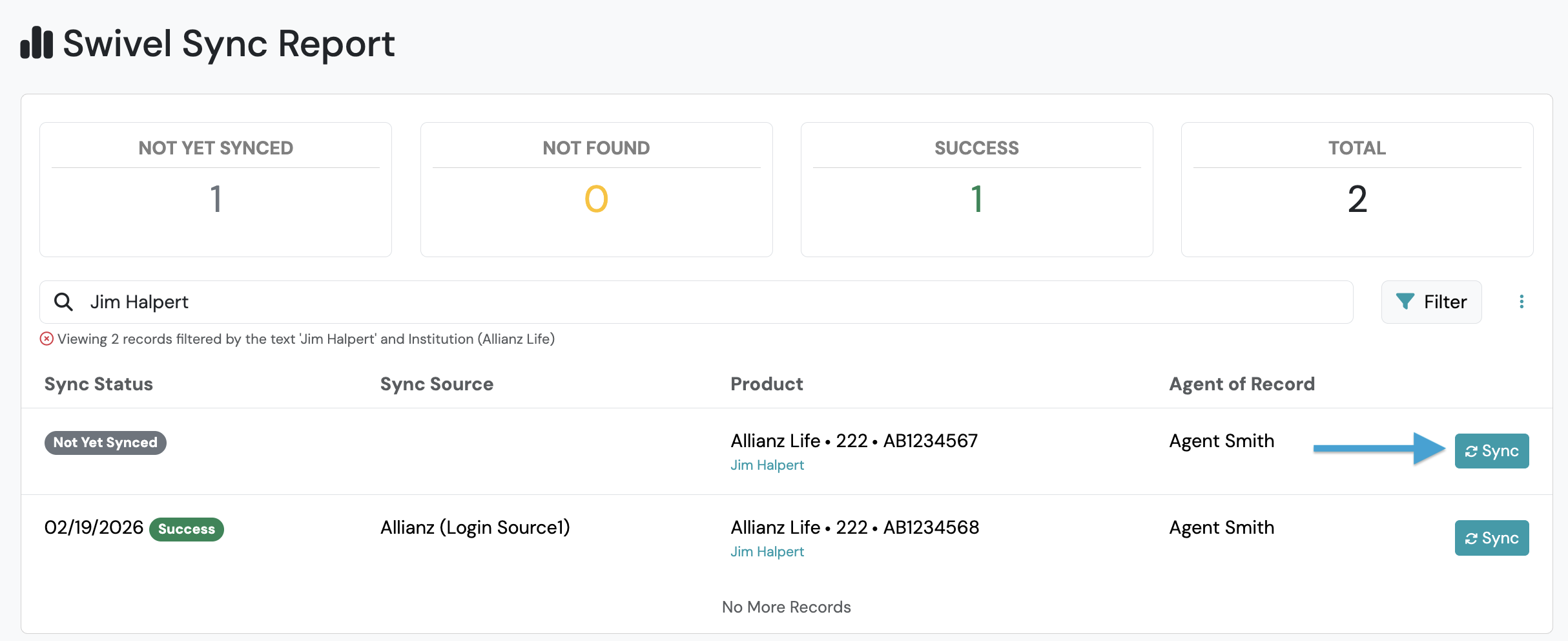
Clicking the Sync button located next to a policy or account to manually initiate a force sync request.
Sync Statuses Explained
Section titled “Sync Statuses Explained”Each product in the report is assigned a sync status based on its sync attempt activity over a rolling 7-day period:
| Sync Status | Definition |
|---|---|
| Success | The product has had at least one successful sync attempt in the last 7 days. |
| Not Found | The product has had one or more “Not Found” attempts in the last 7 days, and no successful sync attempts during that window. • A “Not Found” result typically means Swivel Sync was unable to locate the product on the carrier or institution site using the data on file. |
| Not Yet Synced | The product has had no sync attempts in the last 7 days, or has had attempts but none have succeeded yet. • You can filter on this status directly in the report to pull up the full list of affected products and take action. |
Troubleshooting Sync Results
Section titled “Troubleshooting Sync Results”If a policy or account isn’t returning the values you expect, this section is the place to start. The same troubleshooting steps apply whether the sync was triggered by force sync (manually requested from a contact record or the Swivel Sync Report) or background sync (the automatic daily queue), and they cover both common result types:
- Success, but values don’t update as expected: the sync attempt completes, but values in Swivel stay the same.
- Not Found: Swivel Sync was unable to locate the policy on the carrier or institution site using the data on file.
Two common scenarios are covered below.
Investigating Unexpected Sync Results (Success or Not Found)
Section titled “Investigating Unexpected Sync Results (Success or Not Found)”Match your symptom to the table below, then work through the checklist that follows. The same checks apply whether the sync was triggered manually (force sync) or ran in the automatic background queue.
| Sync Result | What It Means |
|---|---|
| Not Found | Swivel Sync could not locate the policy on the carrier or institution site using the data on file. |
| Success, but values don’t update as expected | The sync attempt completed, but the carrier is no longer returning current values for the policy. |
Both symptoms most often share the same handful of root causes:
- A mismatched policy or account number between Swivel and the carrier site
- A status mismatch: the policy is Open or Pending in Swivel but inactive on the carrier site (Terminated, Surrendered, AOR Change, etc.)
- A login source that doesn’t have access to the policy
To investigate, work through these checks in order:
- Confirm the policy or account number. Sign in to the carrier or institution website and locate the record. Compare the number on the carrier site against the number stored in Swivel. They must match exactly. Including any leading zeros, spaces, or extra characters will result in a mismatch. If they don’t match, update the number in Swivel. The next sync attempt (force or background) will pick up the corrected number.
- Verify product availability. Check whether the product has been closed, canceled, terminated, or had an agent of record change on the carrier site. If it’s no longer active or accessible under the current credentials, Swivel Sync won’t be able to locate it.
- Check your access permissions. Confirm the linked login source has access to the policy. The product may exist under a different book of business, login credentials, or require different user permissions on the carrier portal.
After completing these steps, the policy in Swivel should reflect what’s currently on the carrier site. Depending on the situation, this may mean future syncs return Success, or the policy correctly stops queueing because its Swivel status now matches an inactive status on the carrier.
Carrier Book of Business vs. Swivel CRM
Section titled “Carrier Book of Business vs. Swivel CRM”As covered in the What the Report Includes section above, the Swivel Sync Report only shows policies already in Swivel that meet the sync criteria. To compare a carrier’s full Book of Business against what’s stored in Swivel CRM (to find policies missing from Swivel, or policies in Swivel that are no longer at the carrier), the Product Report is a better fit.
Recommended approach:
- Pull the carrier’s current Book of Business. Request or download an up-to-date book of business report from the carrier portal.
- Run the Product Report, filtered by the same carrier.
- Compare the two side by side. Add any missing policies to Swivel, and update the status of any policies in Swivel that are no longer at the carrier (e.g., terminated, surrendered, AOR change).