

Reports
Product Report
Search, filter, export, and audit policies and accounts using product details, statuses, dates, institutions, and custom fields
Product Report
Section titled “Product Report”The Product Report displays all policies and accounts within your Swivel database and serves as one of the most powerful tools for searching, filtering, exporting, and auditing product data.
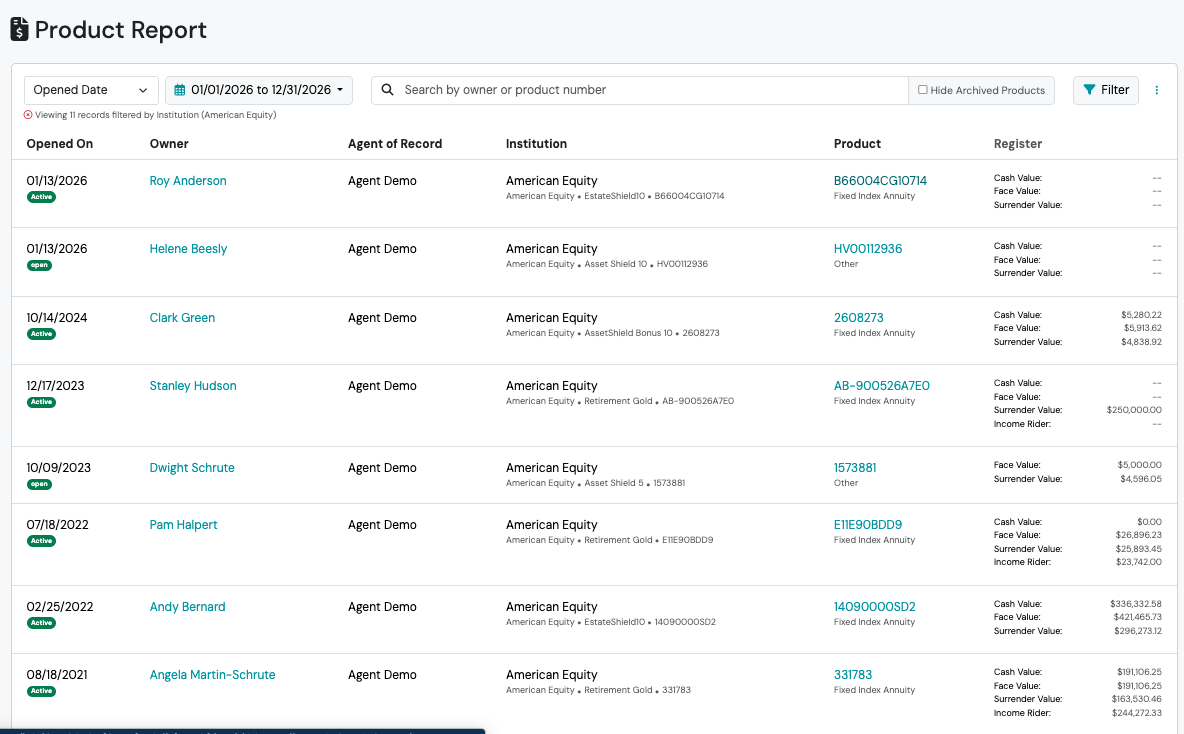
Use this report to:
Section titled “Use this report to:”- Find specific policies or accounts
- Search by policy number, account number, or owner name
- Review product activity and production
- Audit product data for cleanup opportunities
- Export product information
- Build Dynamic or Static Lists based on product criteria
What You’ll See in the Product Report
Section titled “What You’ll See in the Product Report”The Product Report displays policy and account information across your organization, including product details, ownership information, statuses, dates, and related contact information.
Many customers use this report as their primary tool for researching and validating product data.
Common Uses
Section titled “Common Uses”The Product Report is commonly used to:
- Find a specific policy or account
- Identify products from a particular carrier or institution
- Review products with a specific status
- Build product-based marketing or service lists
- Audit product data for consistency
- Export product information for additional analysis
Searching Products
Section titled “Searching Products”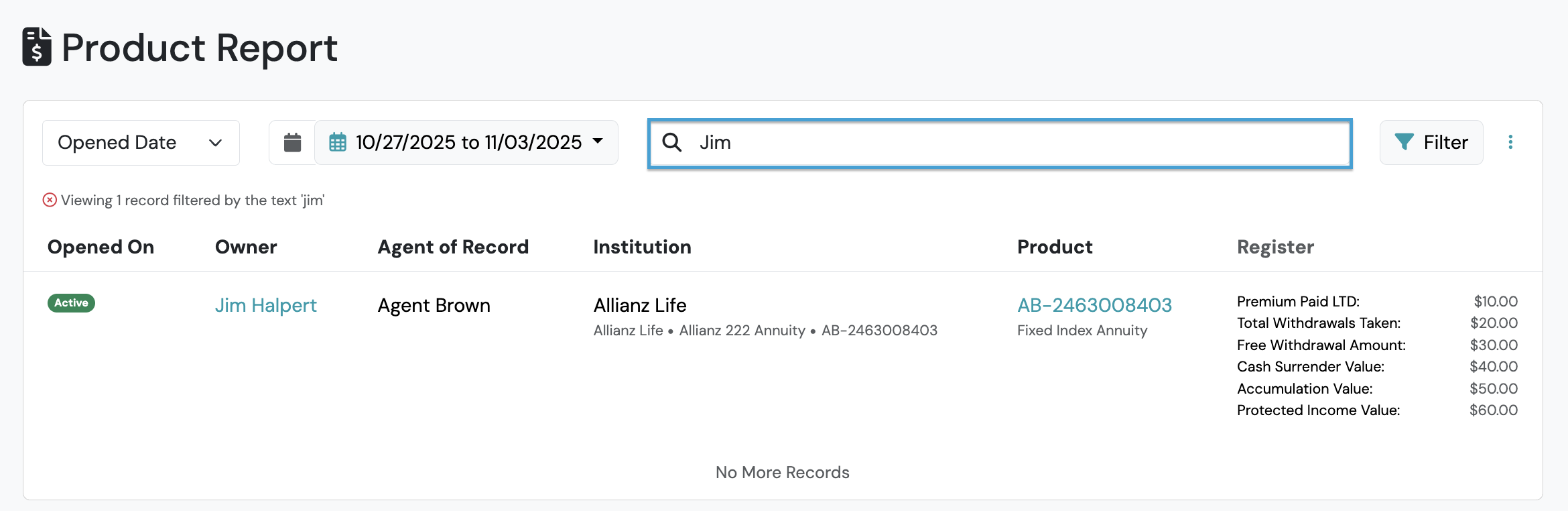
Use the Search bar to quickly locate policies and accounts by:
- Policy Number
- Account Number
- Owner Name
Searching by policy or account number allows you to quickly navigate to the associated product record and review additional details.
Filtering the Product Report
Section titled “Filtering the Product Report”Date Filters
Section titled “Date Filters”The Product Report supports filtering by:
- Open Date
- Issue Date
- Effective Date
- Closed Date
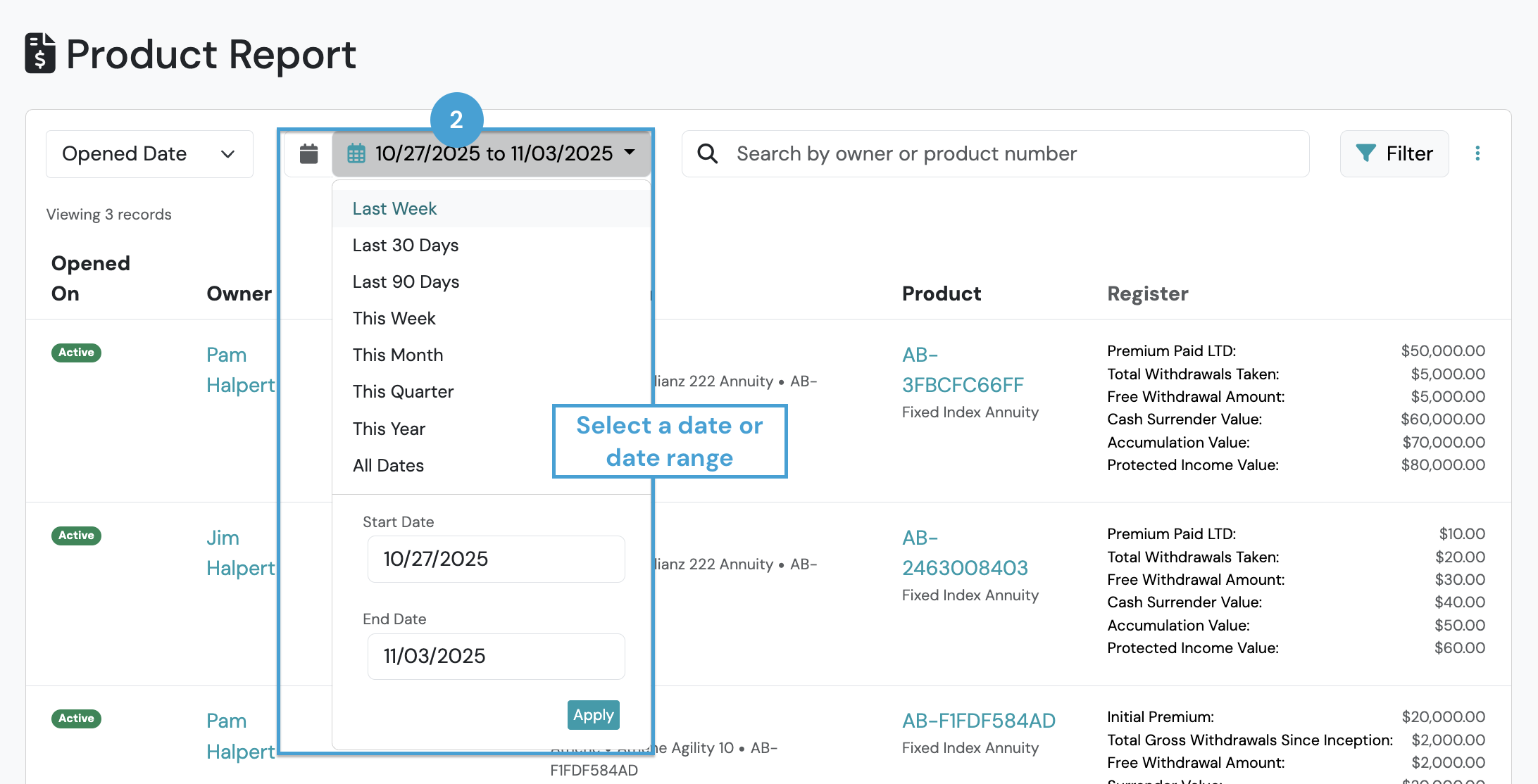
To filter by date:
- Select the desired date type from the Date Filter.
- Select a preset or custom range using the Date Range Filter.
- Click Apply.
Finding Products with Missing Dates Using Not Set
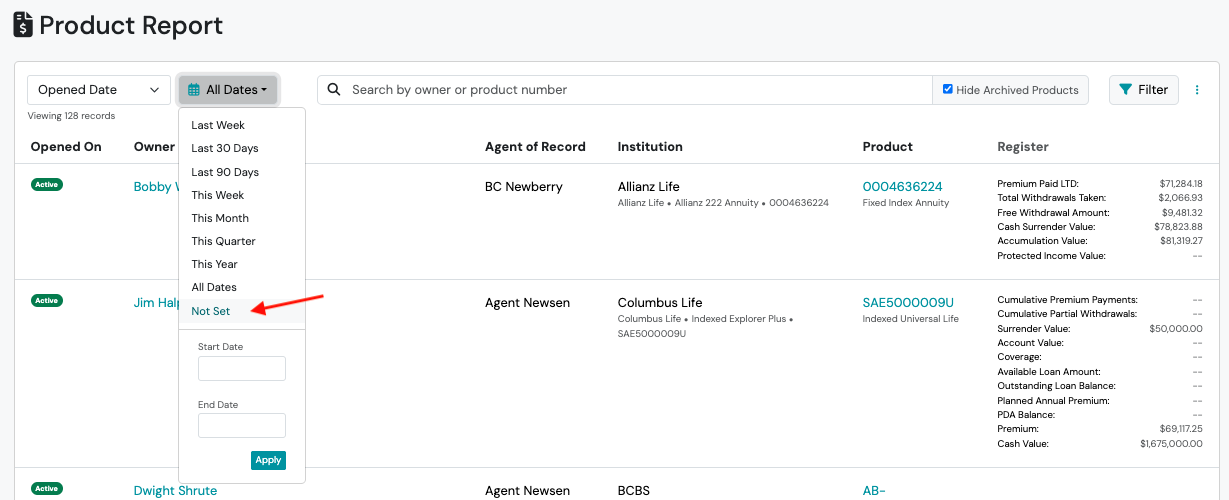
Section titled “Finding Products with Missing Dates Using Not Set”Use the Not Set filter in the Product Report to find policies and accounts where a date has not been entered. This helps identify incomplete product records, clean up imported data, and prepare records for date-based reporting or automations.
You can use Not Set with the following date fields:
- Opened Date
- Issue Date
- Effective Date
- Closed Date
- Submitted Date
How to Find Missing Dates
Section titled “How to Find Missing Dates”- Select the date field you want to check, such as Opened Date.
- In the date range selector, choose Not Set.
- The report updates to show only products where that date has not been entered.
Next Steps After Finding Missing Dates
Section titled “Next Steps After Finding Missing Dates”After filtering, you can use the three-dot action menu to continue working with your results.
Create a List
Select Create Dynamic List or Create Static List to save the filtered products for follow-up, review, or cleanup.
Export Results
Select Export to download the filtered list as a CSV file.
The export includes the active Not Set filter, so only products with missing dates are included. Use the exported list as a reference when reviewing or updating product records.
Update Individual Records
Click a Product Number in the filtered results to open the product record. Select Edit, add the missing date, and save your changes.
Export Results
Section titled “Export Results”Select Export to download the filtered list as a .csv file.
Contact and Product Filters
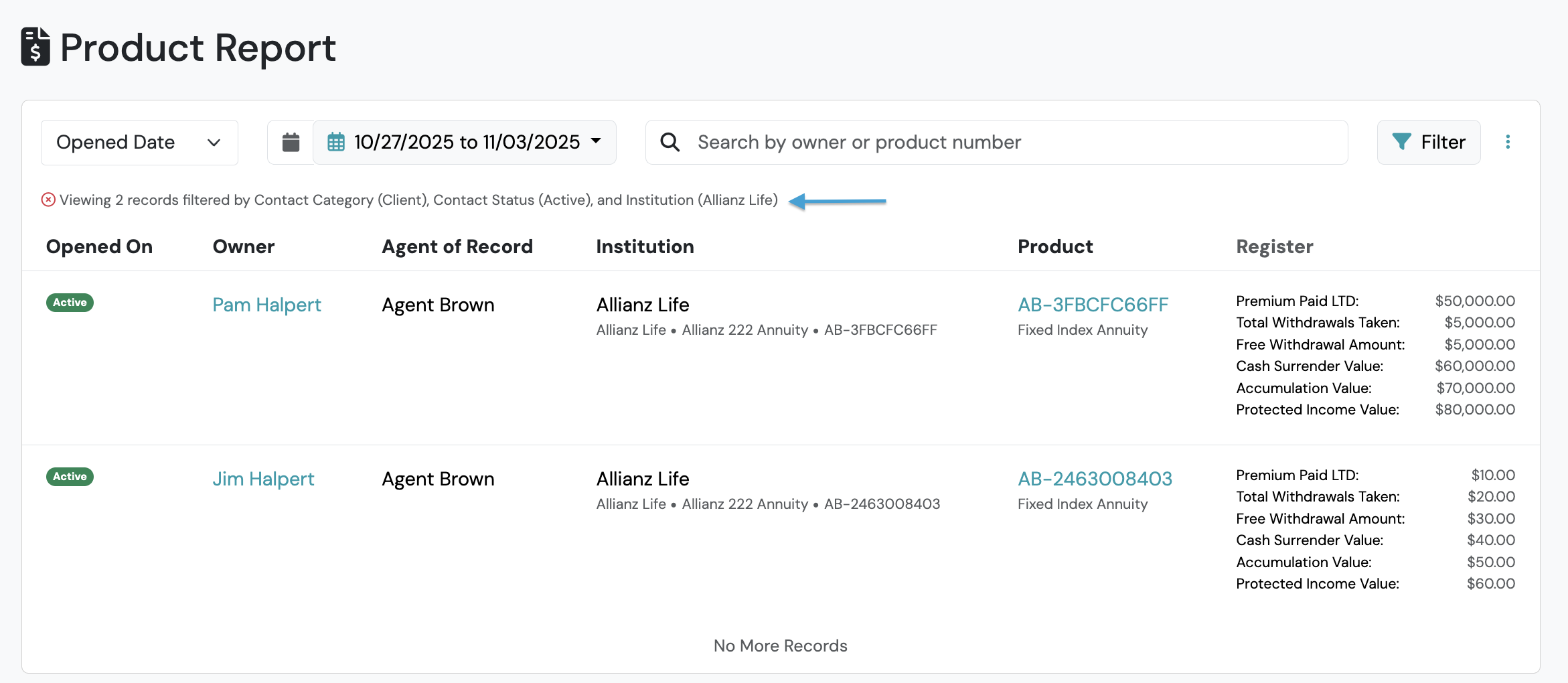
Section titled “Contact and Product Filters”The Product Report supports both Contact and Product filters.
To apply filters:
- Select + Add Filter.
- Choose the desired filter.
- Define the criteria.
- Repeat as needed.
- Click Filter.
Available Filters
Section titled “Available Filters”The Product Report supports a wide variety of Contact and Product filters.
For a complete list of available filters and filter definitions, see Understanding Filters in Swivel.
Filtering by Custom Fields
Section titled “Filtering by Custom Fields”The Product Report supports filtering by both Contact and Product Custom Fields.
To filter by a custom field:
- Select + Add Filter.
- Search for the custom field name.
- Select the custom field.
- Define the desired criteria.
- Apply the filter.
Exporting the Product Report
Section titled “Exporting the Product Report”To export Product Report results:
- Navigate to Reports > Product Report.
- Apply any desired filters.
- Select the Action Menu.
- Click Export.
Best Practices
Section titled “Best Practices”Many organizations use the Product Report as part of their regular data review process.
Consider using the Product Report to:
Section titled “Consider using the Product Report to:”- Identify duplicate product names
- Review product statuses for consistency
- Verify institution and carrier naming conventions
- Locate products missing critical information
- Validate imported or synced product data
Can I search by policy number or account number?
Section titled “Can I search by policy number or account number?”Yes. The Product Report supports searching by both policy number and account number.
Is the search case-sensitive?
Section titled “Is the search case-sensitive?”No. Searches are not case-sensitive and support partial and exact matches.
Can I filter by Custom Fields?
Section titled “Can I filter by Custom Fields?”Yes. The Product Report supports filtering by both Contact and Product Custom Fields.
Can I export Product Report results?
Section titled “Can I export Product Report results?”Yes. Use Action Menu > Export to export filtered or unfiltered results.
Why doesn’t my export include all products?
Section titled “Why doesn’t my export include all products?”The Product Report automatically defaults to the current calendar year. Clear the date filter before exporting if you want to include all products.
Can I filter by a specific Product Status?
Section titled “Can I filter by a specific Product Status?”Yes. Users can filter by specific Product Status values.
See also: Product Statuses
Related Articles
Section titled “Related Articles”- Reports
- Understanding Filters in Swivel
- Contact Lists
- Export Data via Reports
- Product Statuses
- Product Summary Total Comparison Report