Reports
Referrals Report
Track referral sources, referred contacts, and referral activity to identify top referrers and strengthen referral relationships.
The Referrals Report helps you track referral relationships within Swivel by showing who has referred contacts to your organization and who has been referred.
Use this report to:
Section titled “Use this report to:”- Identify your top referral sources
- Track referred contacts
- Measure referral activity
- Recognize clients who generate referrals
- Export referral data for reporting and follow-up
- Build referral-focused Dynamic or Static Lists
Understanding the Referrals Report
Section titled “Understanding the Referrals Report”The Referrals Report contains two views:
Referring Contacts
Section titled “Referring Contacts”Displays contacts who have referred one or more people to your organization.
This view helps answer questions such as:
- Who are my top referral sources?
- How many referrals has a client provided?
- Which clients should receive additional recognition or follow-up?
Referred Contacts
Section titled “Referred Contacts”Displays contacts who were referred to your organization and identifies who referred them.
This view helps answer questions such as:
- Who referred a specific contact?
- Which referred contacts have become clients?
- How many referrals came from a particular source?
Accessing the Referrals Report
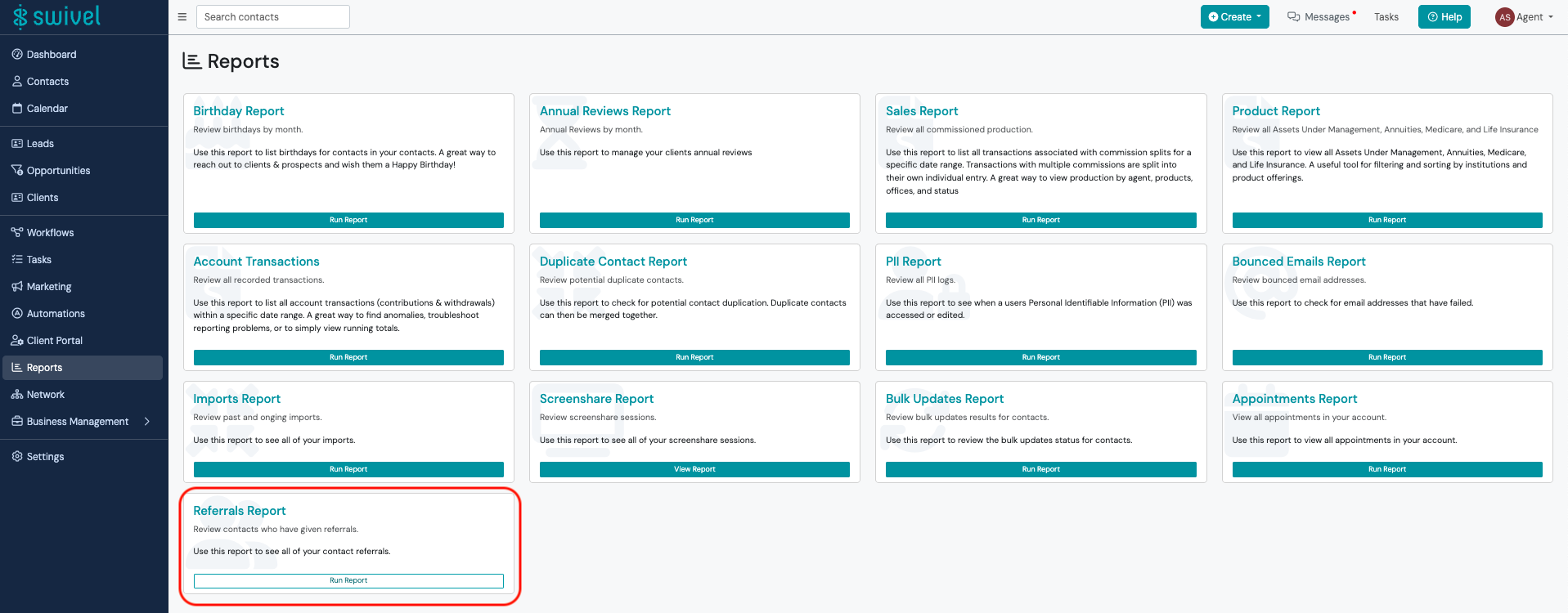
Section titled “Accessing the Referrals Report”- Navigate to Reports.
- Locate the Referrals Report.
- Select Run Report.
Referring Contacts View
Section titled “Referring Contacts View”The Referring Contacts tab displays all contacts who have submitted one or more referrals.
From this view, you can:
Section titled “From this view, you can:”- View referral counts
- Search by contact name
- Sort referral sources
- Export results
- Apply Contact and Product filters
- Open contact records directly from the report
Sorting Options
Section titled “Sorting Options”You can sort by:
Section titled “You can sort by:”- Contact Name
- Number of Referrals
- Contact Category
- Contact Status
Additional Actions
Section titled “Additional Actions”- Expand a contact to view referral details
- Select a contact name to open the contact record
- Export results using the Action Menu
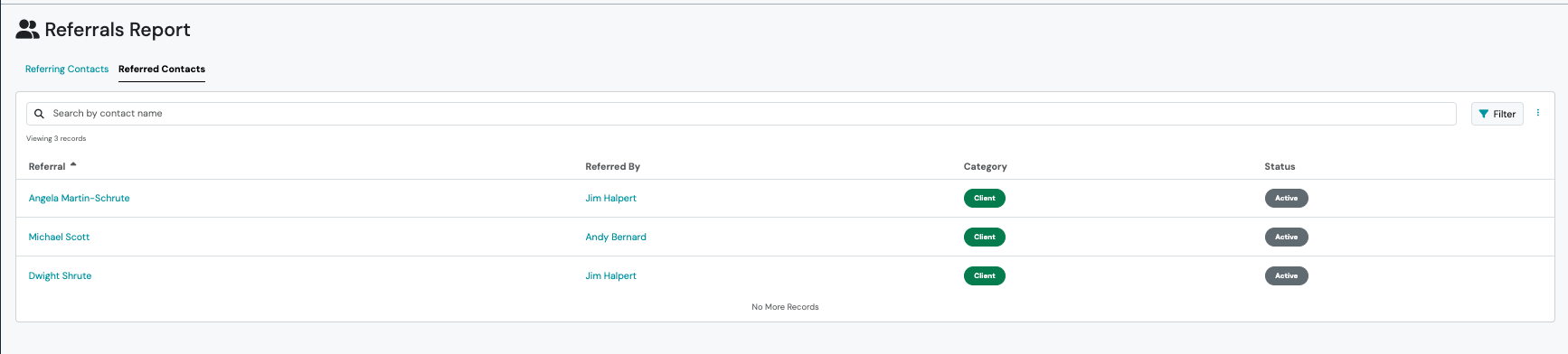
Referred Contacts View
Section titled “Referred Contacts View”The Referred Contacts tab displays all contacts that were referred to your organization.
From this view, you can:
Section titled “From this view, you can:”- View who referred each contact
- Search by contact name
- Sort referral results
- Export results
- Apply Contact and Product filters
- Open contact records directly from the report
Sorting Options
Section titled “Sorting Options”You can sort by:
Section titled “You can sort by:”- Contact Name
- Referred By Contact
- Contact Category
- Contact Status
Additional Actions
Section titled “Additional Actions”- Select a contact name to open the contact record
- Export results using the Action Menu
Filtering the Referrals Report
Section titled “Filtering the Referrals Report”The Referrals Report supports Contact and Product filters.
Use filters to narrow results based on referral source, product ownership, assignments, statuses, tags, and other criteria.
For a complete list of available filters and filter definitions, see Understanding Filters in Swivel.
Exporting the Referrals Report
Section titled “Exporting the Referrals Report”To export referral data:
- Open the Referrals Report.
- Apply any desired filters.
- Select the Action Menu.
- Click Export.
Best Practices
Section titled “Best Practices”Many organizations use the Referrals Report to strengthen referral relationships and identify growth opportunities.
Consider using this report to:
Section titled “Consider using this report to:”- Identify your most valuable referral partners
- Thank clients who regularly provide referrals
- Monitor referral activity over time
- Build marketing campaigns for referral sources
- Track referred prospects and clients
What is the difference between Referring Contacts and Referred Contacts?
Section titled “What is the difference between Referring Contacts and Referred Contacts?”Referring Contacts shows who provided referrals.
Referred Contacts shows who was referred and by whom.
How does Swivel determine referral relationships?
Section titled “How does Swivel determine referral relationships?”Referral relationships are based on the Referred By field on the contact record.
Can I export referral data?
Section titled “Can I export referral data?”Yes. Use Action Menu > Export to export the report results.
Can I create a list from referral results?
Section titled “Can I create a list from referral results?”Yes. The Referrals Report can be converted into a Dynamic or Static List.
Why don’t I see referral information for a contact?
Section titled “Why don’t I see referral information for a contact?”Verify that the contact’s Referred By field has been populated correctly.
Can I import Referred By data into Swivel?
Section titled “Can I import Referred By data into Swivel?”No, the values in the Referred By field on a contact cannot be imported into Swivel via our contact import.
Related Articles
Section titled “Related Articles”- Reports
- Contact Lists
- Understanding Filters in Swivel
- Export Data via Reports
- Contact Management
Accessing the Referrals Report
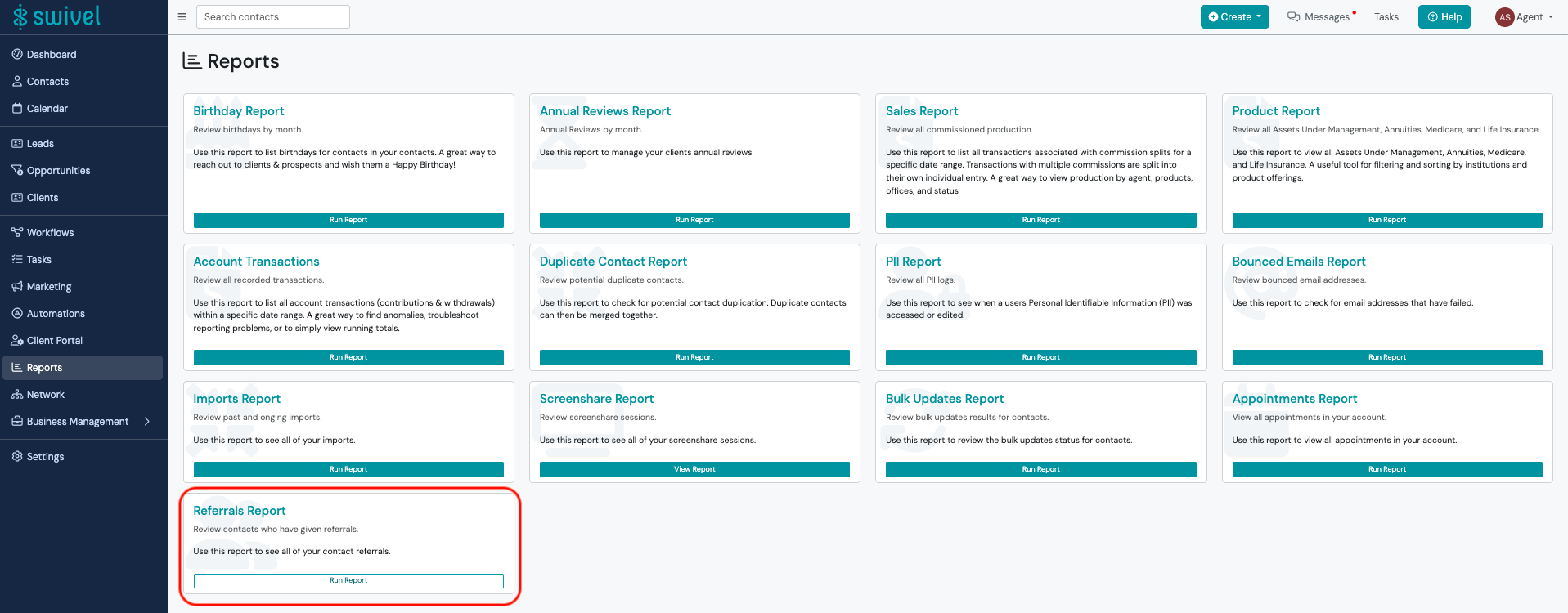
Section titled “Accessing the Referrals Report”- Select Reports from the left side navigation
- In the Referrals Report tile, select Run Report
Viewing the Referrers Report
Section titled “Viewing the Referrers Report”After running the Referral Report, users can view the Referrers Report by select the Referring Contacts tab. Users can manage the list in the following ways:
-
Sorting
- The default order of the Referrer contacts is A-Z by last name. Users can select the Referrer header to re-sort last name by Z-A.
- Users can also sort the list of Referrers by # of referrals. Select the Number of Referrals column to change the order
- Selecting the Category column header will resort the list by Contact Category
- Selecting the Status column headers will resort the list by Contact Status
-
Search the Referral Report by Contact Name
-
Expand accordion to view contacts
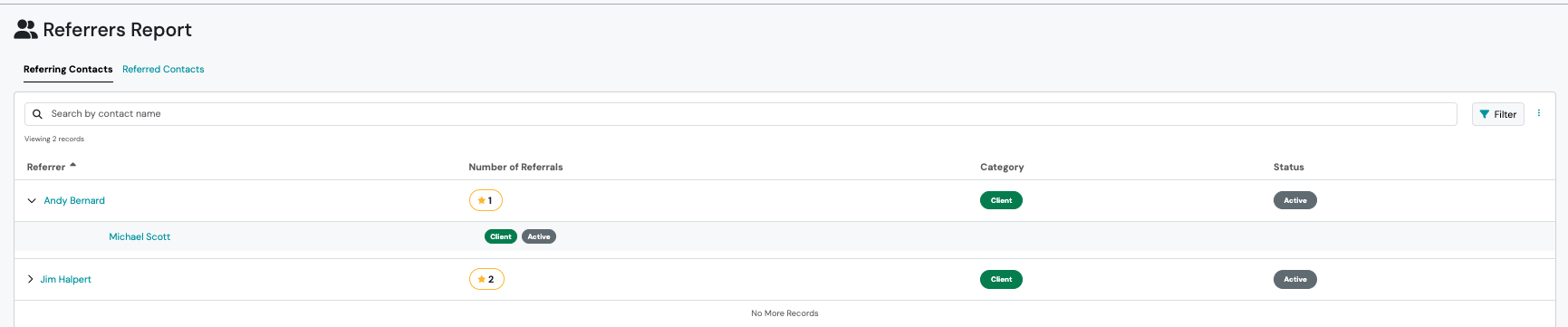
- Select any contact hyperlink to view contact information
- Export this report using the 3 dot action menu -> Export
- Filter this report using contact and product filters
Viewing the Referrals Report
Section titled “Viewing the Referrals Report”After running the Referral Report from the Reports Menu, users can view the Referrals Report by select the Referred Contacts tab. Users can manage the list in the following ways:
-
Sorting
- The default order of the Referral contacts is A-Z by last name. Users can select the Referral header to re-sort last name by Z-A.
- Users can also sort the list by the Referred By contact
- Selecting the Category column header will resort the list by Contact Category
- Selecting the Status column headers will resort the list by Contact Status
-
Search the Referral Report by Contact Name
-
Select any contact hyperlink to view contact information
-
Export this report using the 3 dot action menu -> Export
-
Filter this report using contact and product filters