

Reports
Mapped Products Report
Learn how to use the Mapped Products Report to find products with unmapped values, review mapping status, search and filter products, update product value mappings, set up Swivel Summary totals, and export the report.
Overview
Section titled “Overview”The Mapped Products Report helps you find products with values that need to be mapped to Swivel Summary totals, review mapping status, and update mappings.
Product values must be mapped to Swivel Summary totals to be included in Swivel Summary calculations.
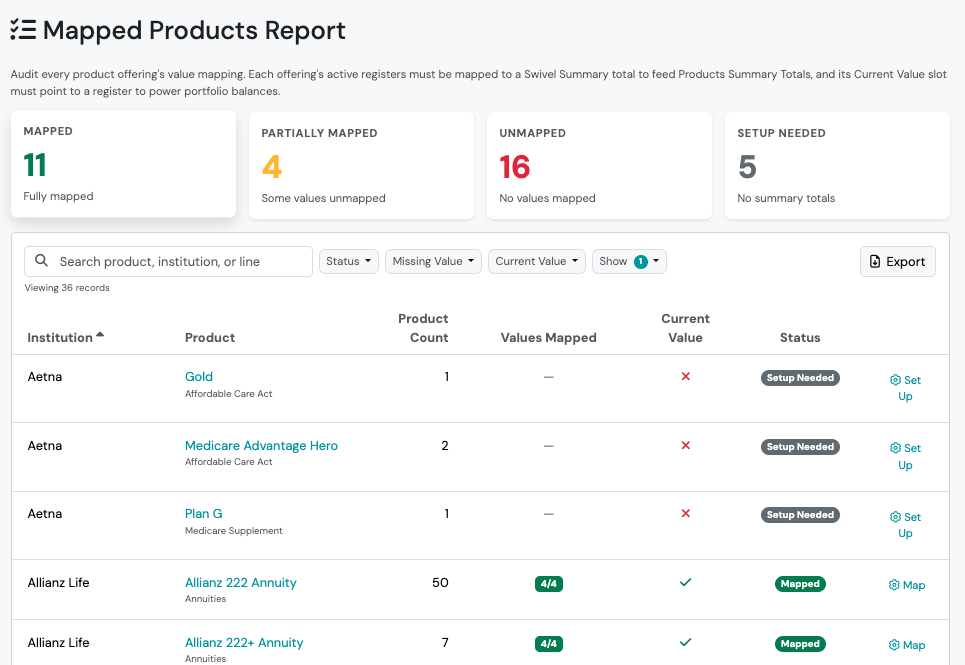
Use the report to:
- Find products with values that need to be mapped
- Search for products and filter the report
- Map product values to Swivel Summary totals
- Set up Swivel Summary totals
- Export the report to a CSV file
How Do I Get to the Mapped Products Report?
Section titled “How Do I Get to the Mapped Products Report?”Go to Reports in the left-hand navigation and select Mapped Products Report.
You can map product values from a client’s Swivel Summary or from the Mapped Products Report. The report makes it easier to find and manage mappings across the products your organization offers.
For more information about mapping product values to Swivel Summary totals, see Map Values to Swivel Summary Totals.
Reviewing Product Details
Section titled “Reviewing Product Details”Each product row in the report includes:
| Column | Description |
|---|---|
| Institution | The carrier or institution associated with the product. |
| Product | The name of the product. |
| Product Count | The number of instances of the product attached to contacts in the account. |
| Values Mapped | The number of product values mapped compared with the total number of product values. For example, 6/7 means 6 of 7 values are mapped. |
| Current Value | Indicates whether a product value is mapped to Current Balance, the Swivel Summary total. |
| Status | Shows the product’s mapping status. |
| Action | Provides an option to map or set up the product. Map opens the mapping editor. Set Up opens the setup process for product lines that need Swivel Summary totals configured. |
Product Mapping Status
Section titled “Product Mapping Status”The Status column shows whether product values are mapped to Swivel Summary totals.
| Status | What It Means |
|---|---|
| Mapped | All configured Swivel Summary totals have a product value mapped to them. |
| Partially Mapped | Some configured Swivel Summary totals have a product value mapped to them, but one or more still need a product value mapped to them. |
| Unmapped | Swivel Summary totals are configured, but none have a product value mapped to them. |
| Setup Needed | Swivel Summary totals have not been configured for the product line. |
If a product shows Setup Needed, select Set Up to configure Swivel Summary totals before mapping product values.
Finding Products in the Report
Section titled “Finding Products in the Report”Use the Search field and report filters to quickly find the products you need.
| Search or Filter | Description |
|---|---|
| Search | Search for a product, institution, or product line. |
| Status | Filter by Mapped, Partially Mapped, Unmapped, or Setup Needed. |
| Missing Value | Select a Summary Total to find products where no product value has been mapped to that total. |
| Current Value | Filter Current Value by Mapped or Unmapped. |
| Show | Choose Active products, Archived products, or both. |
Missing Value Options
Section titled “Missing Value Options”The Missing Value filter includes:
- Total Account Value
- Total Cash & Cash Investments
- Total Cash Value
- Total Contributions
- Total Death Benefit
- Total Market Value
- Total Penalty Free Withdrawals Available
- Total Premiums Paid
- Total Withdrawals
- Total Withdrawals to Date
Updating Product Mappings
Section titled “Updating Product Mappings”You can map product values to Swivel Summary totals directly from the Mapped Products Report.
- Locate the product in the report.
- Select Map.
- Assign product values to the appropriate Swivel Summary totals.
- Save your changes.
If a product shows Setup Needed, select Set Up to configure Swivel Summary totals for that product line before mapping product values.
For more information about mapping product values to Swivel Summary totals, see Map Values to Swivel Summary Totals.
For institution-specific examples, see Swivel Summary Mapping Examples.
Why don’t I see any product values to select?
Section titled “Why don’t I see any product values to select?”If there are no product values available to select when you’re mapping a product, the values may not have been created or populated yet.
For products supported by Swivel Sync, values are created and populated when Swivel Sync retrieves data from the carrier.
For products that aren’t supported by Swivel Sync, you may need to create the values and add the data from the carrier website manually.
For more information, see Adding & Updating Values for Products.
Exporting the Report
Section titled “Exporting the Report”You can export the Mapped Products Report to a CSV file.
The exported file reflects the products, filters, and information currently displayed in the report.