

Events
Manage Event Registrations (Roster)
Overview
Section titled “Overview”The Roster lets you manage event registrations, including registering contacts, tracking attendance, managing Product Interests, completing follow-up activities, and communicating with contacts.
From the Roster, you can:
Registration
Section titled “Registration”- Register existing contacts
- Register new contacts
- Import event registrations
Attendance
Section titled “Attendance”- Confirm attendance
- Update attendee Status
- Record event Outcomes
Follow-Up
Section titled “Follow-Up”- View and update Product Interests
- Search and filter registrations
- Send bulk emails or text messages
- View Communication History
- Export registration lists
- Create Static Lists
- Schedule appointments
- Create Opportunities
- Communicate with individual contacts
When to Use the Roster
Section titled “When to Use the Roster”Use the Roster to:
- Register contacts for an event
- Track attendance before and after an event
- Capture Product Interests
- Schedule follow-up activities
- Create Opportunities
- Export event registration lists
- Create Static Lists for follow-up activities
- Send event reminders or follow-up communications
- Review communication history
View the Roster
Section titled “View the Roster”Open an event to access the Roster.
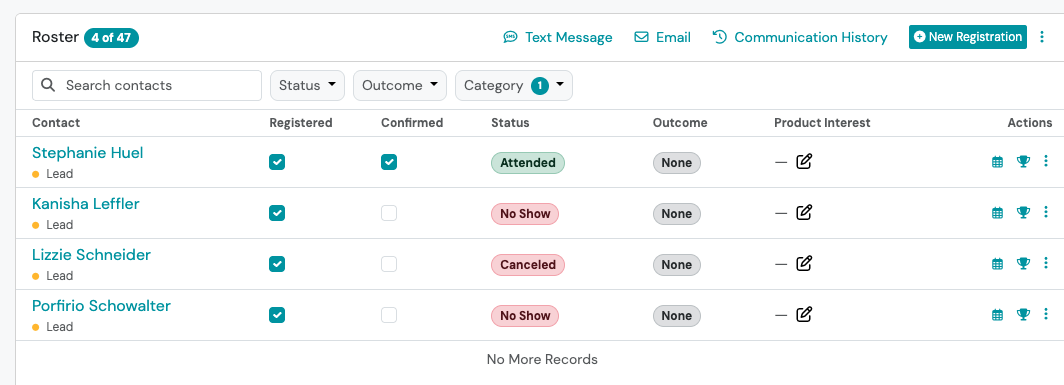
The Roster includes the following information:
| Column | Description |
|---|---|
| Contact | Displays the contact’s name and Category. |
| Registered | Select the checkbox to mark a contact as registered. |
| Confirmed | Select the checkbox to confirm attendance. |
| Status | Displays the contact’s event attendance status. |
| Outcome | Displays the result of the contact’s event participation. |
| Product Interests | View or update the registrant’s Product Interests. |
| Actions | Schedule appointments, create Opportunities, or communicate with a contact. |
Find Registrations
Section titled “Find Registrations”Use the Roster search and filters to find registrations:
- Search by contact name
- Filter by Category, Status, or Outcome
The registrant’s Category appears below their name in the Roster.
When filters are applied, the roster count displays the number of matching registrations out of the total number of registrations (for example, 25 of 120).
Register Contacts
Section titled “Register Contacts”You can add contacts to an event by registering an existing contact or creating a new contact during registration.
Register an Existing Contact
Section titled “Register an Existing Contact”Add one or more existing contacts to an event.
- Open an event.
- In the Roster, select +New Registration.
- Search for and select the contact(s) you want to register.
- Click Register.
Register a New Contact
Section titled “Register a New Contact”Register someone even if they are not already a contact in Swivel.
- Open the event.
- In the Roster, select +New Registration.
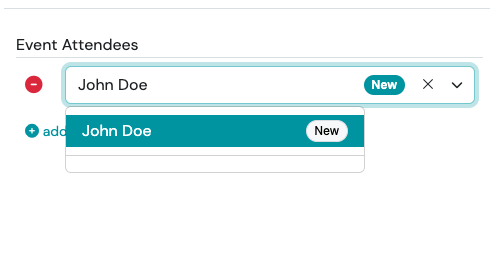
- Begin typing the contact’s name.
- If no existing contact is found, select Create New Contact.
- Complete the registration.
Swivel automatically:
-
Creates the contact.
-
Registers the contact for the event.
-
Assigns these default values:
- Contact Type: Individual
- Contact Category: Unspecified
- Contact Status: New
Import Event Registrations
Section titled “Import Event Registrations”Import multiple contacts into an event using the Event Attendance Import template.
- Open the event.
- In the Roster, select the three-dot menu next to +New Registration.
- Select Import.
- Complete the Event Attendance Import template.
- Upload the completed file.
Track Attendance
Section titled “Track Attendance”Use the Roster to track whether registered contacts attend an event.
Confirm Attendance
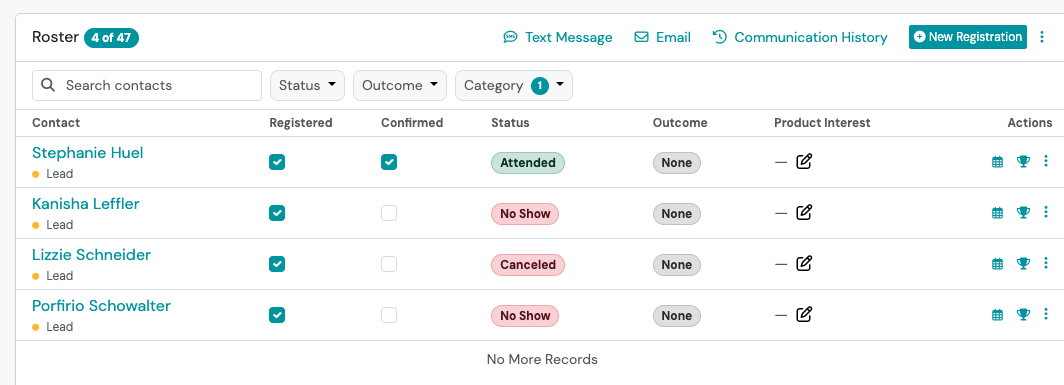
Section titled “Confirm Attendance”Select the Confirmed checkbox to confirm a registrant’s attendance.
Update Status
Section titled “Update Status”Update the registrant’s Status to record their event attendance status.
Available Status options include:
- Pending
- Attended
- Canceled
- No Show
- Rescheduled
- Waitlisted
Record Outcome
Section titled “Record Outcome”Select an Outcome to record the result of the registrant’s event participation.
Available Outcome options include:
- None
- Appointment Set
- Follow Up
Manage Product Interests
Section titled “Manage Product Interests”Update an registrant’s Product Interests directly from the Roster.
- Locate the registrant.
- Click the Product Interests field.
- Select or update the appropriate interests.
Export Registration Lists and Create Static Lists
Section titled “Export Registration Lists and Create Static Lists”Use the three-dot action menu in the Roster to export registration lists or create Static Lists.
-
Open the event.
-
In the Roster, select the three-dot action menu.
-
Choose one of the available options:
- Export to download registration information.
- Convert to Static List to create a list for follow-up activities.
If filters are applied, the export or Static List includes only the registrations currently displayed in the Roster.
Communicate with Contacts from the Roster
Section titled “Communicate with Contacts from the Roster”The Roster provides communication options for both groups of contacts and individual contacts.
Send Bulk Emails or Text Messages
Section titled “Send Bulk Emails or Text Messages”Use the communication actions at the top of the Roster to send messages to multiple contacts.
- Filter the Roster to display the contacts you want to contact.
- Select Email or Text.
- Compose and send your message.
Messages are sent only to the contacts currently displayed in the filtered Roster.
View Communication History
Section titled “View Communication History”Select Communication History at the top of the Roster to review previous communications sent to contacts from the event.
Communicate with an Individual Contact
Section titled “Communicate with an Individual Contact”To contact a specific person, use the action icons next to their name in the Roster.
| Action | Description |
|---|---|
| Calendar icon | Schedule an appointment with the contact. |
| Opportunity icon | Create an Opportunity for the contact. |
| Three-dot action menu | Call, email, or text the contact. |
Can I create custom Status or Outcome options?
Section titled “Can I create custom Status or Outcome options?”No. Event Attendance Status and Event Attendance Outcome options are system-defined and cannot be customized.
Available Status options include:
- Pending
- Attended
- Canceled
- No Show
- Rescheduled
- Waitlisted
Available Outcome options include:
- None
- Appointment Set
- Follow Up
Can I register someone who is not already in Swivel?
Section titled “Can I register someone who is not already in Swivel?”Yes. During registration, Swivel can create the contact and register them in a single step.
Does updating Product Interests only affect this event?
Section titled “Does updating Product Interests only affect this event?”No. Product Interests are stored on the contact record, so any changes made from the Event Roster are reflected everywhere that contact appears in Swivel.
How many Product Interests are displayed in the Event Roster?
Section titled “How many Product Interests are displayed in the Event Roster?”The Event Roster displays up to two Product Interests for each registrant.
If a contact has additional Product Interests, a +N indicator appears. Hover over +N to view the remaining Product Interests.
Can I search or filter registrations before sending an email or text?
Section titled “Can I search or filter registrations before sending an email or text?”Yes. Use search or the Category, Status, and Outcome filters to display only the registrations you want to message.
Messages are sent only to the registrations currently displayed in the Roster.
When filters are applied, the roster count displays the number of matching registrations out of the total number of registrations (for example, 25 of 120).
Why does the roster count change when I apply filters?
Section titled “Why does the roster count change when I apply filters?”The roster count shows how many registrations match your current filters compared with the total number of registrations.
For example, 25 of 120 means 25 registrations match the applied filters out of 120 total registrations.