Email Campaigns
🥳 Birthday Email Campaigns
Implementing an email birthday campaign is a great way to strengthen client relationships.
Recommendations for an effective email birthday campaign:
- Timing: Send the email a few days before the birthday, on the birthday, or even as a belated greeting to ensure the message is timely.
- Opt-Out Option: Ensure there is an easy way for customers to opt-out of emails if they choose.
Sample Email Message-Short & Sweet:
Section titled “Sample Email Message-Short & Sweet:”We hope your birthday is filled with joy, laughter, and wonderful moments. Thank you for being a valued part of our community. We look forward to celebrating many more birthdays with you!
Sample Email Message-Long:
Section titled “Sample Email Message-Long:”Happy Birthday! 🎉🎂
On behalf of everyone at [Your Insurance Agency Name], I wanted to personally wish you a wonderful birthday. May your day be filled with joy, laughter, and all the things you love.
As your insurance agent, I want to remind you that I’m here to help you with any questions or needs you might have. Whether you’re looking to review your current coverage or explore new options, feel free to reach out at any time.
Special Birthday Offer: As a small token of our appreciation for being a valued client, we’re offering a complimentary policy review and consultation. This is a great opportunity to ensure you have the best coverage to suit your needs.
Contact Me:
- Email: [Your Email]
- Phone: [Your Phone Number]
Enjoy your special day, and here’s to another year of health, happiness, and peace of mind!
Creating a Birthday Email Campaign
Section titled “Creating a Birthday Email Campaign”-
From left side navigation menu, go to Reports and select Run Report on Birthday Report.
-
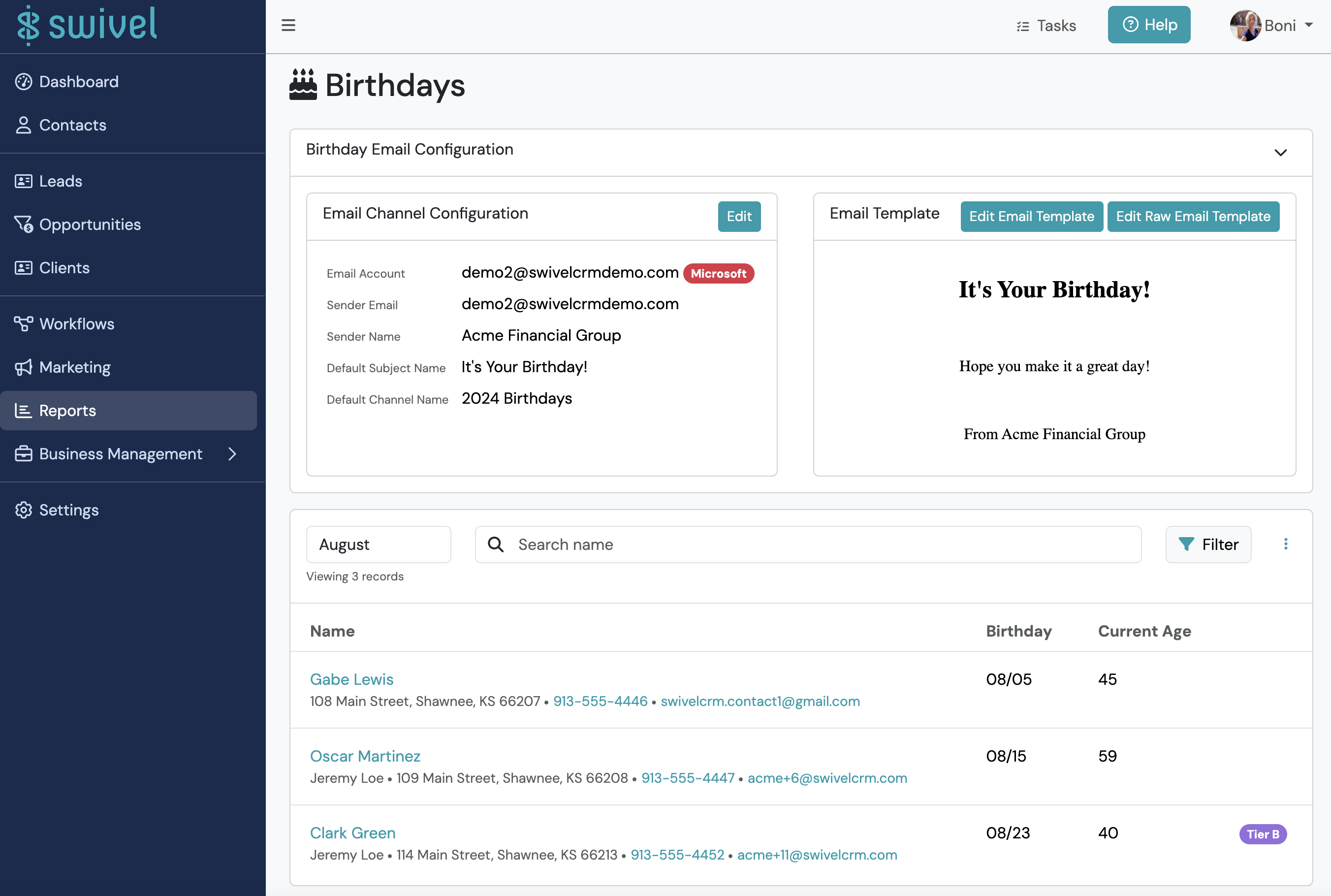
Go to the Birthday Email Configuration and select the > drop-down button to display the Email Configuration and Email Template tiles.
-
Complete Email Channel Configuration form.
- Account: This is the email account messages will be sent from
- Sender Name: The name that will display in the recipient’s inbox
- Email Subject: Subject line that will display in the recipient’s inbox
- Email Channel Name
-
Click Save.
-
Select Edit Email Template and complete Email Template form.
-
Click Save.
-
Select the desired birthday month in the month drop-down.
-
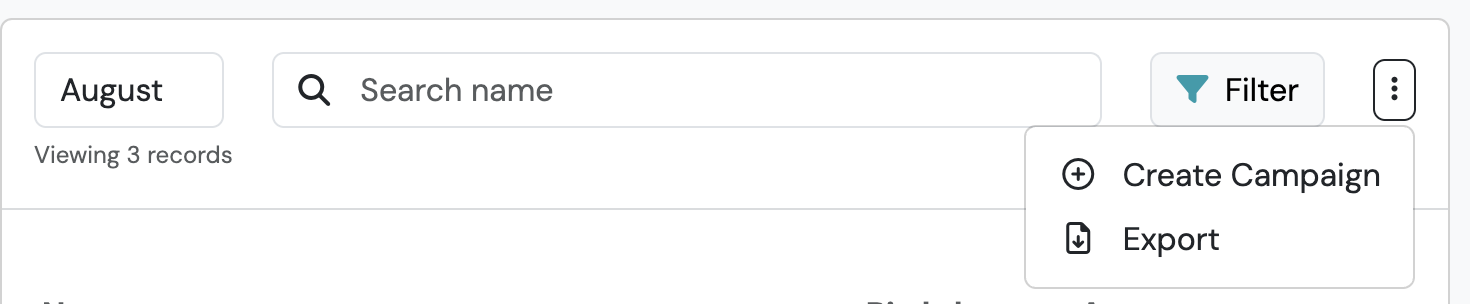
Navigate to the Action Menu
 and select +Create Campaign
 -
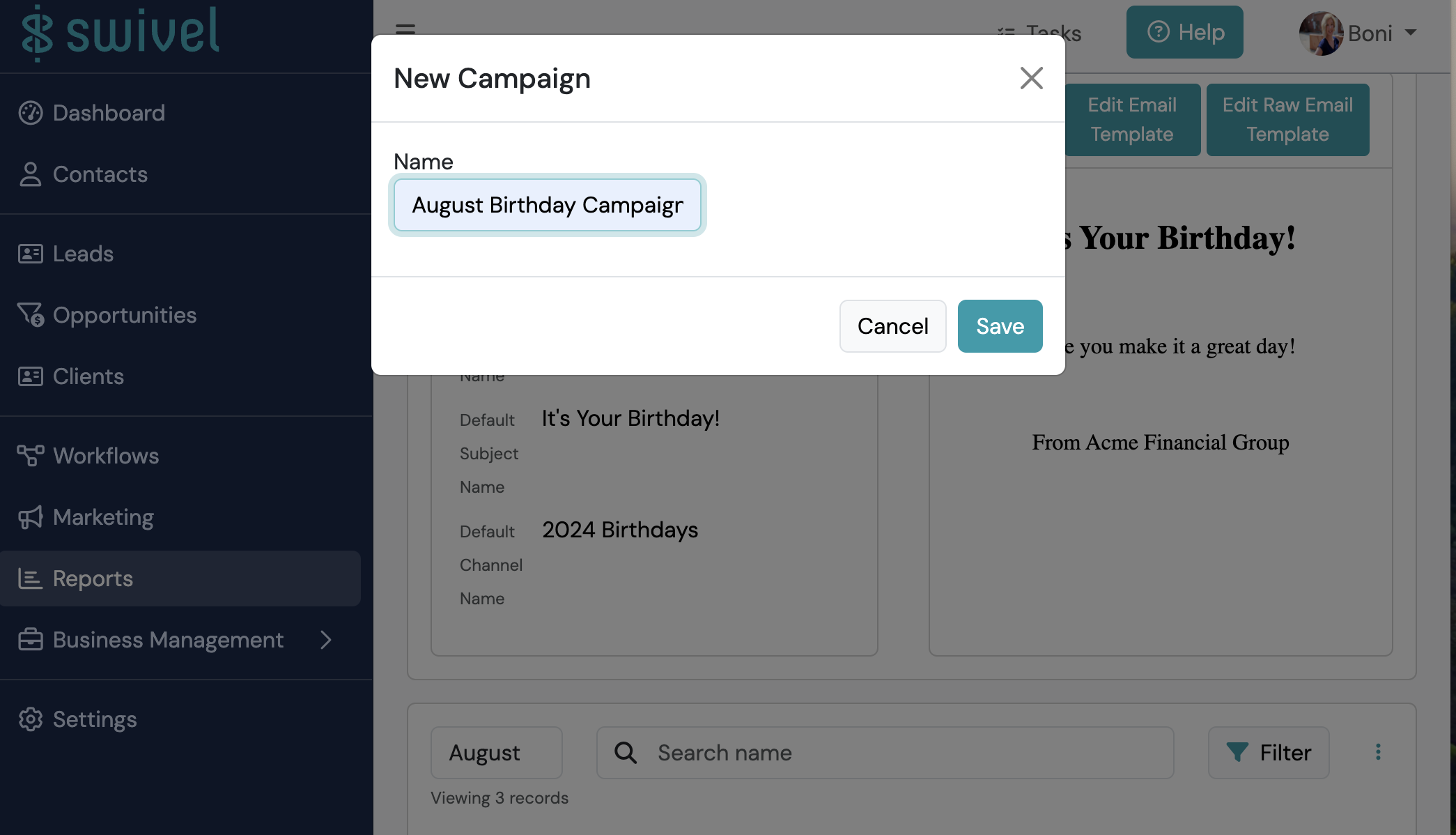
Name the campaign and click Save
Sending Scheduled Birthday Emails
Section titled “Sending Scheduled Birthday Emails”Once you’ve completed creating and finalizing your email message, now it’s time to schedule.
-
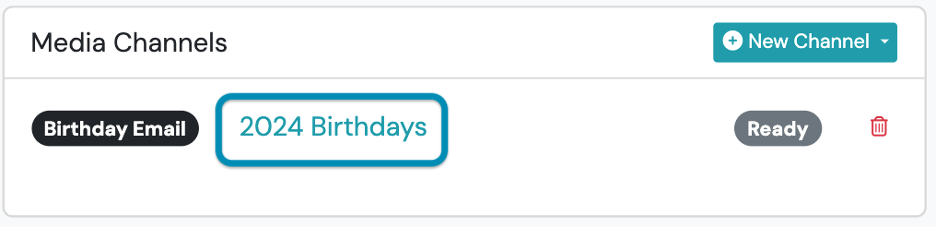
From your newly created Campaign, navigate to the Media Channels tile, click the newly created birthday email channel.
-
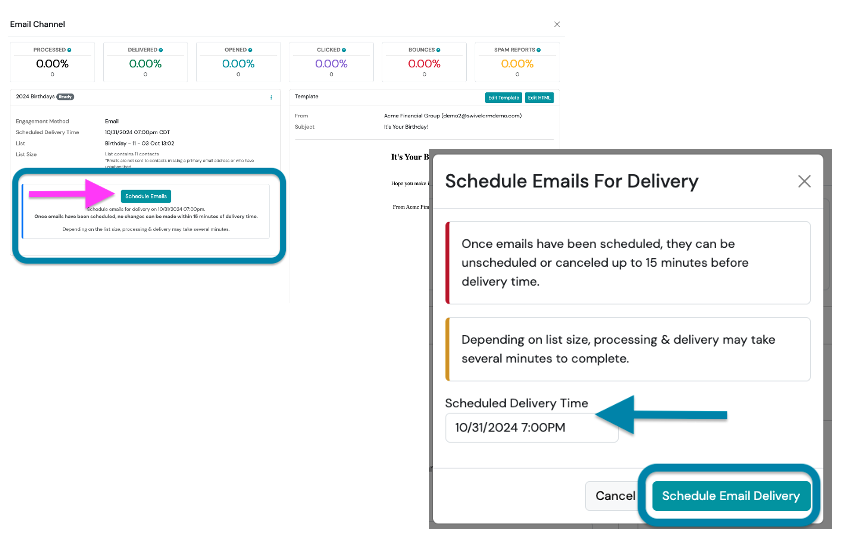
From the Email Channel pop-up window, click the Schedule Emails button, confirm Scheduled Delivery Time and > click Schedule Email Delivery button.