

Events
Manage Event Communications
Communicate with event attendees by sending bulk emails or text messages, reviewing communication history, exporting registrations, and creating reusable contact lists.
Overview
Section titled “Overview”After attendees register for an event, you can communicate with them as a group without leaving the Event page.
From the Roster, you can:
- Send bulk emails
- Send bulk text messages
- Filter recipients by registration status or outcome
- Review communication history
- Export event registrations
- Create a static contact list for future follow-up
When to Use
Section titled “When to Use”Use Event Communications to:
- Follow up after an event
- Contact a specific group of attendees
- Export attendee information
- Create reusable contact lists for future marketing
Send Bulk Emails or Text Messages
Section titled “Send Bulk Emails or Text Messages”Communicate with multiple attendees directly from the Event Roster.
-
Open the desired Event.
-
Select the Roster tab.
-
Use the Status, Outcome, and Contact Category filters to display the attendees you want to contact.
-
Click Email or Text Message.
-
Compose your message:
- Email: choose the From account, enter a Sender name and Subject, then write your message in Plain Text, choose a Template, or paste HTML.
- Text: check This is an event reminder to send it as a transactional message. Keep the body factual. Promotional content is not allowed on this channel.
-
Review the preview, then click Send.
Only the attendees currently displayed in the Roster will receive your message.
Available Filters
Section titled “Available Filters”Status Filters
Section titled “Status Filters”- Registered
- Confirmed
- Pending
- Attended
- No Show
- Canceled
- Rescheduled
- Waitlisted
Outcome Filters
Section titled “Outcome Filters”- None
- Appointment Set
- Follow Up
Contact Category
Section titled “Contact Category”Filter attendees by their Contact Category to communicate with specific groups, such as Prospects, Clients, or other categories configured by your organization.
See: How to Organize Contacts to learn more about Contact Categories.
Review Communication History
Section titled “Review Communication History”View previous emails and text messages sent to attendees for a specific event.
- Open the desired Event.
- Select the Roster tab.
- Click Communication History.
Communication History displays all communications previously sent from that event.
Export an Event Registration List
Section titled “Export an Event Registration List”- Navigate to the desired Event page.
- In the Roster (formerly Registered) section, click the three-dot action menu.
- Select Export.
Create a Static Contact List
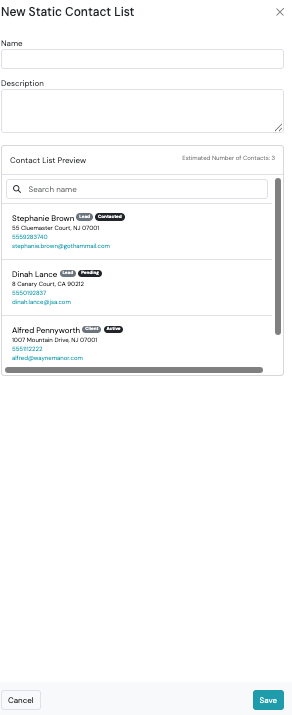
Section titled “Create a Static Contact List”Turn an event’s attendees into a reusable static contact list, useful for following up with a specific group after the event.

- In the Registered section, apply any Status or Outcome filters so the roster shows exactly who you want on the list.
- Click the three-dot action menu, then select Convert to Static List.
- Enter a Name and, optionally, a Description. The Contact List Preview shows who will be included and an estimated contact count, based on your current filter.
- Click Save. Your new list is available under Contact Lists
Best Practices
Section titled “Best Practices”Filter attendees before sending communications
Section titled “Filter attendees before sending communications”Use the Status and Outcome filters to ensure your message is sent only to the intended audience.
Save frequently used attendee groups
Section titled “Save frequently used attendee groups”If you’ll contact the same attendees again, convert them into a Static Contact List instead of rebuilding the audience each time.
Review previous communications
Section titled “Review previous communications”Check Communication History before sending follow-up messages to avoid duplicate outreach.
Frequently Asked Questions
Section titled “Frequently Asked Questions”Can I filter attendees before sending an email or text?
Section titled “Can I filter attendees before sending an email or text?”Yes. Use the Status, Outcome, and Contact Category filters to display only the attendees you want to contact. Messages are sent only to the attendees currently displayed in the Roster.
Can I send an email to only attendees who attended the event?
Section titled “Can I send an email to only attendees who attended the event?”Yes. Filter the Roster by Status = Attended, then send your email. Only the attendees currently displayed in the Roster will receive the message.
Can I text attendees with a specific outcome?
Section titled “Can I text attendees with a specific outcome?”Yes. Apply an Outcome filter before sending your text message. Only the attendees currently displayed in the Roster will receive the message.
Can I send both email and text messages from an event?
Section titled “Can I send both email and text messages from an event?”Yes. You can send both email and text messages from the Event Roster, provided your organization has configured those services.
Can I review communications that were already sent?
Section titled “Can I review communications that were already sent?”Yes. Select Communication History from the Event Roster to view previous emails and text messages sent for the event.
Can I export my event registrations?
Section titled “Can I export my event registrations?”Yes. Use the Export option from the Event Roster to export your attendee list.
Can I create a Contact List from only some attendees?
Section titled “Can I create a Contact List from only some attendees?”Yes. Apply Status and/or Outcome filters before selecting Convert to Static List. Only the attendees currently displayed in the Roster are added to the Contact List.
Does creating a Static Contact List remove attendees from the event?
Section titled “Does creating a Static Contact List remove attendees from the event?”No. Creating a Static Contact List does not affect the event or its attendee list. It simply creates a reusable Contact List containing the selected attendees.