

Dashboard Widgets
Custom Dashboard Widgets
Custom Dashboard Widgets allow you to build personalized dashboard sections to track the metrics that matter most to your business. You can create as many custom widget groups as you need.
This article walks through how to configure custom widget groups, add widgets, and understand the available widget options.
Create a Custom Widget Group
Section titled “Create a Custom Widget Group”Custom widget groups allow you to create your own dashboard sections.
Common examples include:
Section titled “Common examples include:”Common examples include:
- Agent Metrics
- My Book of Business
- KPI Tracking
- Specific values for specific policies & accounts
To create a custom widget group:
-
From the Dashboard, click Configure in the top-right corner
-
Open the Configure Widgets panel.
-
Click + New Widget Group.
-
A new blank group will appear at the bottom of your list.
-
Enter a Custom Name for the group.
-
Set the Custom Position, which determines where this group displays relative to your other custom widget groups.
- Position determines where the widget group appears on the dashboard. Lower numbers display higher on the page, and this affects both custom and preconfigured widget groups.
-
Close the panel to save.
Edit a Widget Group
Section titled “Edit a Widget Group”You can rename your widget group or change its dashboard position at any time.
To edit a custom widget group:
-
From the dashboard, click the three-dot menu on the widget group.
-
Select Edit Widget Group.
-
Update the following fields:
-
Name: rename your widget group.
-
Position: choose where the widget group appears on the dashboard.
- Position 1 = top
- Position 2 = second row
- And so on
-
-
Click Save
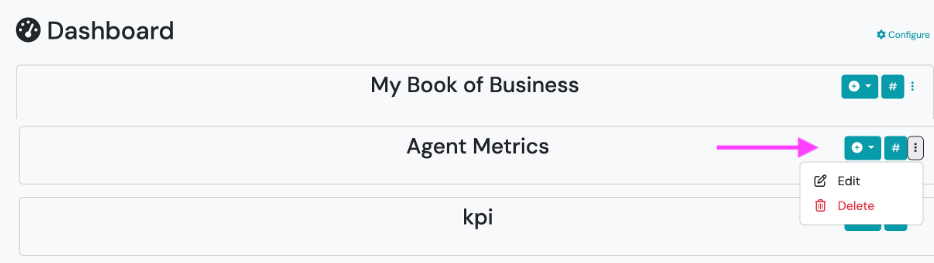
Add Widgets to a Group
Section titled “Add Widgets to a Group”Each custom widget group can contain multiple widgets.
To add widgets:
- On the widget group, click the Add Widget dropdown icon (🔽).
- Select the widget type you want to create.
- Configure the widget settings as needed.
Available Widget Types
Section titled “Available Widget Types”Value Widget
Section titled “Value Widget”Value Widgets track configured values tied to policies or accounts.
Unlike the Current Value Widget, Value Widgets allow you to select specific value registers to include in the calculation.
Available Configuration Options
Section titled “Available Configuration Options”- Widget Name
- Product Value Filters
- Contact Filters
- Product Filters
- Widget Position within Group
Common Use Cases
Section titled “Common Use Cases”- Protected Income Value
- Cash Value Totals
- Account Value Tracking
Related Articles
Section titled “Related Articles”🔗 Updating Policy and Account Values
🔗 Values for Policies and Accounts
Compensation Widget
Section titled “Compensation Widget”Compensation Widgets track totals tied to configured compensation types.
Available Configuration Options
Section titled “Available Configuration Options”- Widget Name
- Product Value Filters
- Contact Filters
- Product Filters
- Widget Position within Group
Common Use Cases
Section titled “Common Use Cases”- Commission Tracking
- Fee Revenue
- IUL Target Premium Compensation
Related Articles
Section titled “Related Articles”Transaction Widget
Section titled “Transaction Widget”Transaction Widgets track totals tied to transaction activity.
Available Configuration Options
Section titled “Available Configuration Options”- Widget Name
- Product Value Filters
- Contact Filters
- Product Filters
- Widget Position within Group
Common Use Cases
Section titled “Common Use Cases”- Withdrawals tracking
- Contributions tracking
- Premium Payments
Related Articles
Section titled “Related Articles”Current Value Widget
Section titled “Current Value Widget”Current Value Widgets total product balances using each product’s configured Current Balance Mapping.
Unlike the standard Value Widget, which allows you to select specific value registers, the Current Value Widget automatically references the configured Current Value Mapping for each product and sums those totals together.
If a product does not have a Current Balance Mapping configured:
- Its value will display as 0
- The product will still be included in the product count
Common Use Cases
Section titled “Common Use Cases”- Total Assets Under Management (AUM)
- Total Account Value
- Advisory Account Balances
- Retirement Account Totals
Related Articles
Section titled “Related Articles”🔗 Summary Totals for Swivel Summary
Widget Group Icons
Section titled “Widget Group Icons”Each widget group contains controls in the top-right corner that affect how widgets display.
$ / # Toggle (Dollar ↔ Count)
Section titled “$ / # Toggle (Dollar ↔ Count)”Use this toggle to switch between:
- # = product count
- $ = dollar amounts
Recommended Use Cases
Section titled “Recommended Use Cases”Use Product Count (#) when tracking products that may not have meaningful dollar values associated with them.
Example: MAPD policies are commonly tracked using Product Count because they typically have $0 premiums.
Use Dollar Amount ($) when tracking production, balances, compensation, or account values.