Swivel Summary Overview
Snapshot for Swivel Summary
Overview
Section titled “Overview”Snapshot provides a point-in-time view of key values associated with a client’s policies and accounts within Swivel Summary.
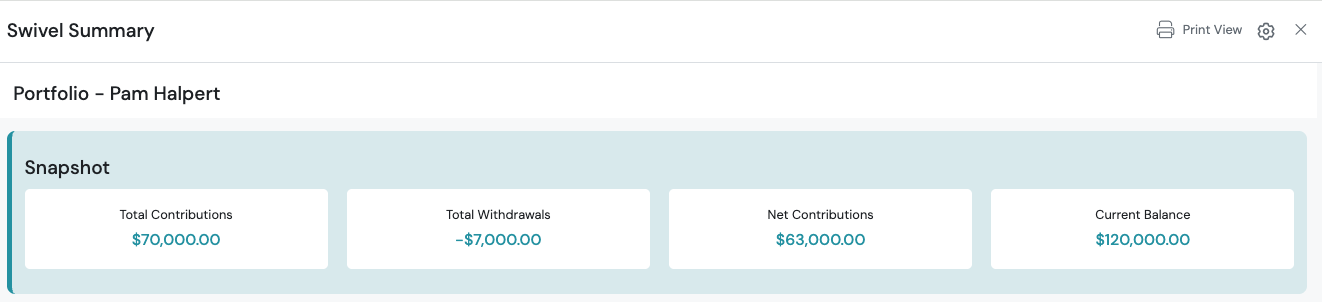
Snapshot Totals summarize these values and can represent calculated rollups of:
- Product value-based amounts: Numbers that derive from a policy or account value.
- Contributions & Withdrawals amounts: Numbers that derive from entries managed in the Contributions & Withdrawals section of a policy or account.
Snapshot Totals
Section titled “Snapshot Totals”Snapshot Totals include:
- Total Contributions: Displays the total contributions associated with the client’s policies and accounts.
- Total Withdrawals: Displays the total withdrawals associated with the client’s policies and accounts.
- Current Balance: Displays the current balance associated with the client’s policies and accounts.
Net Contributions is calculated from Total Contributions and Total Withdrawals; therefore, mapping is not available for this Snapshot Total.
Snapshot Sections
Section titled “Snapshot Sections”The Snapshot includes three sections:
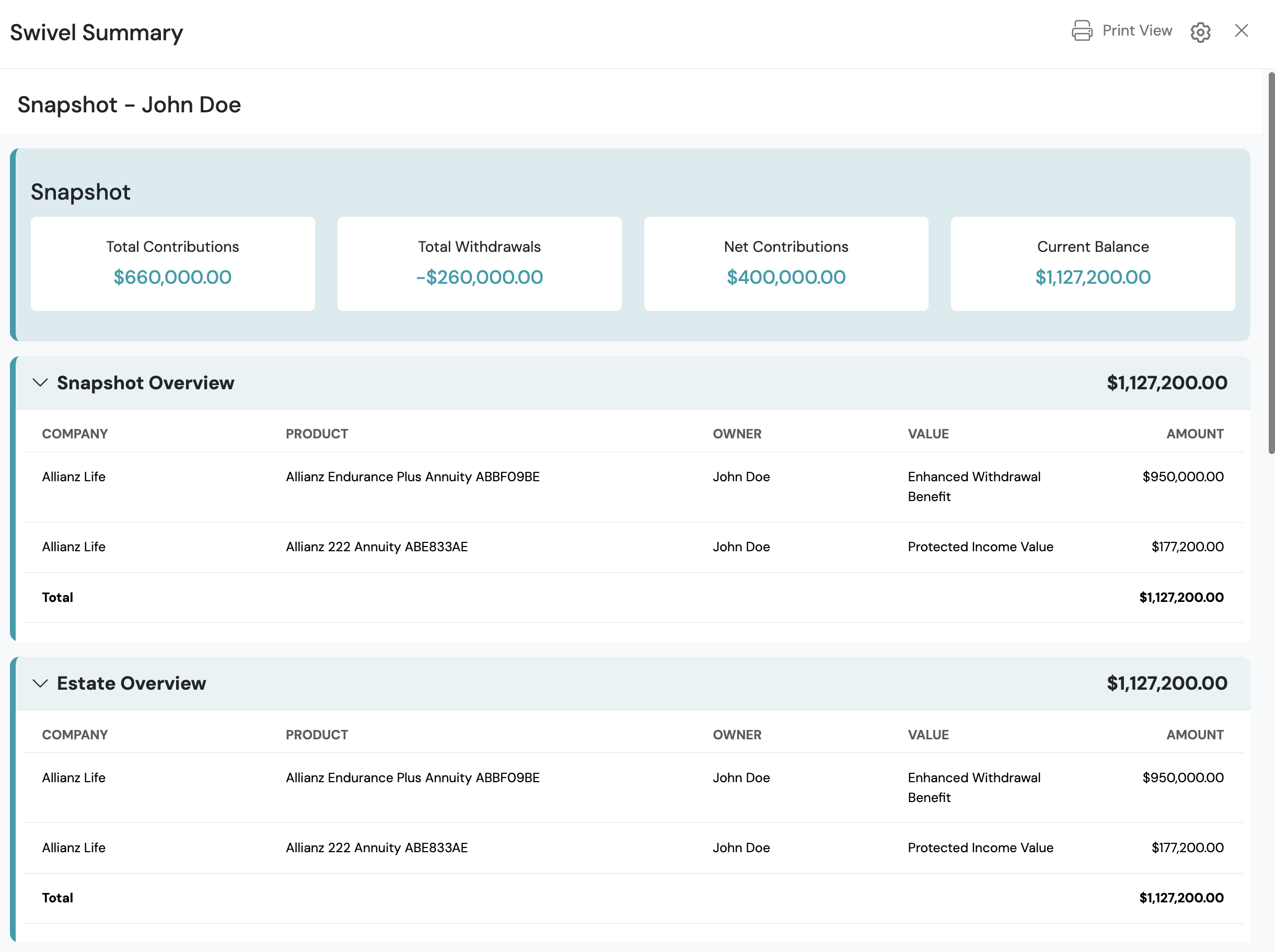
- Snapshot (or Snapshot Totals): Displays calculated totals associated with the client’s policies and accounts.
- Snapshot Overview: Displays additional policy and account details.
- Estate Overview: Displays estate-related information available for the client.
Viewing Snapshot
Section titled “Viewing Snapshot”To view Snapshot:
- Navigate to a contact record with policies and/or accounts.
- Click Swivel Summary in the top-right corner.
Configuring Snapshot
Section titled “Configuring Snapshot”Users can customize the Swivel Summary display to control which items appear in their view. Through the Configure Snapshot, users can enable or disable specific summary components based on their preferences.
Overview Sections
Section titled “Overview Sections”-
Navigate to a contact record with policies and/or accounts.
-
Click the Swivel Summary button located on the top-right corner to launch the Swivel Summary page.
-
Click the Settings cog icon located on the top-right corner.

-
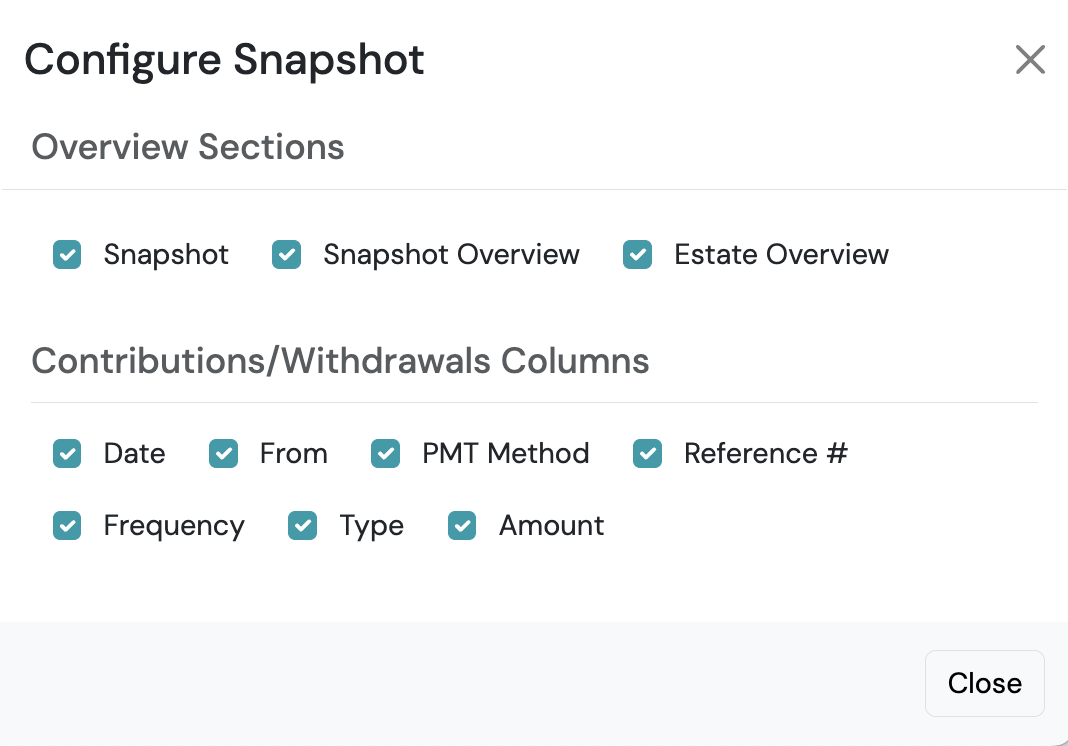
From the Configure Snapshot slide out, go to Overview Sections.
-
From the Configure Snapshot slide out and select the checkbox(s) you would like to display.
-
Click Close to exit.
Contributions & Withdrawals Columns
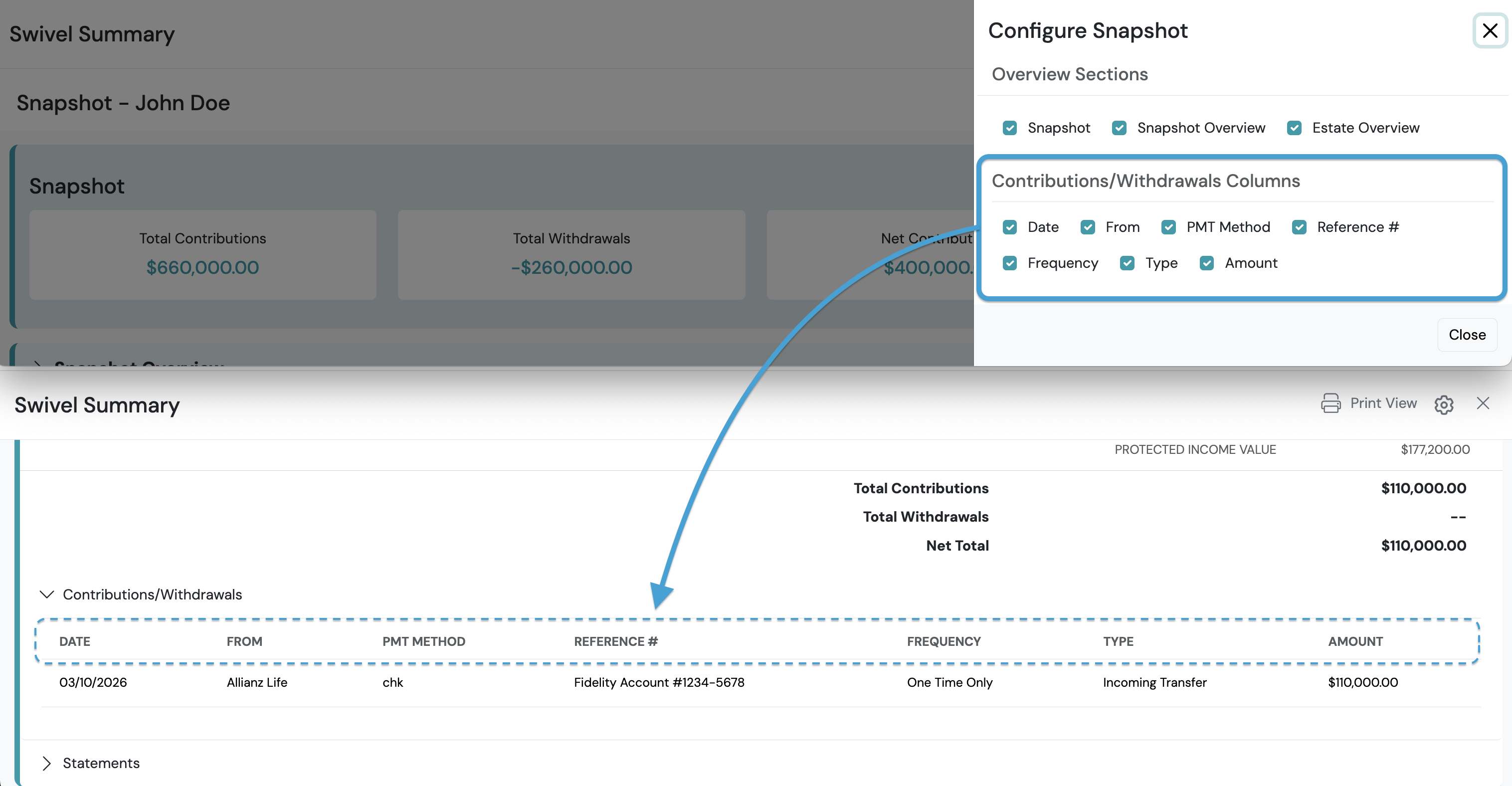
Section titled “Contributions & Withdrawals Columns”Use the Contributions/Withdrawals Columns settings to manage the column headers displayed in the Contributions/Withdrawals section of each policy and/or account.
-
Navigate to a contact record with policies and/or accounts.
-
Click the Swivel Summary button located on the top-right corner to launch the Swivel Summary page.
-
Click the Settings cog icon located on the top-right corner.

-
From the Configure Snapshot slide out, go to Contributions/Withdrawals Columns.
-
Select the checkbox(s) you would like to enable. Options include:
- Date
- From
- PMT Method
- Reference #
- Frequency
- Type
- Amount
-
Click Close to exit.
Snapshot Overview
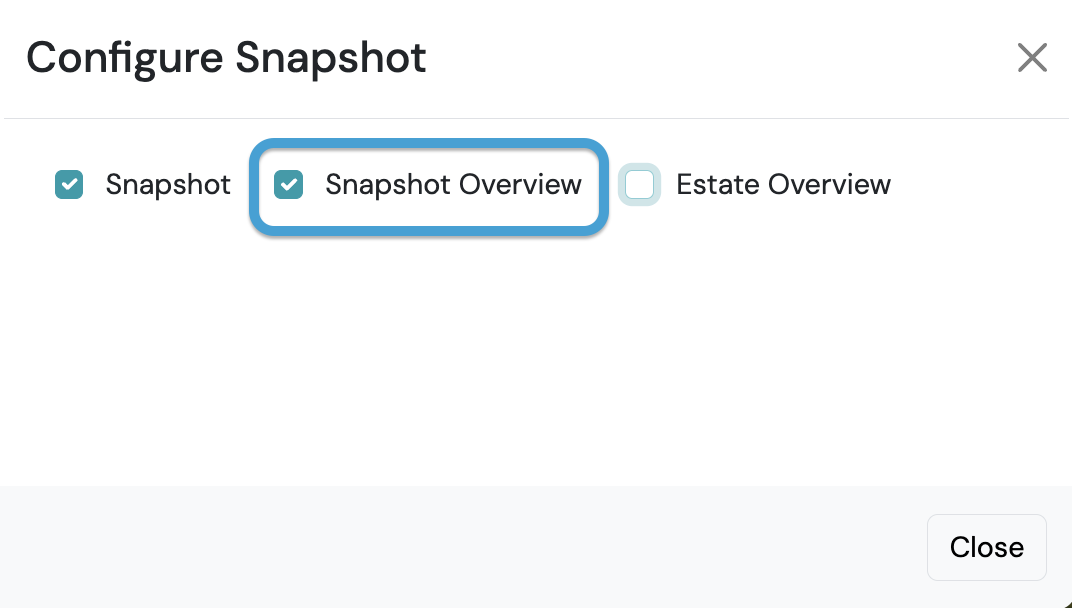
Section titled “Snapshot Overview”The Snapshot Overview provides a rollup value and breakdown of all policies and accounts with a Current Balance mapping configured.
-
Navigate to a contact record with policies and/or accounts.
-
Click the Swivel Summary button located on the top-right corner to launch the Swivel Summary page.
-
Click the Settings cog icon located on the top-right corner.

-
From the Configure Snapshot slide out > select Snapshot Overview.
-
Click Close to exit.
-
Confirm Snapshot Overview section displays on Swivel Summary.
Estate Overview
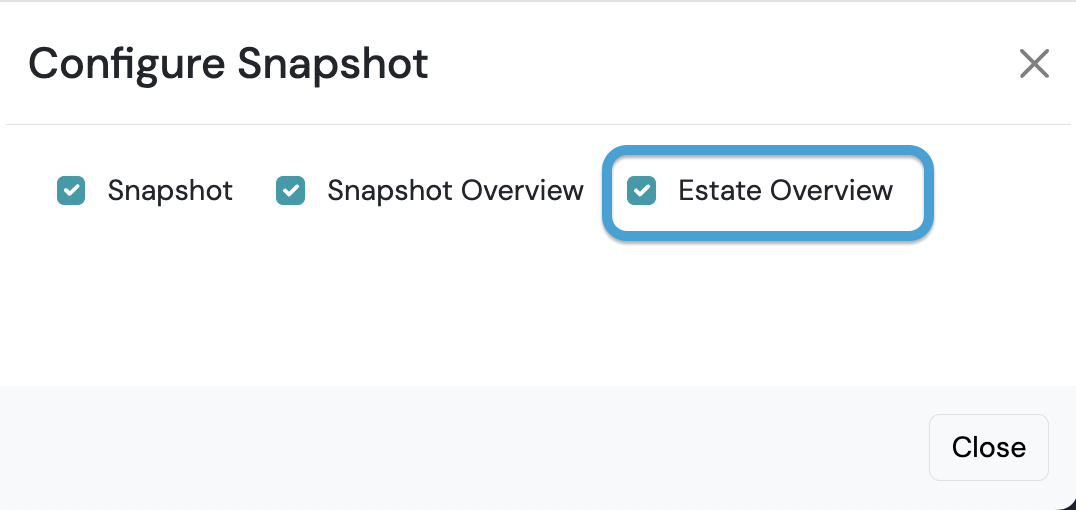
Section titled “Estate Overview”The Estate Overview provides rollup value and breakdown of all policies and accounts with a Estate Overview mapping configured.
-
Navigate to a contact record with policies and/or accounts.
-
Click the Swivel Summary button located on the top-right corner to launch the Swivel Summary page.
-
Click the Settings cog icon located on the top-right corner.
-
From the Configure Snapshot slide out > select Estate Overview.
-
Click Close to exit.
-
Confirm Estate Overview section displays on Swivel Summary.
Snapshot Total Calculation Breakdown
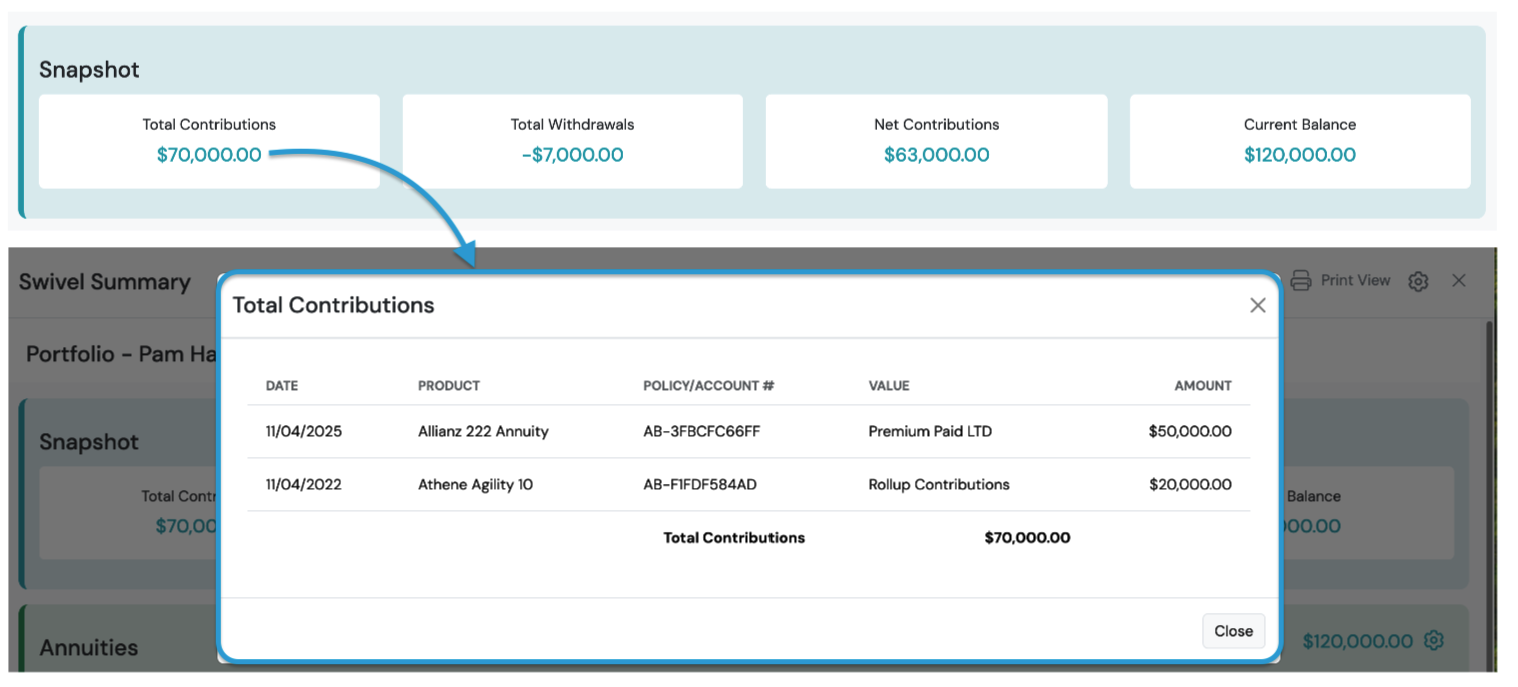
Section titled “Snapshot Total Calculation Breakdown”To verify the accuracy and transparency in how values are mapped and calculated for each total, click the amount to view an itemized breakdown by product, policy/account #, value and amount.