Swivel Summary Overview
Customize your Swivel Summary
Learn how to customize your Swivel Summary by adding and arranging custom fields to highlight the client details that matter most to your team
Setting up the Swivel Summary for Success
Section titled “Setting up the Swivel Summary for Success”The Swivel Summary appears at the top of a client’s record and highlights the most important data points about that client. But every agency is different, and that’s where custom fields come in.
Examples of Useful Custom Fields
Section titled “Examples of Useful Custom Fields”Here are a few ideas to help you get started:
- Bonus % - bonus percentage received when opening the product
- Add to Date - time client can add additional funds and still receive a bonus
- Maturity Date - the date when an annuity’s accumulation phase ends and the payout phase begins
- Policy Renewal Date
- RMD
Managing and Updating Custom Fields for the Swivel Summary
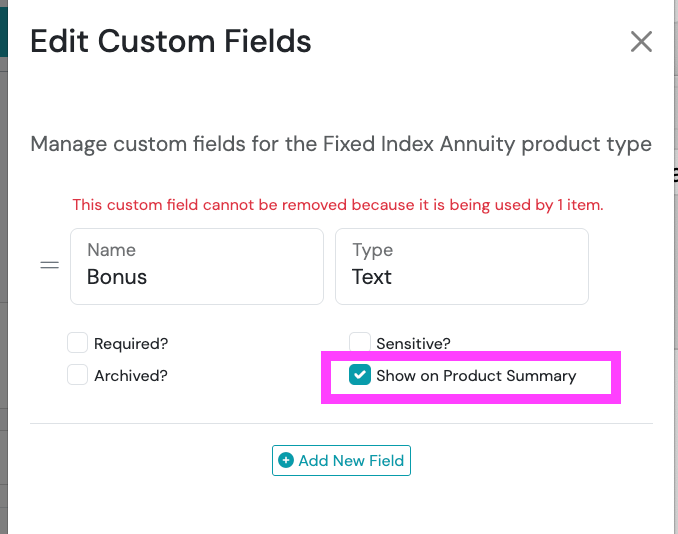
Section titled “Managing and Updating Custom Fields for the Swivel Summary”You can select any of your Product custom fields (e.g. custom fields on the Product Line, Product Type,Product, and/or All Products) to display on the Swivel Summary by click Show on Product Summary from the Edit Custom Fields.