

Settings Overview
Email Domain Allowlist
This article walks through how to restrict email domain setup for your users in your Swivel account by allowing only Email Domains
If you are an Owner or Manager user role in Swivel, you can setup which Email Domains to allow access to your Swivel account.
Step 1: Enable the ability to restrict email domain connections
Section titled “Step 1: Enable the ability to restrict email domain connections”- Navigate to Settings from the left side navigation
- Select Email Security
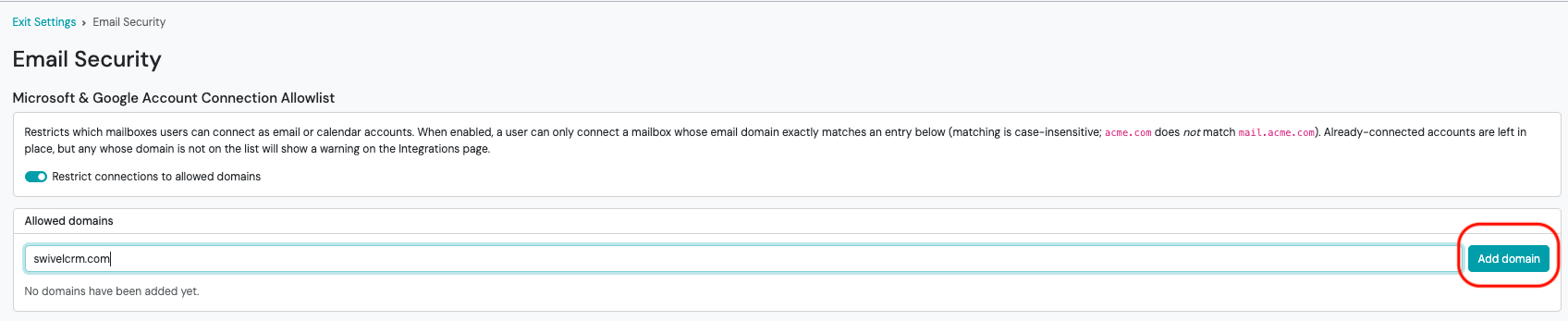
- In the top box under “Microsoft & Google Account Connection Allowlist”, toggle on the Restrict connections to allowed domains

Step 2: Add Domain Entries
Section titled “Step 2: Add Domain Entries”- Navigate to Settings from the left side navigation
- Select Email Security
- In the Allowed domain section, begin typing in the text box your domain entry
- Select Add Domain
Once added, your domain can be removed at any time by selecting the red “Remove” button next to that specific domain.