

Email Domains
Troubleshoot CNAME Records
Learn how to troubleshoot CNAME records when you receive a Domain Validation Failed error in Swivel. This guide explains how to check the CNAME Host/Name and Value/Target fields, correct common DNS formatting issues, and successfully validate your domain.
Troubleshoot CNAME Records
Section titled “Troubleshoot CNAME Records”If you receive a Domain Validation Failed error when setting up your CNAME records, check how the CNAME was entered with your domain provider.
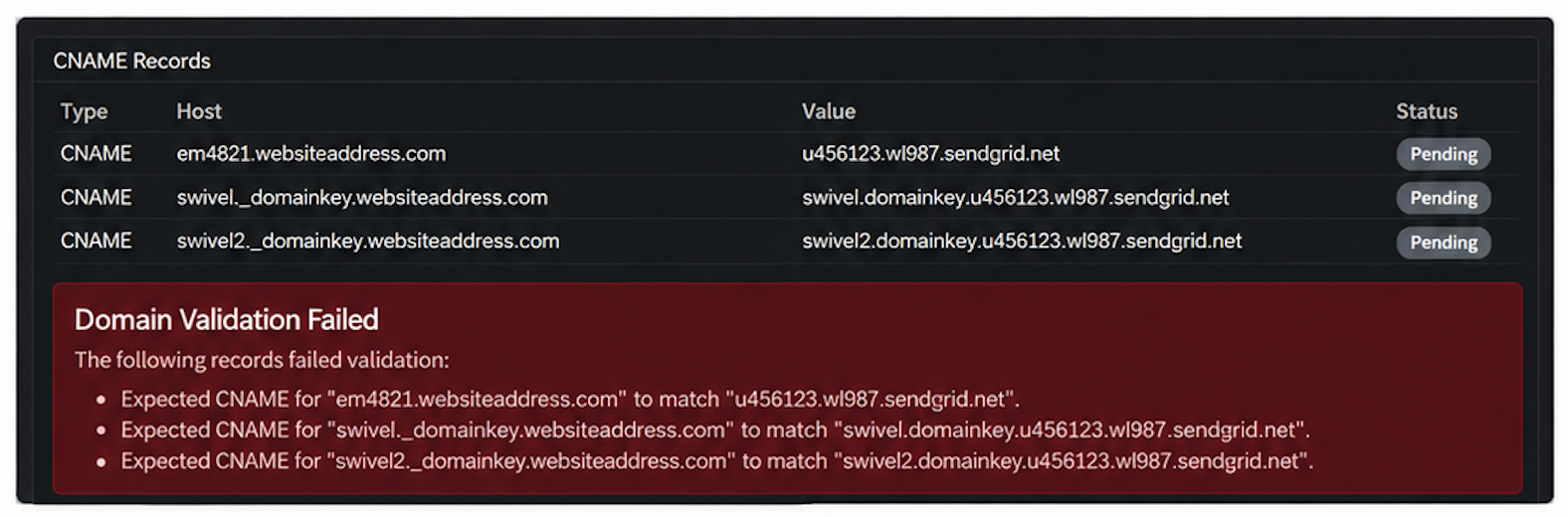
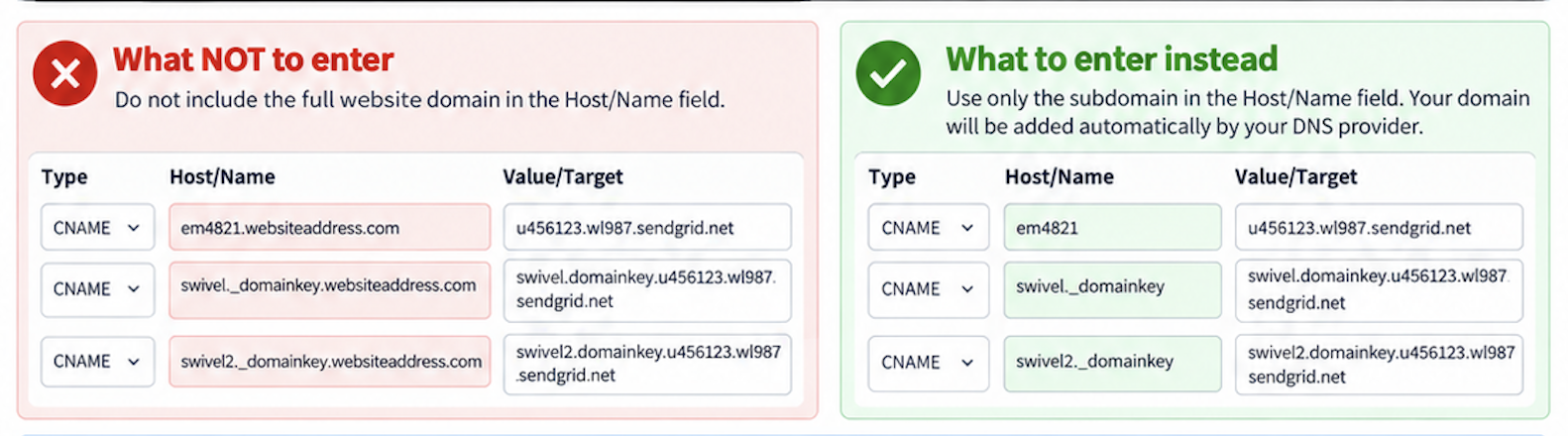
Some domain providers automatically add your website address to the Host/Name field. If you enter the full address, such as s1.websiteaddress.com, your domain may be added a second time and prevent the record from validating.
Try this instead:
Section titled “Try this instead:”- Log in to your domain provider and open your DNS settings.
- Locate the CNAME records you created for Swivel.
- Check the Host/Name field.
- If you entered the full address, such as s1.websiteaddress.com, change it to just s1.
- Leave the Value/Target exactly as provided by Swivel.
- Save your changes.
- Allow time for the DNS changes to update, then try validating the domain again.
Example:
Instead of: Host/Name: s1.websiteaddress.com
Try: Host/Name: s1
Do not change the Value/Target provided by Swivel.
If the domain still does not validate, send Swivel Support a screenshot of the CNAME records showing the Host/Name and Value/Target fields so we can help troubleshoot further.
Troubleshooting CNAME Records by Domain Host
Section titled “Troubleshooting CNAME Records by Domain Host”Bluehost
Section titled “Bluehost”GoDaddy
Section titled “GoDaddy”HostGator
Section titled “HostGator”Adding or Updating CNAME Records in your Wix Account