

Automations
Automation FAQs
General Automation FAQs
Section titled “General Automation FAQs”Can I set up a Workflow Automation(s)?
No. Please see the Workflows collection to see specific workflow automation options.
Can I Build Automations for my Pipeline(s) or Opportunities?
Yes, you can trigger an automation based on the opportunity sales stage associated with a specific pipeline.
What is a date-based Trigger?
The date-based trigger relies on the specific date the contact meets the requirement whereas non date-based triggers will run as soon as the requirement is met regardless of the date.
How long do I have to wait for my date-based Triggers to start running?
Swivel looks for matching dates once an hour, at the top of the hour. Your automation is picked up at the first check after you publish it. There is no waiting period tied to the day you created it.
What happens at that check depends on the time of day in your account’s time zone and on the delay set on each action.
Actions set to “None (Immediate)”
- Check happens between 9:00am and 4:59pm: the action goes out right then.
- Check happens at 5:00pm or later: held until 9:00am the next morning.
- Check happens before 9:00am: held until 9:00am that same morning.
Because the check only runs on the hour, publishing at 4:15pm means the first check is at 5:00pm, so it waits until the next morning. To have something go out the same day, publish before 4:00pm.
Actions delayed by minutes, hours or days
These are held to the same window. Swivel works out when the delay would land, and if that is outside 9:00am–5:00pm it moves the action to 9:00am (the same morning if it landed before 9:00am, the next morning if it landed at 5:00pm or later). This catches people out with short delays late in the day: a 30-minute delay on a 4:45pm check lands at 5:15pm, so it actually goes out at 9:00am the next day.
Actions set to “Same day at specific time” or “Future day at specific time”
These go at exactly the time you chose, including early morning or evening. The 9:00am–5:00pm window does not apply to them. One thing to watch with Same day at specific time: if that time has already passed when the check runs, the action moves to the same time the following day. So a “same day at 9:00am” action on an automation published at lunchtime goes out at 9:00am tomorrow.
I published my automation but the Automation Log is empty. Is something wrong?
Not necessarily. While an action is waiting (for the 9:00am window, for a delay you set, or for a specific time you chose), it does not appear in the Automation Log at all. It is listed on the Scheduled Actions tab of the automation, with the date and time it is due and an option to cancel it.
A row appears in the Automation Log only once an action has actually run. So an empty log shortly after publishing does not mean something is broken, and waiting another hour will not necessarily change it. If the action was held, the log stays empty until its scheduled time arrives, which may be the next morning or several days out.
Check the Scheduled Actions tab first. If your action is listed there with a future date and time, it is working as intended.
Automations for Marketing, Emails & Texts FAQs
Section titled “Automations for Marketing, Emails & Texts FAQs”Can I use Automations to set up Drip Email Campaigns?
Yes. You can set up multiple email actions with differing delays in an automation to allow for the drip.
Do I have to use Automations for Email/Text Appointment Reminders?
Yes! Appointment reminders can only be used in conjunction with automations. We do not have a stand-alone option.
Can contacts confirm an appointment via an automated text message?
Yes! Recipients have the option to confirm their meeting via the text message. When an appointment or event is confirmed via a text message, the status will update across Swivel (calendar, dashboard, event, contact). To do so, use the text personalization token for appointment confirmation - see Text Personalization Tokens
How do I insert a scheduling link (or other hyperlink) into the automated email?
Can contacts Reschedule or Cancel an appointment via an automated text message?
No. Recipients can only confirm, but no cancel or reschedule. We advise that you include a directive to “please call our office to cancel or reschedule.”
Can I insert a hyperlink into a Swivel SMS Automation?
Yes!
Do the Automated Text Messages & Emails count against my message count?
Yes. To learn more, please visit the Purchase Additional Messages section to learn more.
I have multiple numbers on my account, can I choose which text number I use?
Yes! and when you open the message you can see the sender at the top. And it will default display based on the phone number that has received the most recent message.
Will I be able to track the Automated Texts sent to a contact?
Yes! All text messages will display in the contact’s communication log
Will Contacts be required to opt-in to receive Appointment Reminders?
Yes! Your contacts will be prompted to opt-in before receiving any SMS messages, including appointment reminders and/or confirmations.
How do automations use my contact's information for text and emails?
Automations look at the contacts mobile number and the primary email address (indicated by the star icon on their page).
If you do not have mobile numbers added to your contacts, they will not received the text messages. Likewise, if you do not have a primary email address added to the contact, then they will not receive the email.
Troubleshooting Automations
Section titled “Troubleshooting Automations”My contact did not receive the automated text.
Section titled “My contact did not receive the automated text.”Confirm that the contact has a mobile number on their contact page. If they do not have a mobile number, then they will not receive the text message.
Confirm that the contact has opted into texting. They must opt in before they can receive text messages (automated, broadcast, or one-on-one).
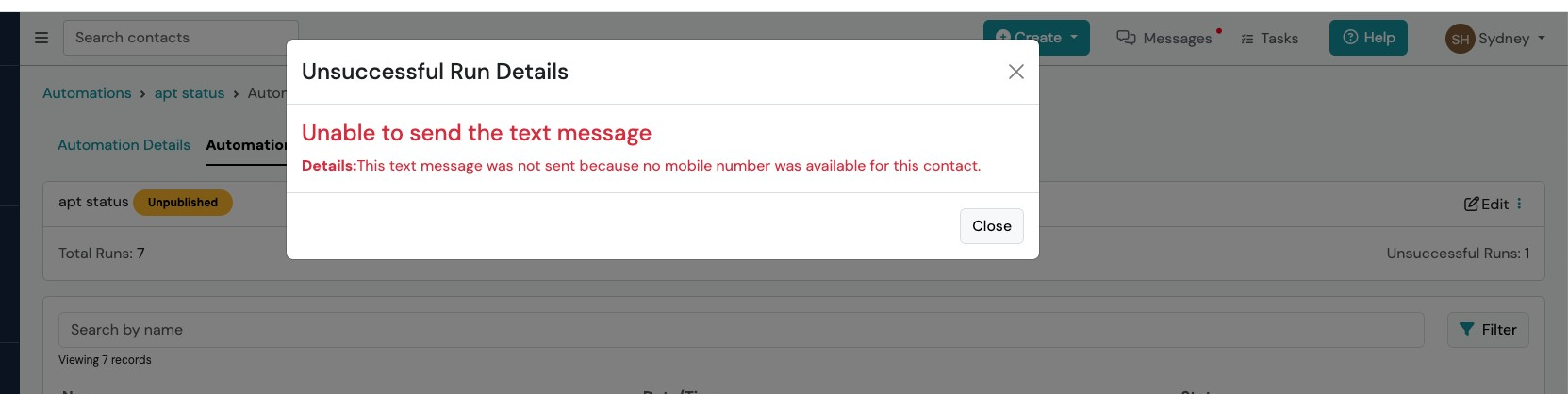
If the contact meets the trigger criteria and is missing a mobile phone number, you will see an unsuccessful run in the log for that automation. If you click the unsuccessful link it will state the reason why it failed.
My contact did not receive the automated Email.
Section titled “My contact did not receive the automated Email.”Confirm that the contact has a primary email on their contact page. If they do not have a primary email then they will not receive the automated email.
If the contact meets the trigger criteria and does not have a primary email selected, you will see an unsuccessful run in the log for that automation. If you click the unsuccessful link it will state the reason why it failed.