

Billing
Purchase Additional Messages
Email Credits
Section titled “Email Credits”Purchase Additional Email Credits from Billing Page.
Section titled “Purchase Additional Email Credits from Billing Page.”- From the main navigation menu, navigate to Settings
- Click the Billing tab and scroll to the Email card.
- From here, < click the blue hyperlink Add Email Credits and enter the amount of email credits (in increments of 100) you wish to buy.
- Click the Add Messages button and enter the amount of text messages (in increments of 100) you wish to buy.
- Click Save.
Text Messages
Section titled “Text Messages”Purchase Additional Text Messages from Manage Texting Tab
Section titled “Purchase Additional Text Messages from Manage Texting Tab”-
From the main navigation menu, navigate to Settings
-
Click the Manage Texting tab
-
The top of the screen will display your available text message credits. From here, < click the blue hyperlink Buy More Text Messages which will take you to your account’s Billing section directly to the Add Messages button.

-
Click the Add Messages button and enter the amount of text messages (in increments of 100) you wish to buy.
-
Click Save.
Purchase Additional Text Messages from Billing Page.
Section titled “Purchase Additional Text Messages from Billing Page.”-
From the main navigation menu, navigate to Settings
-
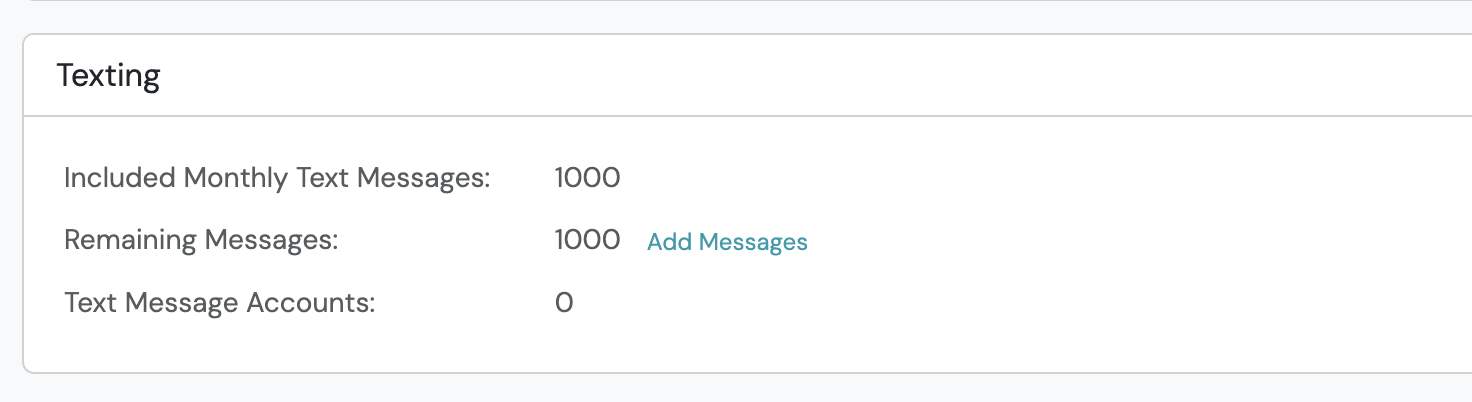
Click the Billing tab and scroll to the Texting card.
-
From here, < click the blue hyperlink Add Messages and enter the amount of text messages (in increments of 100) you wish to buy.
-
Click Save.