

FAQs Calendar, Scheduling & Appointments
🙋 Appointments FAQs
How do I edit an appointment?
Section titled “How do I edit an appointment?”Edit Appointments from the Dashboard
Section titled “Edit Appointments from the Dashboard”To edit or update an appointment from the dashboard widget—
- Navigate to the Upcoming Events & Appointments widget.
- Select the desired appointment, > click the Action icon > select Edit
- Complete Edit Appointment form pop-up window.
- Click Save button.
Edit Appointments from the Calendar View
Section titled “Edit Appointments from the Calendar View”To edit or update an appointment from Calendar—
- Click the Calendar tab on the Main Navigation Menu
- Navigate to the the desired appointment
- Click on the appointment directly, from the Appointment Details slide-out form > click Edit.
- Click Save button.
Edit Appointments from the Contact
Section titled “Edit Appointments from the Contact”To edit or update an appointment from the contact—
- Navigate to the desired contact.
- From the Appointments tab, select the desired appointment > click the Action icon > select Edit.
- Complete Edit Appointment form pop-up window.
- Click Save button.
Edit Appointments from the Campaign
Section titled “Edit Appointments from the Campaign”To edit or update an appointment from the Campaign and/or Event—
- Navigate to the Marketing tab and select the desired campaign.
- From the Appointments tile, select the desired appointment and > click the Edit button

- Complete Edit Appointment form pop-up window.
- Click Save button.
Best Practices:
Section titled “Best Practices:”What to to when a prospect or lead cancels their appointment and does not move forward.
Section titled “What to to when a prospect or lead cancels their appointment and does not move forward.”If a prospect cancels an appointment and is no longer moving forward, keep the opportunity history rather than deleting the opportunity or completing workflow steps that did not occur.
We recommend:
- Move the opportunity to a Lost Sales Stage.
- Add a note explaining why the opportunity was moved to Lost.
- Update the appointment status to Canceled.
- If appropriate, update the contact status to Not Interested.
This keeps your pipeline accurate while preserving a record of what happened. It also prevents inactive opportunities from remaining in an active Sales Stage or workflow steps from being marked complete when they weren’t actually completed.
Can I delete an appointment?
Section titled “Can I delete an appointment?”Yes. However, appointments can also be canceled. Canceling ensures the appointment is removed from the calendar while still preserving a record of the activity when applicable. Deleting an appointment will permanently remove from Swivel and cannot be undone.
What happens when I cancel an appointment?
Section titled “What happens when I cancel an appointment?”When an appointment is canceled, you can choose whether it should still display on the calendar by using the Show on calendar filter option from the calendar view.
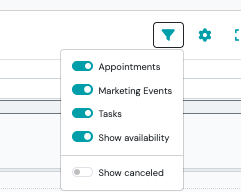
When an appointment is canceled:
When Show on calendar is selected:
- The canceled appointment will remain visible on the calendar.
- The appointment status will still show as canceled.
When Show on calendar is not selected:
- The appointment is removed from your Swivel calendar.
- It is also removed from any synced external calendars, such as Google Calendar or Outlook.
If the appointment was attached to a contact, it will remain visible on the contact’s record history. This allows you to maintain an accurate timeline of interactions without cluttering your calendar.
Why does a canceled appointment still appear on the contact’s record?
Section titled “Why does a canceled appointment still appear on the contact’s record?”If the appointment was attached to a contact, it will remain visible on that contact’s record after being canceled.
This preserves your activity history and helps you:
- Track attempted meetings
- Review past scheduling activity
- Maintain a complete interaction timeline
If no contact was tied to the appointment, it will simply be removed from the calendar and will not appear elsewhere.
The appointment will clearly reflect that it was canceled on the contact’s record.
Can I bulk link past calendar appointments to an event?
Section titled “Can I bulk link past calendar appointments to an event?”No. Past calendar appointments must be linked to the event individually.
Cancel Appointments from the Dashboard Widget
Section titled “Cancel Appointments from the Dashboard Widget”To cancel an appointment from the dashboard widget—
- Navigate to the Upcoming Events & Appointments widget.
- Locate the desired appointment.
- Click the three-dot action menu > Edit > Cancel.
Cancel Appointments from the Calendar View
Section titled “Cancel Appointments from the Calendar View”To cancel an appointment from the Calendar View —
- Click the Calendar tab on the Main Navigation Menu.
- Navigate to the the desired appointment.
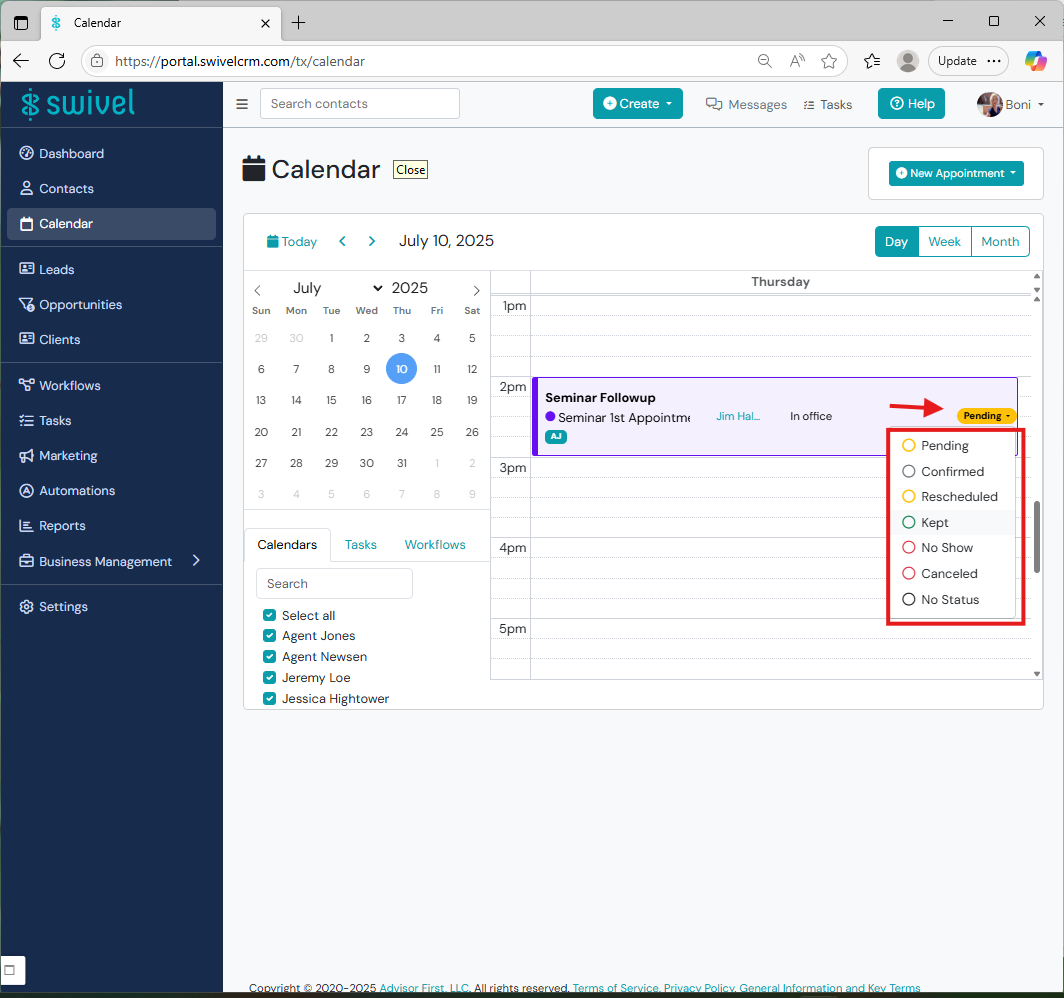
- Locate the Appointment Status badge on the appointment.
- Click the badge and select Canceled.
Cancel Appointments from the Contact
Section titled “Cancel Appointments from the Contact”To cancel an appointment from the Contact—
- Navigate to the desired contact.
- Click on the contact’s Appointments.
- Locate the desired appointment.
- Click the three-dot action menu > Cancel.
Cancel Appointments from the Campaign and/or Event
Section titled “Cancel Appointments from the Campaign and/or Event”To cancel an appointment from a Campaign and/or an Event—
- Navigate to the Marketing tab and select the desired campaign or event.
- From the Appointments tile, locate the desired appointment.
- Click the three-dot action menu > Cancel.
Scheduling FAQs
Section titled “Scheduling FAQs”How do I set up my calendar?
Section titled “How do I set up my calendar?”Each user has an individual Swivel Calendar. In addition to the Swivel Calendar, users can sync their email and calendar (e.g. google and outlook).
How do I color code the calendar?
Section titled “How do I color code the calendar?”Swivel allows you to color code the Appointment Type (e.g. Annual Review, Client Appointment, etc.). To learn more, visit the Appointment Types section.
What is the event and campaign section on the Appointment form?
Section titled “What is the event and campaign section on the Appointment form?”These fields are used to tie appointments scheduled to the originating event (e.g. seminar) and/or campaign (2024 Retirement Planning campaign)
I scheduled an appointment on behalf of another user. Why can’t I see it on my dashboard?
Section titled “I scheduled an appointment on behalf of another user. Why can’t I see it on my dashboard?”The dashboard widget will show all of events and appointments for the user currently logged in. If you would like the appointment also display on your calendar, you can add yourself to the appointment. Please visit the Calendar Management article to learn more.
Can I delegate scheduling access in Swivel?
Section titled “Can I delegate scheduling access in Swivel?”Yes! Please visit the Calendar Management article to learn more.
Does Swivel sync with a scheduling system (i.e. Calendly)?
Section titled “Does Swivel sync with a scheduling system (i.e. Calendly)?”While Swivel does not sync directly with an outside scheduling system, as long as you have the correct calendar synced to Swivel, appointments will flow through as expected.
Do users need to have Outlook calendar edit permissions in order to make changes to another user’s calendar?
Section titled “Do users need to have Outlook calendar edit permissions in order to make changes to another user’s calendar?”No. The Swivel calendar integration and sync allows all users to edit, manage, and schedule appointments for the user’s calendar(s) that have been synced. However, users can manage delegate access of other Swivel users. See Calendar Management on how to do so.
Can I edit a recurring calendar event in Swivel?
Section titled “Can I edit a recurring calendar event in Swivel?”Yes. You can edit a recurring calendar event in Swivel.
When making changes, you’ll have the option to update:
- A single occurrence – Only the selected instance of the recurring event will be updated.
- The entire series – All future occurrences in the recurring event will reflect the changes.
Any updates made to a recurring event will automatically sync to your connected external calendars (such as Google Calendar or Outlook), ensuring your schedules remain consistent across all platforms.
Unsupported Calendars
Section titled “Unsupported Calendars”Swivel does not currently support synchronization from platforms such as Apple Calendar. For example, even if events appear in an integrated Outlook calendar from Apple Calendar, these will not sync into Swivel. To achieve seamless integration, directly create and manage events in supported calendars.
**In rare instances, edits made to a recurring event in outlook and/or gmail, may trigger the creation of a net-new appointment. If this occurs, delete the incorrect (outdated) appointment on Swivel.
How do I notate that an appointment has been completed, rescheduled, confirmed, or cancelled?
Section titled “How do I notate that an appointment has been completed, rescheduled, confirmed, or cancelled?”Navigate to the desired appointment and edit the Appointment Status badge
Can I print the Calendar?
Section titled “Can I print the Calendar?”Yes When you navigate to the Swivel Calendar, you will now see a printer icon that allows you to print your calendar directly.
Appointment Form Definitions
Section titled “Appointment Form Definitions”| Field Name | Definition |
|---|---|
| Contacts | The contact(s) invited for a given appointment. Users can remove or add contacts. |
| User Calendars | Identifies the user(s) responsible for the appointment. Users can select individual calendars or choose Select All to add all user calendars to the appointment. |
| Status | Identifies the current status or outcome for a given appointment or event. Options include: Pending, Confirmed, Kept, Rescheduled, No Show, Canceled. |
| Subject | The name of the appointment. The subject is displayed as the preview text when viewing an appointment from the dashboard. *This is a required field. |
| Location | Identifies where the appointment will occur. |
| Start On | Identifies the start date & time of the appointment. *This is a required field. |
| End On | Identifies the end date & time of the appointment. |
| Recurrance | Determines whether or not an appointment will repeat and to what frequency |
| Description | Additional information about the appointment |
| Campaign | Identifies the marketing campaign associated to a scheduled appointment. |
| Event | Identifies the event within a marketing campaign, the appointment will be associated. The contact must be registered to the respective event to associate the appointment. |