Calendar
Calendar Printing
Learn how to print your Swivel Calendar
Swivel now gives you the ability to print your calendar in various, customizable formats. When you open the Print Calendar dialog, a live preview updates in real time as you adjust your settings so you can see precisely what will print before sending it to the printer. Your print preferences are saved for next time, and the PDF is generate server side so it looks consistent regardless of which browser you are using.
How to Print Your Calendar
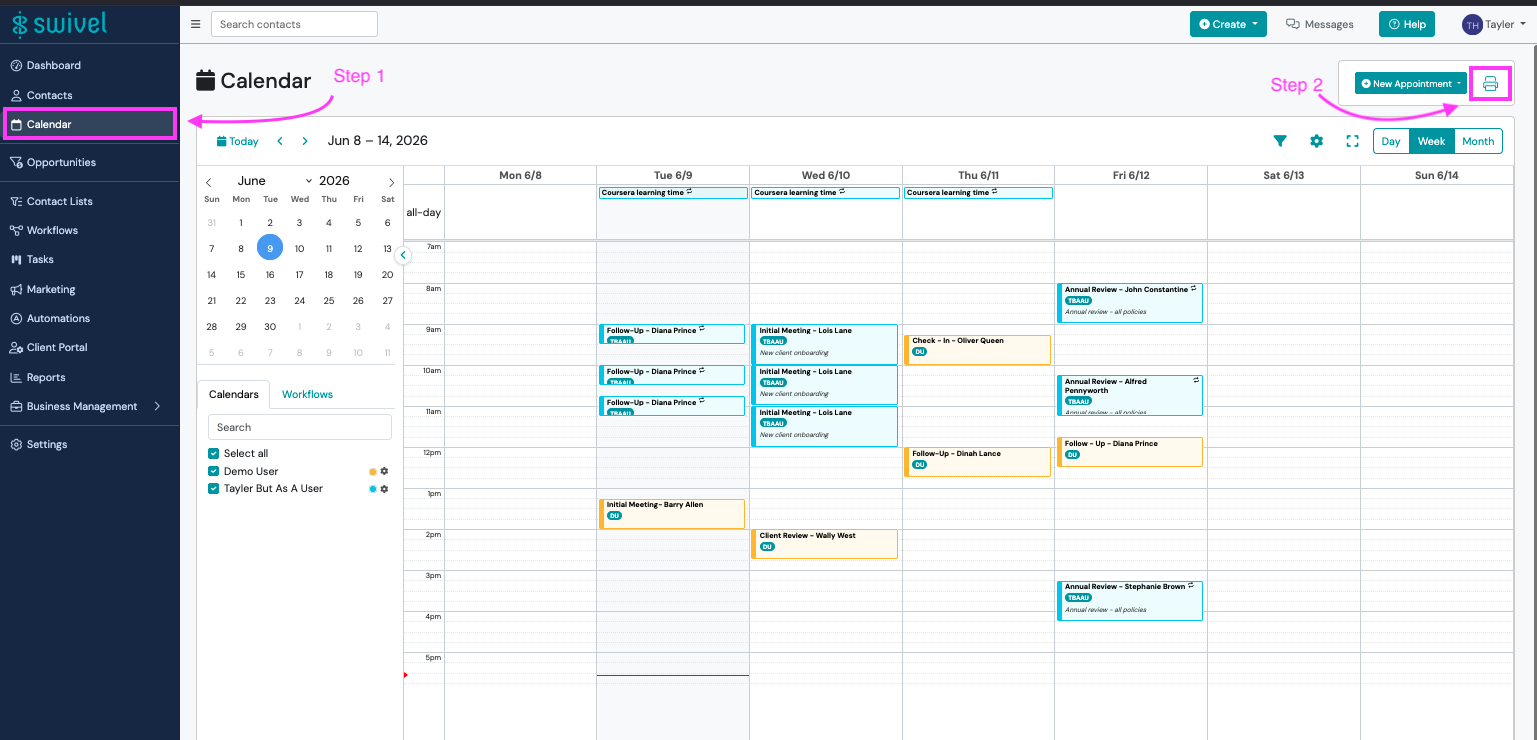
Section titled “How to Print Your Calendar”- From the left side main menu, click the Calendar tab
- Click the printer icon in the top right of the calendar toolbar.
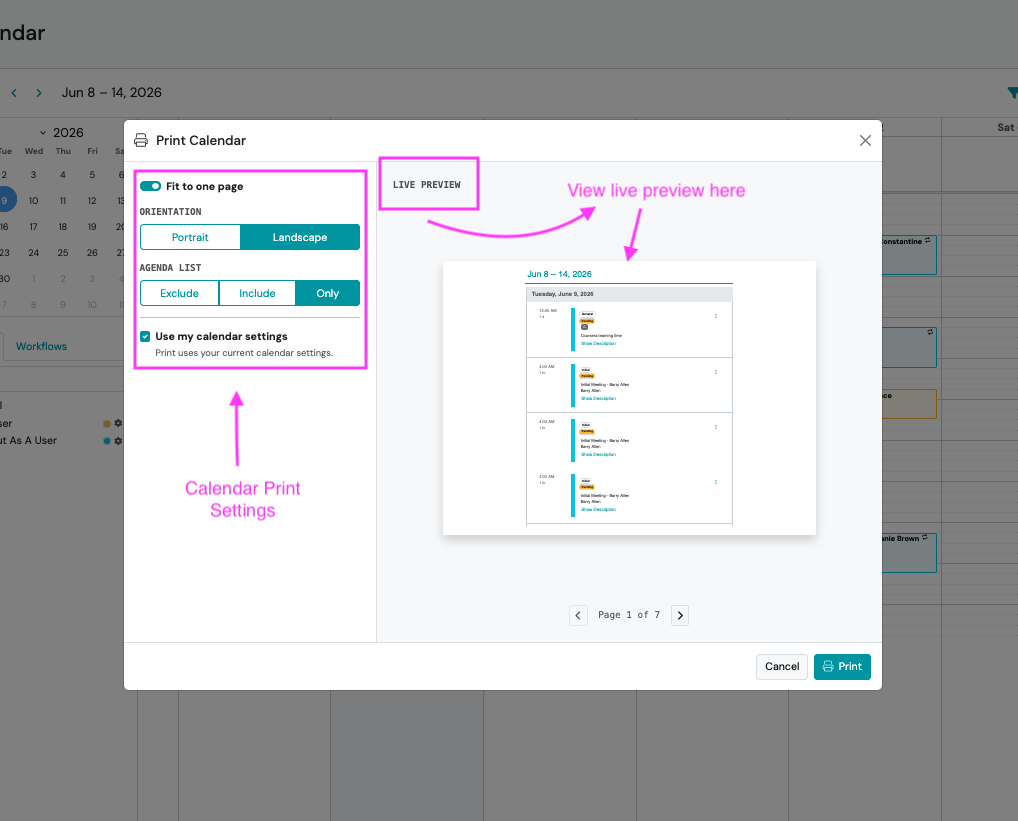
- The Print Calendar dialog will open with a live preview on the right side.
- Adjust your settings to your preferred customizations (see Print Settings below)
- Click Print
Print Settings
Section titled “Print Settings”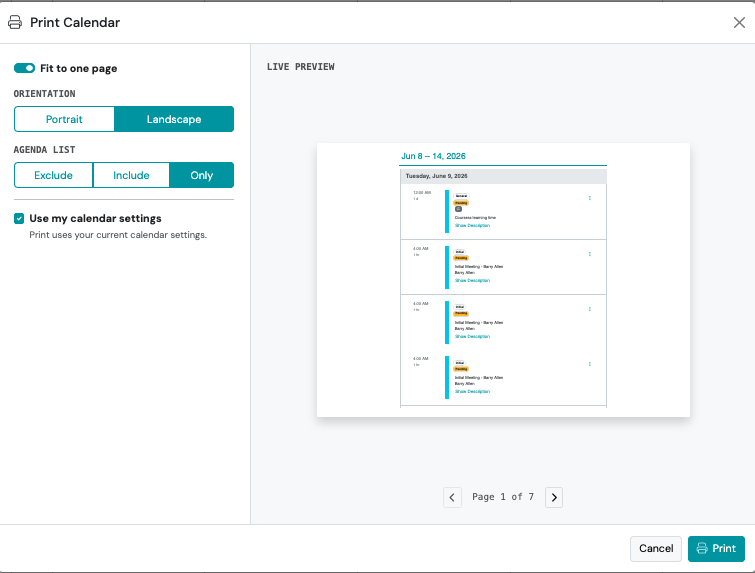
Fit to One Page
Section titled “Fit to One Page”This toggle is on by default. When enabled, Swivel scales your calendar grid to fill the entire page edge to edge on a single sheet.
Orientation
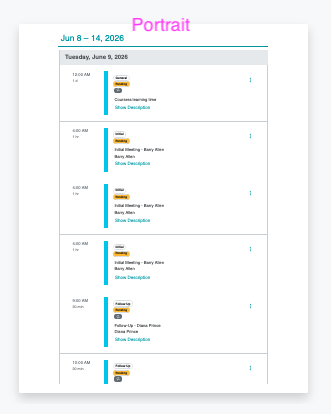
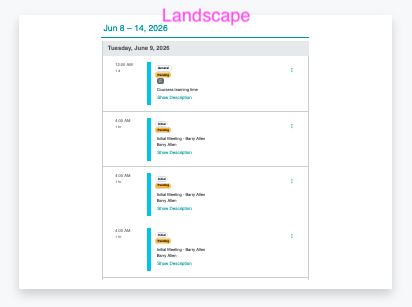
Section titled “Orientation”Select Portrait or Landscape depending on how you want the calendar to display on the page. If the toggle is teal, that means that is the option currently selected.

Agenda List
Section titled “Agenda List”
Choose how the agenda list is included in your printed output.
- Exclude prints the calendar grid only, with no agenda list.
- Include prints the calendar grid plus a chronological agenda list on a separate page.
- Only prints the agenda list without the calendar grid.
Use My Calendar Settings
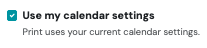
Section titled “Use My Calendar Settings”When this checkbox is selected, your print output will mirror your current on screen calendar settings. Uncheck it to override settings for print only. The following options will appear when unchecked.
Live Preview
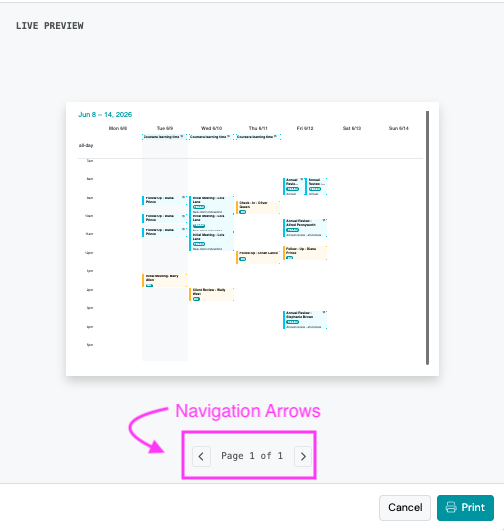
Section titled “Live Preview”The right side of the dialog shows a live preview of your print output. If your output spans multiple pages, such as a long agenda list, use the arrow navigation at the bottom of the preview to page through before clicking Print.
How to Print Your Calendar
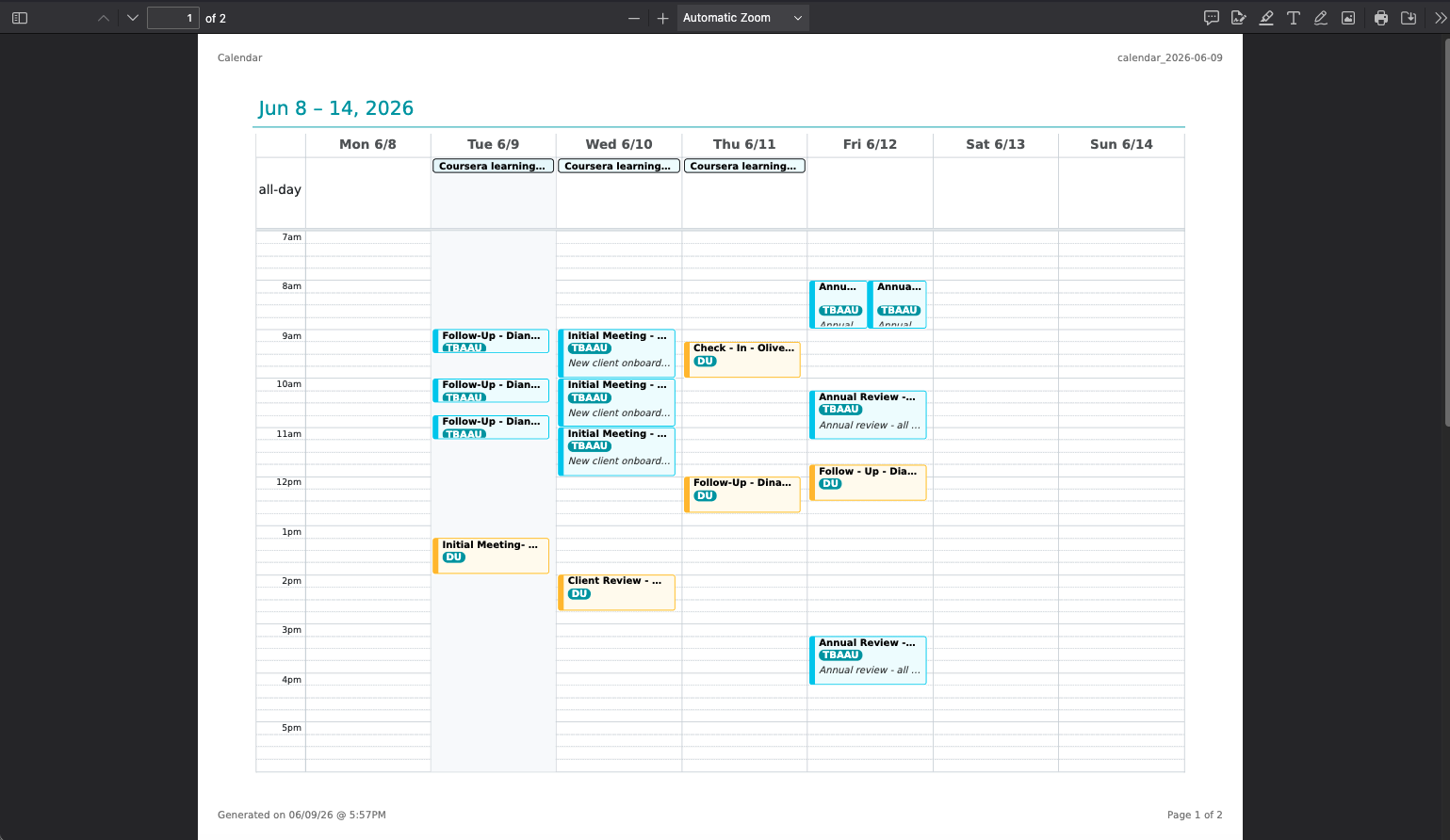
Section titled “How to Print Your Calendar”When you click Print, Swivel generates a server-side PDF that opens directly in your browser. You will see “Exporting Calendar PDF” while the PDF loads and opens in a New Tab. The output is consistent regardless of which browser you’re using, so what you see here is exactly what will print.