

Calendar
Connect Microsoft Outlook Calendar & Email
Learn to connect and configure Microsoft 365 email and calendar in Swivel, sync appointments and emails, manage calendar and email access, troubleshoot administrator approval, and understand account and email syncing limitations.
Overview
Section titled “Overview”The Microsoft Outlook integration connects your Microsoft 365 email and calendar to Swivel. This makes it easier to manage appointments, calendar events, and email communications with your leads and clients.
You can choose to sync:
- Email only
- Calendar only
- Email and calendar
With Microsoft Outlook integration, you can:
- Sync appointments in both directions: Create appointments in Swivel and sync them with Outlook, or create appointments in Outlook and sync them with Swivel.
- Sync email communications: Outlook emails automatically sync to the appropriate contact records in Swivel.
- Access email attachments: Attachments from synced emails are saved in the Communications Log so you can view or download them when needed.
Important to Know
Section titled “Important to Know”-
Microsoft Administrator approval: Your organization may require a Microsoft Administrator to approve the Swivel integration. If you see an Administrator approval required message, contact your Microsoft Administrator and ask them to approve the Swivel integration. You cannot complete the connection until approval is granted.
-
One email account per user: Each Swivel user can connect only one email account. This applies even if the accounts are from different providers. For example, if you connect your Microsoft 365 email account, you cannot also connect a Gmail account.
-
One Swivel account per Microsoft 365 account: A Microsoft 365 account can only be connected to one Swivel account. If you use the same Microsoft 365 account with multiple Swivel accounts, you will need to use a different Microsoft 365 account for each one.
Connect Your Microsoft 365 Account
Section titled “Connect Your Microsoft 365 Account”To sync your Outlook calendar and/or email with Swivel, connect your Microsoft 365 account using your Microsoft 365 login credentials.
- Go to Settings.
- Select My Integrations.
- Find the Email & Calendar tile.
- Click Connect Account.
- Enter your Microsoft 365 email address and click Log in.
- Enter your Microsoft 365 password and click Sign in.
- Click Accept.
Once your account is connected, you will see your Microsoft 365 account listed in the Calendar/Email Sync section of Settings.
A slide-out will automatically appear so you can configure your calendar and email settings.
Calendar Settings
Section titled “Calendar Settings”Use the Calendar tab to choose which Microsoft calendars you want to sync with Swivel.
Calendar Sync Is Two-Way
Section titled “Calendar Sync Is Two-Way”Calendar syncing between Swivel and Outlook works in both directions:
- Appointments created in Swivel can sync to Outlook.
- Appointments created in Outlook can sync to Swivel.
This allows you to manage appointments from either Swivel or Outlook while keeping your calendars in sync.
Choose Which Calendars to Sync
Section titled “Choose Which Calendars to Sync”Select which of your connected Microsoft calendars you want to integrate with Swivel.
For example, your Microsoft 365 account may include a Birthdays calendar. If you do not want events from that calendar to sync with Swivel, leave it unselected.
Only the calendars you select will be integrated with Swivel.
Choose the Calendar for Appointments
Section titled “Choose the Calendar for Appointments”Use the Star indicator to choose which connected calendar to use for your Swivel user’s appointments.
Manage Calendar Access
Section titled “Manage Calendar Access”Use Manage Access to choose which users in your Swivel account can view and manage the connected calendar.
Email Settings
Section titled “Email Settings”Use the Email tab to configure your email settings.
Create an Email Signature
Section titled “Create an Email Signature”You can create your email signature in the Email settings.
Manage Email Access
Section titled “Manage Email Access”Use Manage Access to determine which users in your Swivel account can use the connected email address to send emails from Swivel.
This includes:
- One-to-one emails.
- Broadcast emails.
Email Attachments in the Communications Log
Section titled “Email Attachments in the Communications Log”When your Microsoft 365 email is connected to Swivel, attachments from synced emails are saved with the corresponding email in the Communications Log.
Users can view or download these attachments to reference documents from previous email conversations or service their clients.
Attachments remain available in Swivel until the associated email is deleted from the user’s Microsoft 365 mailbox.
Troubleshooting
Section titled “Troubleshooting”Why Can’t I Connect My Microsoft 365 Account?
Section titled “Why Can’t I Connect My Microsoft 365 Account?”If you see an Administrator approval required message when connecting your Microsoft 365 account, your organization may require a Microsoft Administrator to approve the Swivel integration.
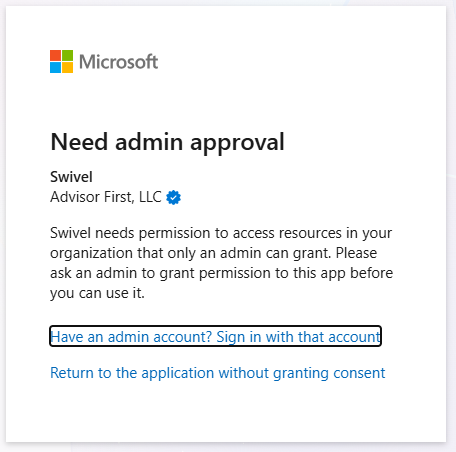
Contact your Microsoft Administrator and ask them to approve the Swivel integration. After they approve access, return to Swivel and complete the connection steps.
What If My Microsoft Administrator Approved Access but I Still Can’t Connect?
Section titled “What If My Microsoft Administrator Approved Access but I Still Can’t Connect?”Check that:
- You are signing in with the correct Microsoft 365 account.
- Your Microsoft Administrator approved the Swivel integration.
- You are connecting the Microsoft 365 account you want to use with this Swivel user.
- Your organization has not placed additional restrictions on Microsoft integrations.
If you still cannot connect, contact Swivel Support.
Deleting a Synced Microsoft 365 Account
Section titled “Deleting a Synced Microsoft 365 Account”Deleting the synced account removes all email and calendar activity associated with that account from Swivel.
This includes:
- Synced emails
- Synced appointments and calendar events
- Historical activity records associated with those emails and appointments
- Notes connected to the affected email and appointment activity
This activity cannot be recovered after the synced account is deleted.
Deleting the synced account from Swivel does not delete the user’s Microsoft 365 account or mailbox. It removes the connection and associated synced activity from Swivel.
Frequently Asked Questions
Section titled “Frequently Asked Questions”How many email accounts can I connect?
Section titled “How many email accounts can I connect?”Each Swivel user can connect only one email account to Swivel.
This applies even if the accounts are from different providers, such as Microsoft 365 and Gmail.
Can I connect both Outlook and Gmail?
Section titled “Can I connect both Outlook and Gmail?”No. Each Swivel user can connect only one email account.
If you connect your Microsoft 365 email account, you cannot also connect a Gmail account to the same Swivel user.
Can I sync only email?
Section titled “Can I sync only email?”Yes. You can choose to sync email only without syncing your Microsoft 365 calendar.
Can I sync only my calendar?
Section titled “Can I sync only my calendar?”Yes. You can choose to sync calendar only without syncing your Microsoft 365 email.
Does calendar syncing work both ways?
Section titled “Does calendar syncing work both ways?”Yes. Calendar syncing is two-way.
Appointments created in Swivel can sync to Outlook, and appointments created in Outlook can sync to Swivel.
Why does Microsoft say administrator approval is required?
Section titled “Why does Microsoft say administrator approval is required?”Your organization’s Microsoft settings may require a Microsoft Administrator to approve the Swivel integration before you can connect your account.
Contact your Microsoft Administrator and ask them to approve the Swivel integration. After approval, return to Swivel and connect your Microsoft 365 account.
Can I connect the same Microsoft 365 account to multiple Swivel accounts?
Section titled “Can I connect the same Microsoft 365 account to multiple Swivel accounts?”No. A Microsoft 365 account can only be connected to one Swivel account.
If you need to connect Microsoft Outlook to multiple Swivel accounts, you will need to use a different Microsoft 365 account for each one.
What happens if I delete my synced Microsoft 365 account from Swivel?
Section titled “What happens if I delete my synced Microsoft 365 account from Swivel?”Deleting the synced account permanently removes its synced email and calendar activity from Swivel.
This activity cannot be recovered.
Your Microsoft 365 account and mailbox are not deleted.
Are email attachments saved in Swivel?
Section titled “Are email attachments saved in Swivel?”Yes. Attachments from synced emails are saved with the corresponding emails in the Communications Log.
Users can view or download the attachments to reference documents from previous email conversations or service their clients.