Start Here - Prerequisites & Setup
Text Registration Process
Please note: SMS functionality is subject to area code availability. Some regions may have limited support due to carrier restrictions outside of our control. We appreciate your understanding.
Step-by-Step Instructions
Section titled “Step-by-Step Instructions”Step 1: Select your Swivel SMS Phone Number
Section titled “Step 1: Select your Swivel SMS Phone Number”- From the main navigation menu, click Settings
- Click Communication
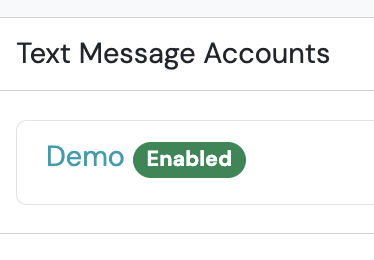
- Click Text Message Accounts
- Click the +Add Phone Number button
- Fill out the Name field (e.g. Swivel SMS number, etc.)
- Enter the desired area code, select phone number from drop-down.
- Click Create account
Step 2: Register
Section titled “Step 2: Register”-
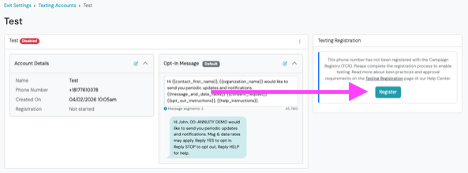
Once you have created your account (see step 1), click Register
-
Click Next
-
Complete your Business Profile
-
Click Next
-
Complete your Personal Profile
-
Click Next
-
Complete your Campaign Profile
-
Complete the Compliance Profile
-
Click Save Registration
Text Registration Review
After your click Save Registration, Swivel will review your submission for errors and potential issues, and provide recommendations. Once you have reviewed the errors and made the requested updates, you will be ready to submit.
- Review the recommendations and update
- Click Submit & Pay
Text Registration Approval Process
Section titled “Text Registration Approval Process”Once you have submitted your Text Campaign Registration, you will be able to track the approval process from the Texting and Phones page.
How to Track Texting Registration Progress
Section titled “How to Track Texting Registration Progress”- Click Settings
- Click Communication
- Click Text Message Accounts
- Click your phone number under the Text Message Accounts
- View updates
Text Registration Status
Section titled “Text Registration Status”The Texting Registration will track process is broken out into three phases:
- Profile
- Brand
- Campaign
The badges will change as the status of each phase is updated. Statuses include:
- Draft: Not Submitted
- Pending: Submitted and awaiting review
- In-Review: Moved to a manual review process
- Approved: Registration has been approved
- Denied: Registration has been denied. Must start registration process all over again (including an additional registration fee).
- Failed: Registration had errors that must be corrected. Must start registration process all over again (including an additional registration fee).
Once completed, your SMS number will show Enabled, and the Texting Registration tile will show Approved.