Swivel Connect
To Do
View all of your tasks and workflows by tapping the To Do icon on the bottom menu bar.
View & Manage Tasks
Section titled “View & Manage Tasks”By default, the Tasks tab is displayed first.
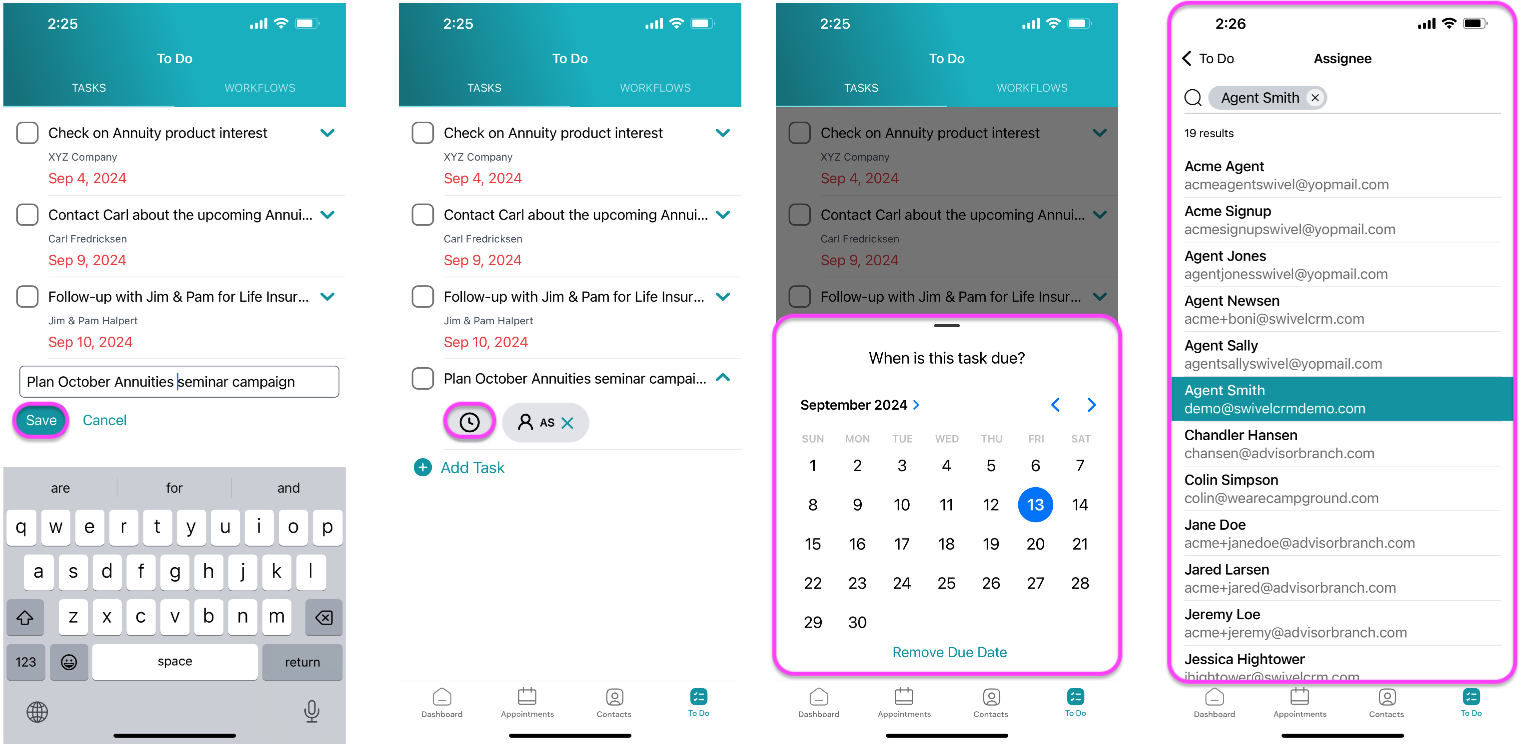
To add a task, tap the +Add Task button. Once you’re finished recording a note, tap Save.
To set a due date and assignee, tap the down arrow to expand for more details.
- Tap the Due Date button to set a deadline.
- Tap the Assignee button to assign a user.
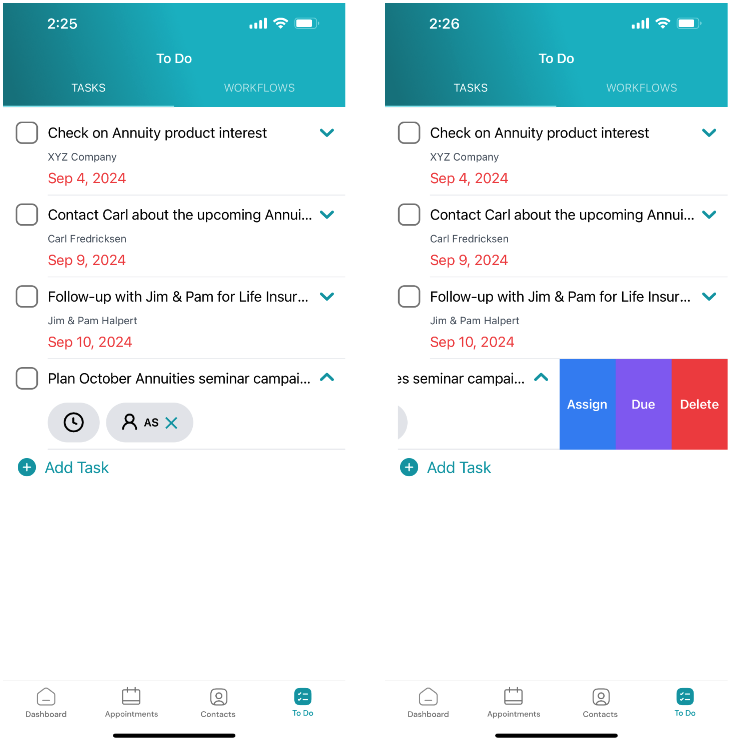
You can also manage the due date and assigning by sliding left and tapping the Assign, Due or Delete buttons.
Workflows
Section titled “Workflows”View & Manage Workflows
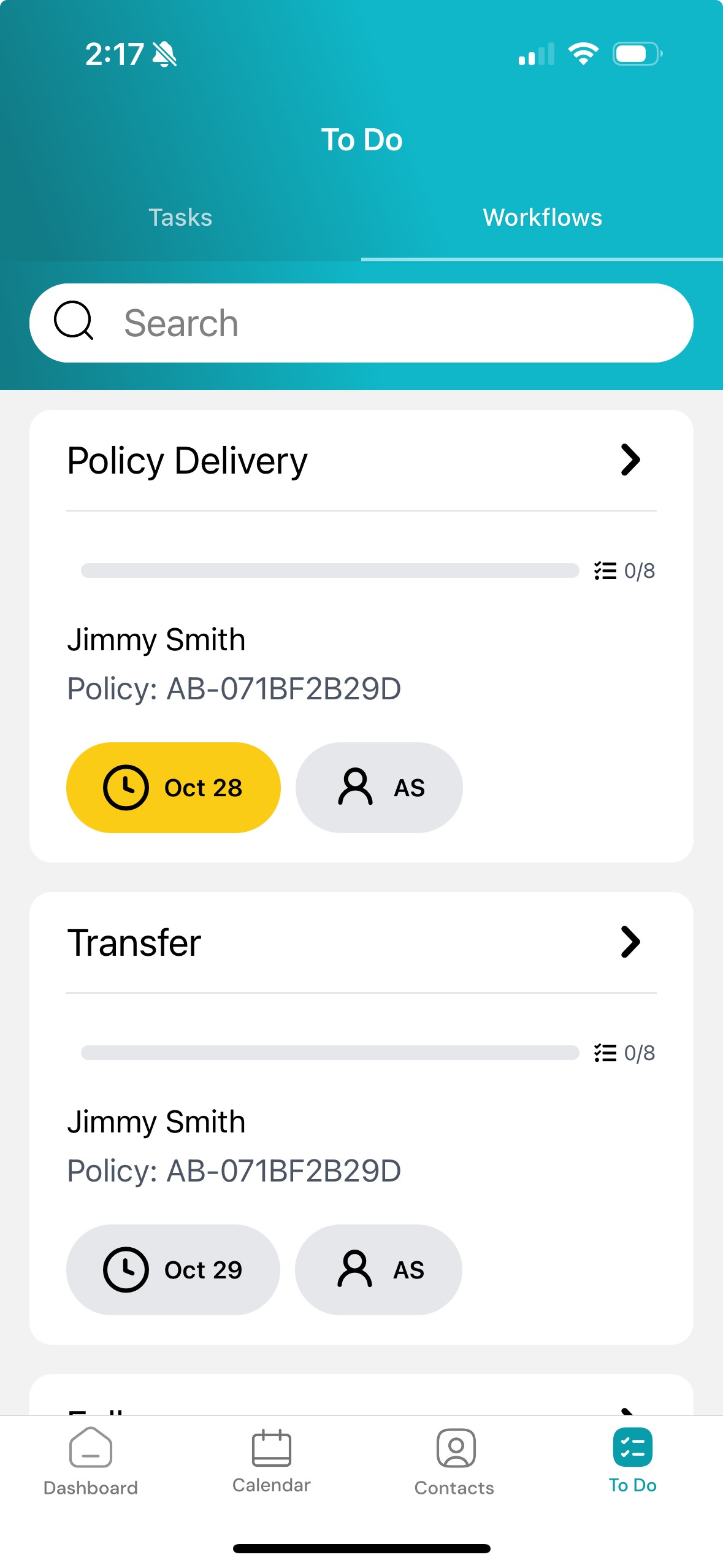
Section titled “View & Manage Workflows”View and manage workflows by tapping the Workflows tab.
Search Workflows
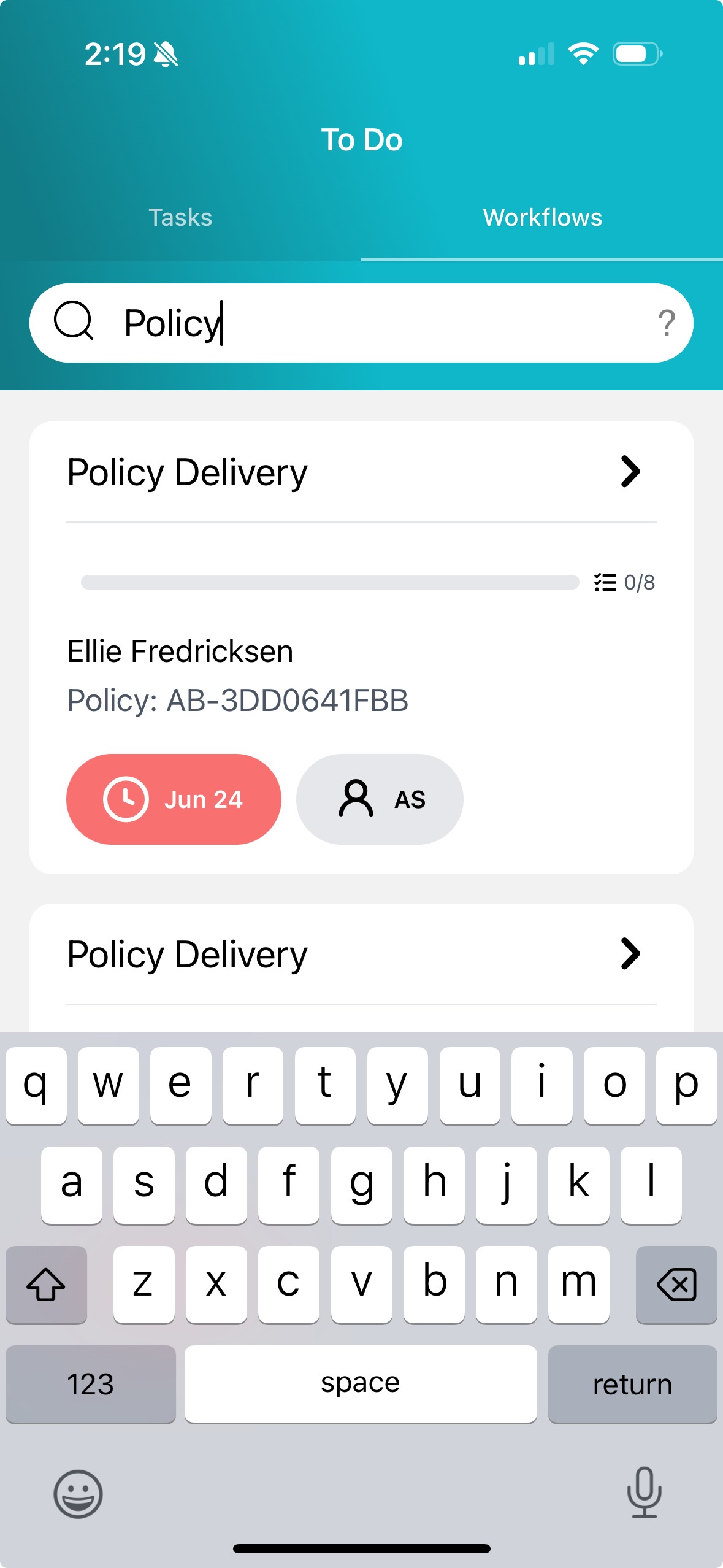
Section titled “Search Workflows”Search for workflows by tapping the Search bar and typing the workflow name.
Run Workflows
Section titled “Run Workflows”Update Workflows
Section titled “Update Workflows”View Workflow Steps
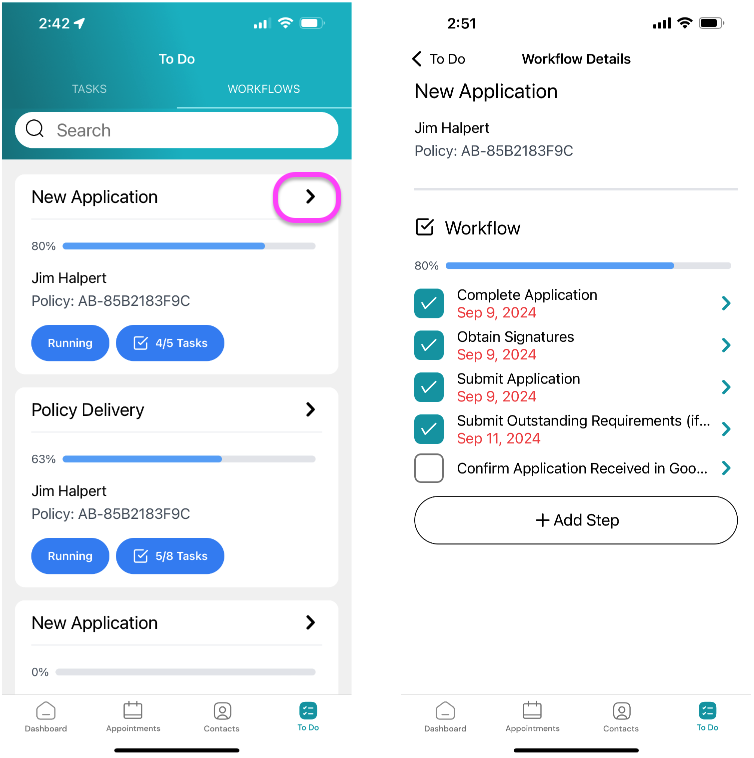
Section titled “View Workflow Steps”To make updates to a running workflow, tap the arrow to view and manage the workflow steps.
Manage Workflow Step
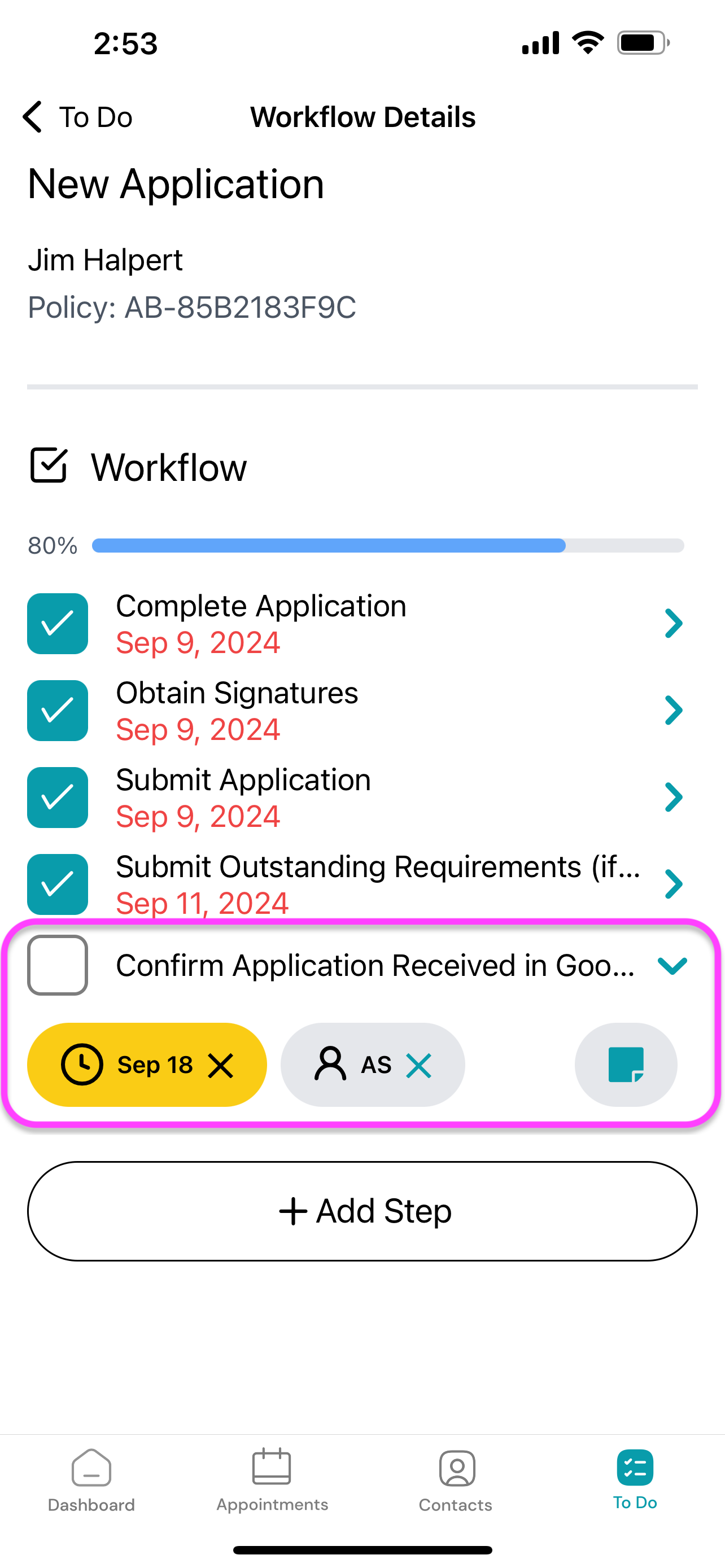
Section titled “Manage Workflow Step”To mark a step complete, tap the empty checkbox. To manage due dates, assignees and add workflow step notes, tap the arrow.
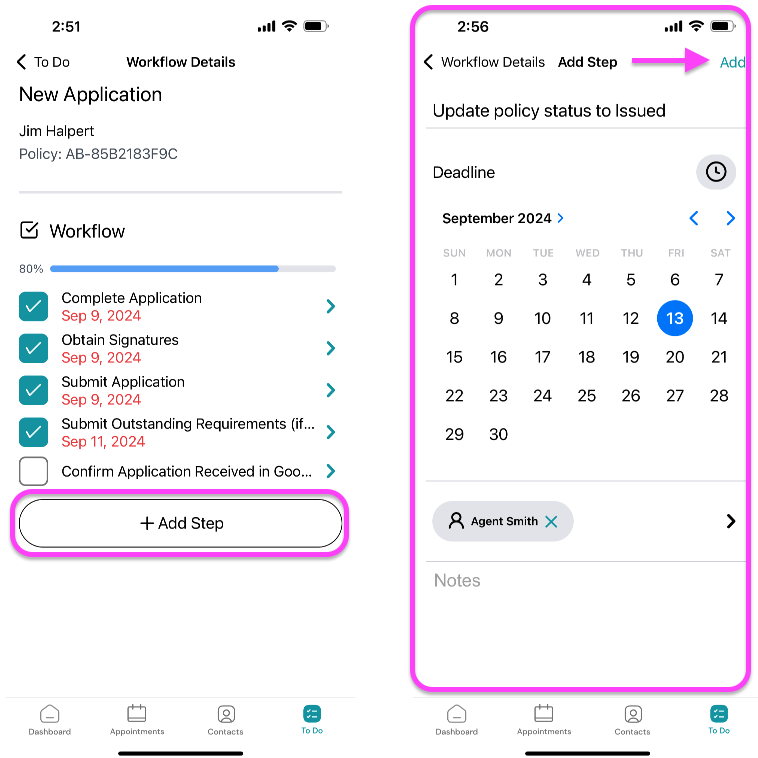
Add Workflow Step
Section titled “Add Workflow Step”To add a new workflow step, tap the +Add Step button. Once you’re finished adding workflow step details, tap Add.