Swivel Connect
Calendar
View Appointments and Events by Week
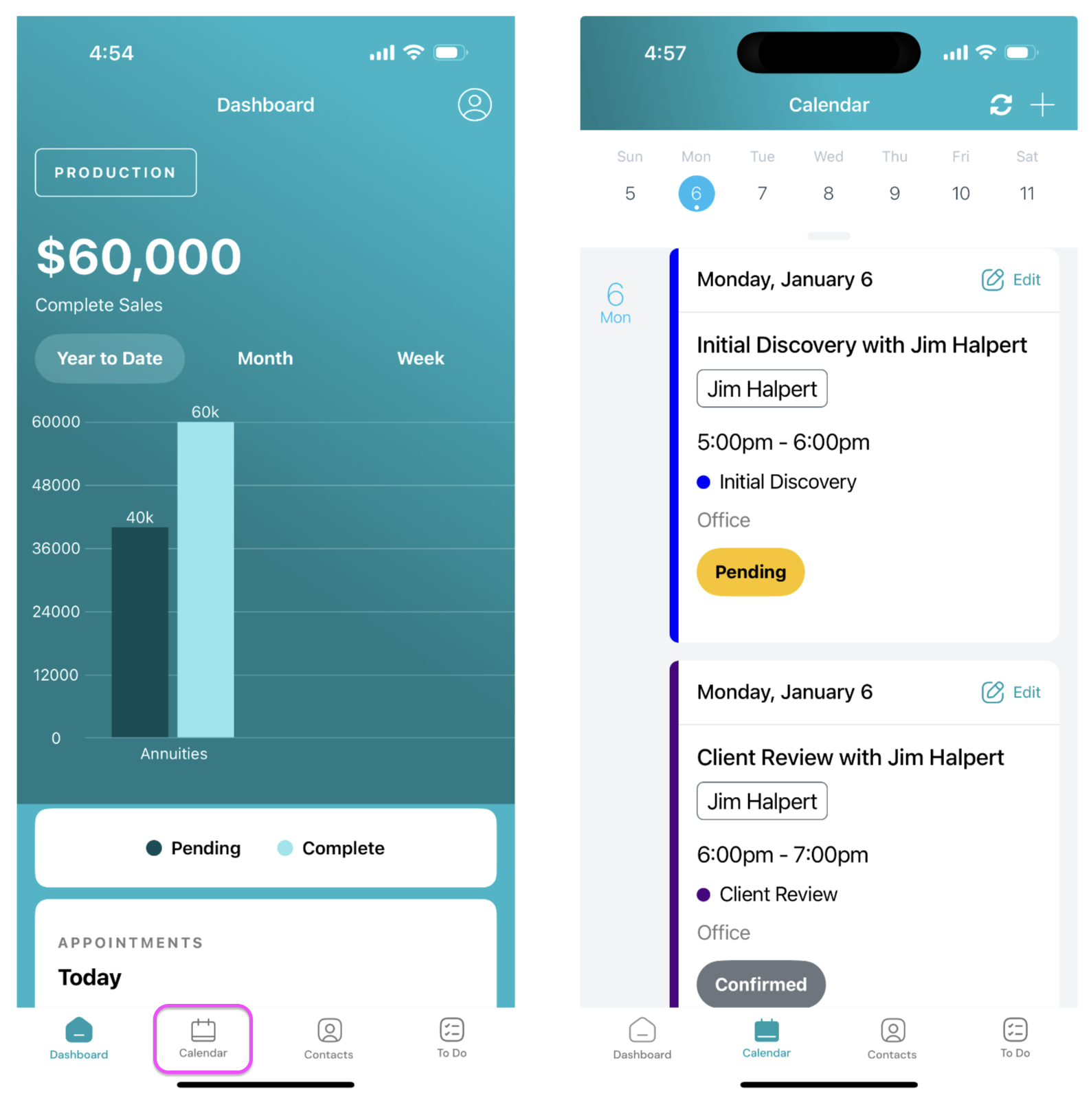
Section titled “View Appointments and Events by Week”View all of your appointments and events by tapping the Calendar icon on the bottom menu bar.
View Appointments and Events by Month
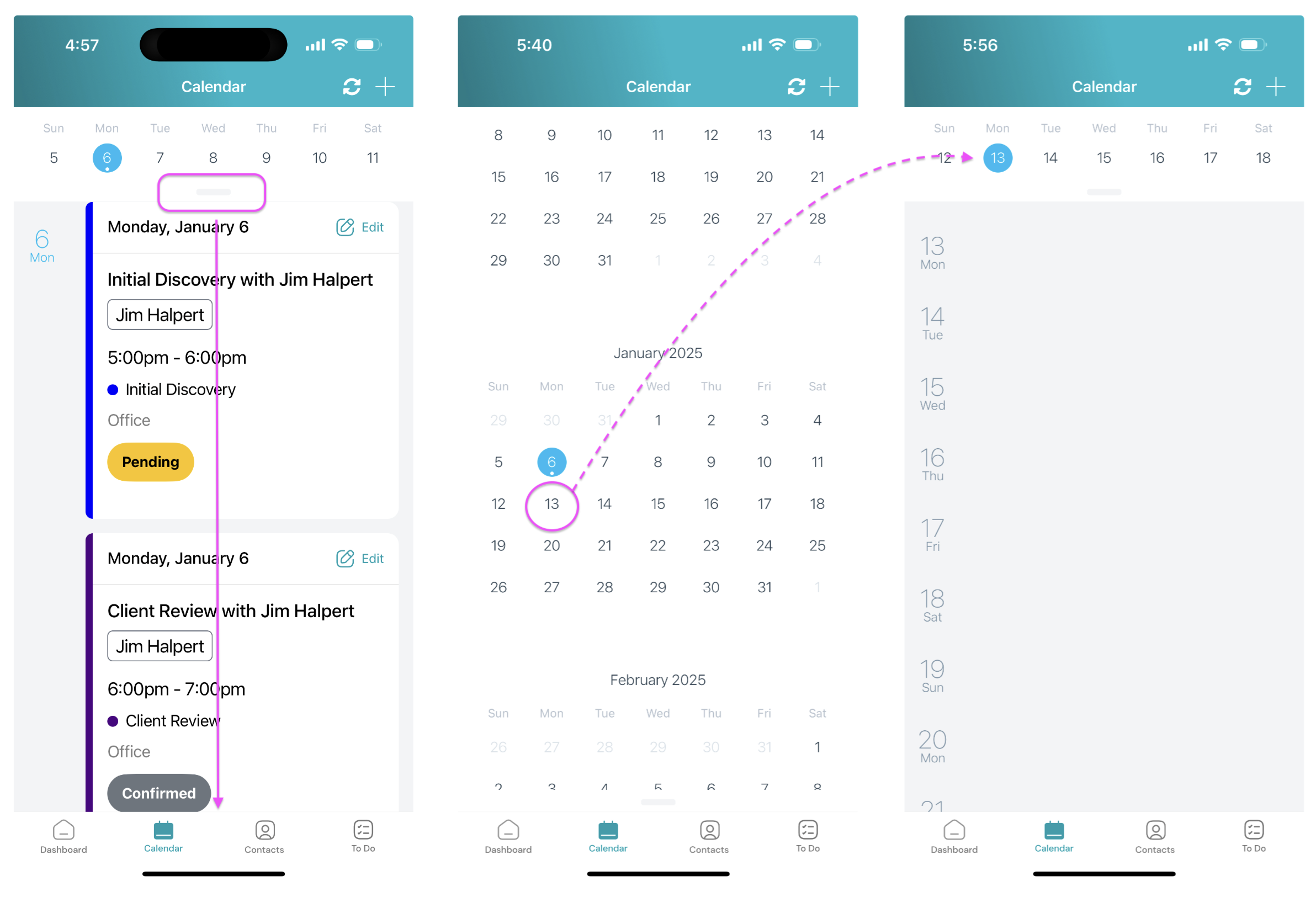
Section titled “View Appointments and Events by Month”To view previous and upcoming appointments and events by month, press the knob and slide down open the calendar month view. Select any day to navigate to the respective calendar week view.
Tapping the Refresh icon reverts back to the default appointments view.
Create & Edit Appointments
Section titled “Create & Edit Appointments”Create Appointment
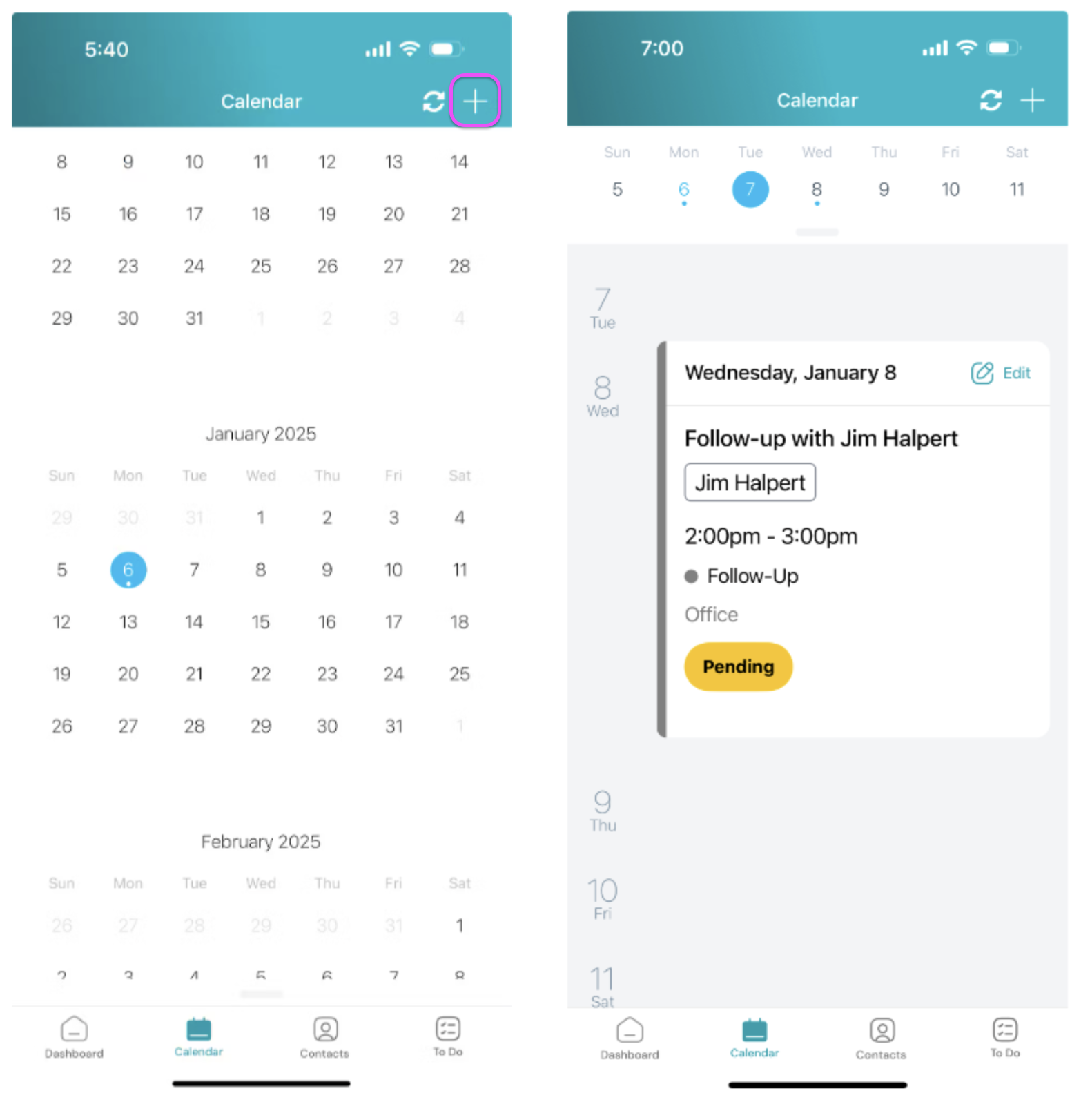
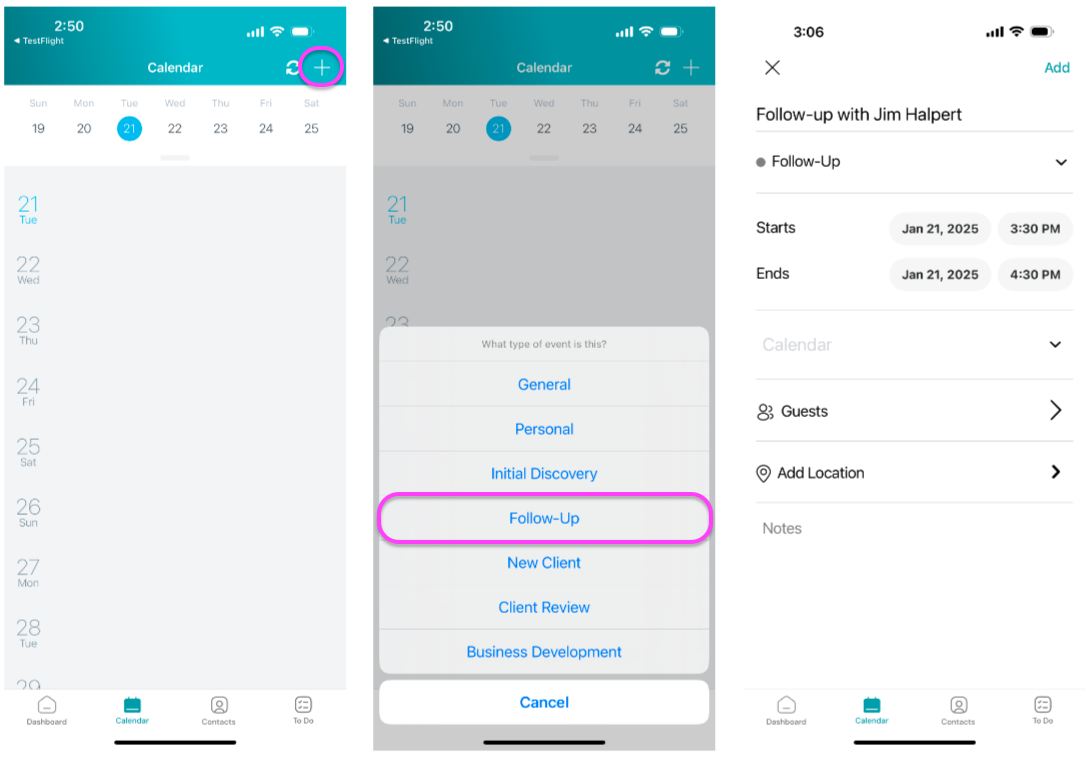
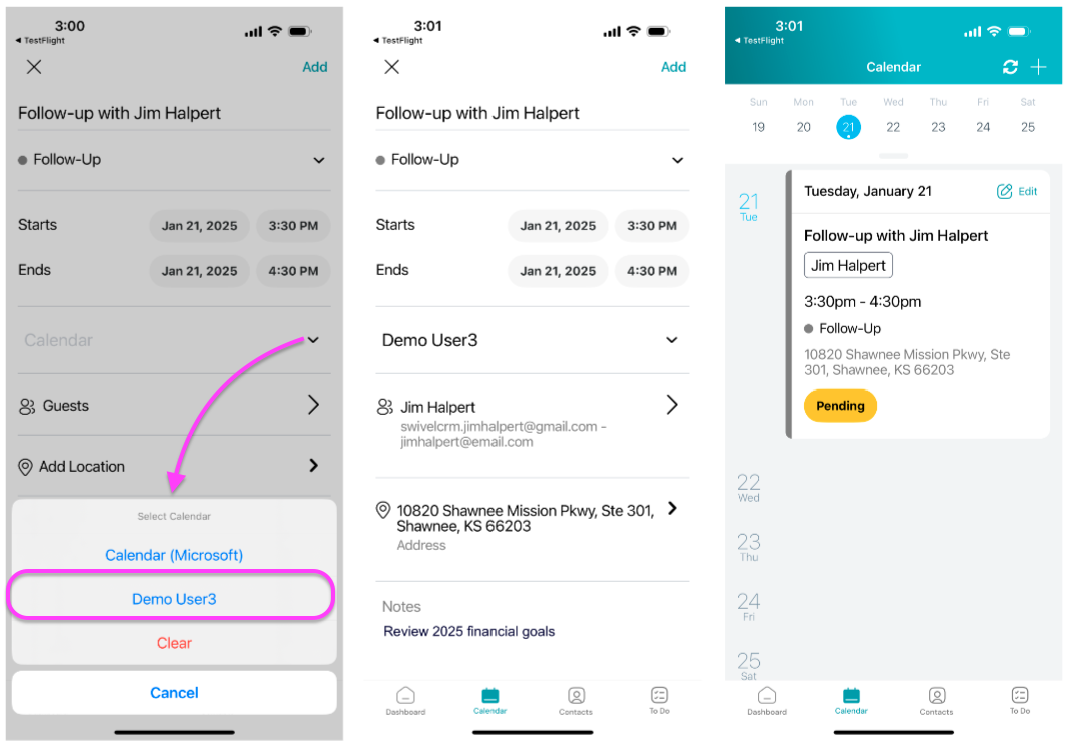
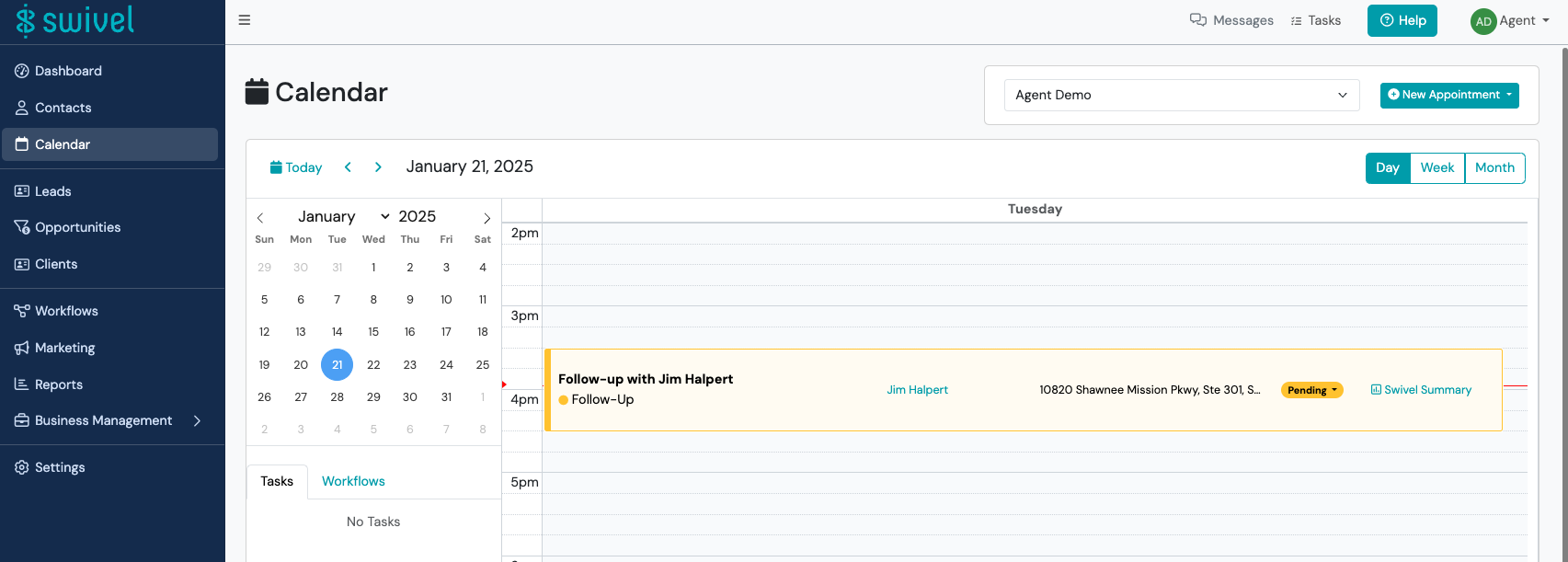
Section titled “Create Appointment”Create a new appointment by tapping the plus + icon and selecting the appointment type. After you’re finished providing your appointment details on the New Appointment form, tap Add.
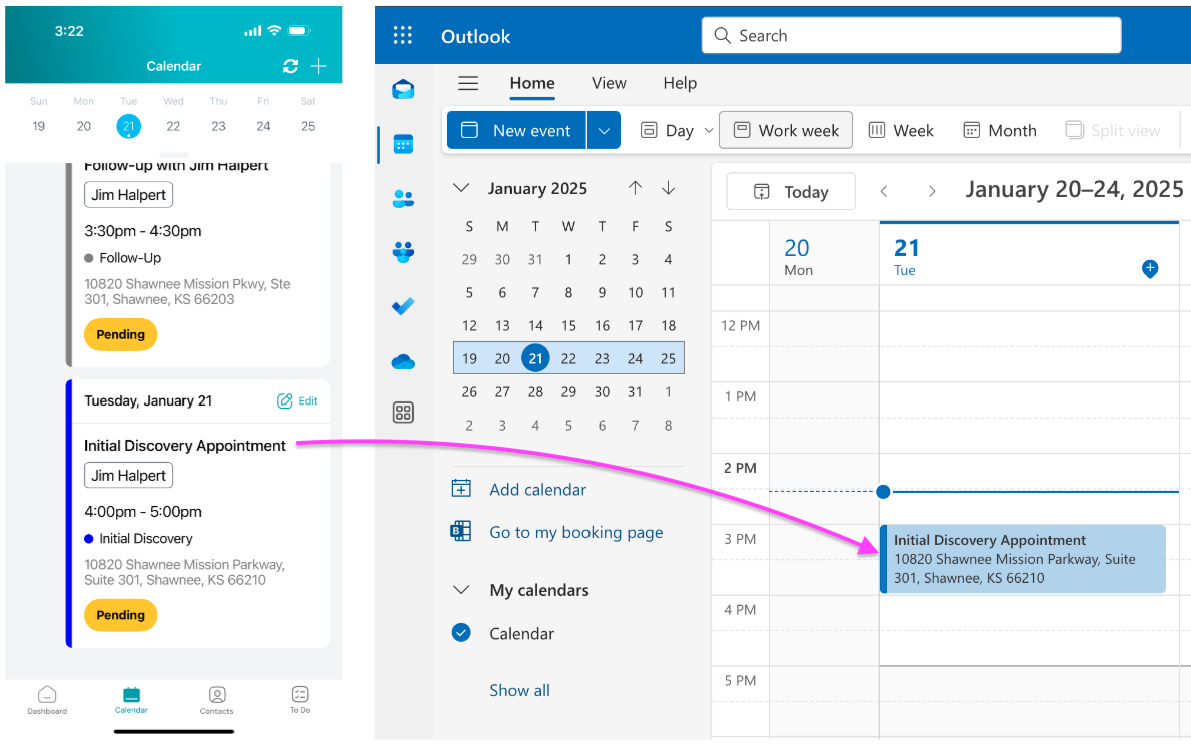
Create Appointment: with integrated MS365 or Google calendar
Section titled “Create Appointment: with integrated MS365 or Google calendar”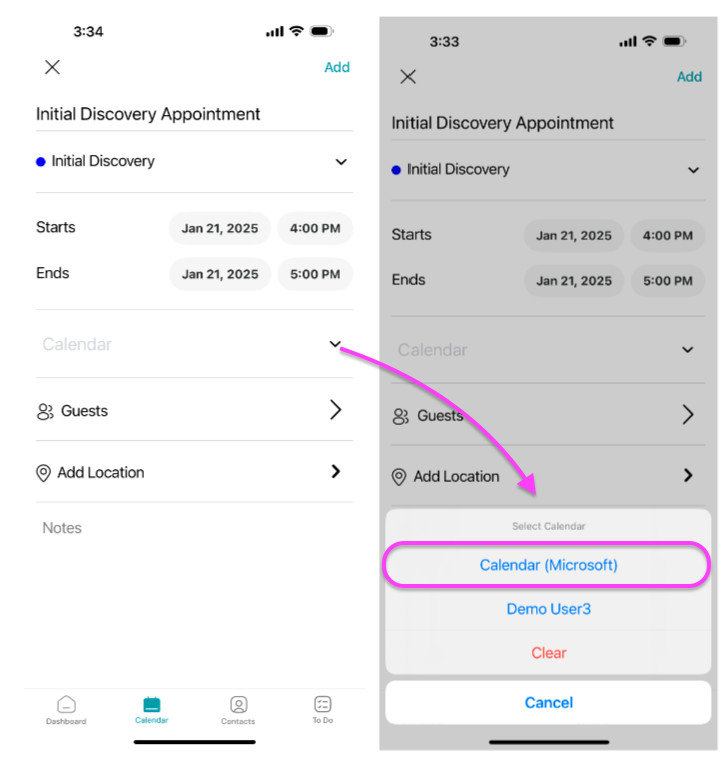
Edit Appointment
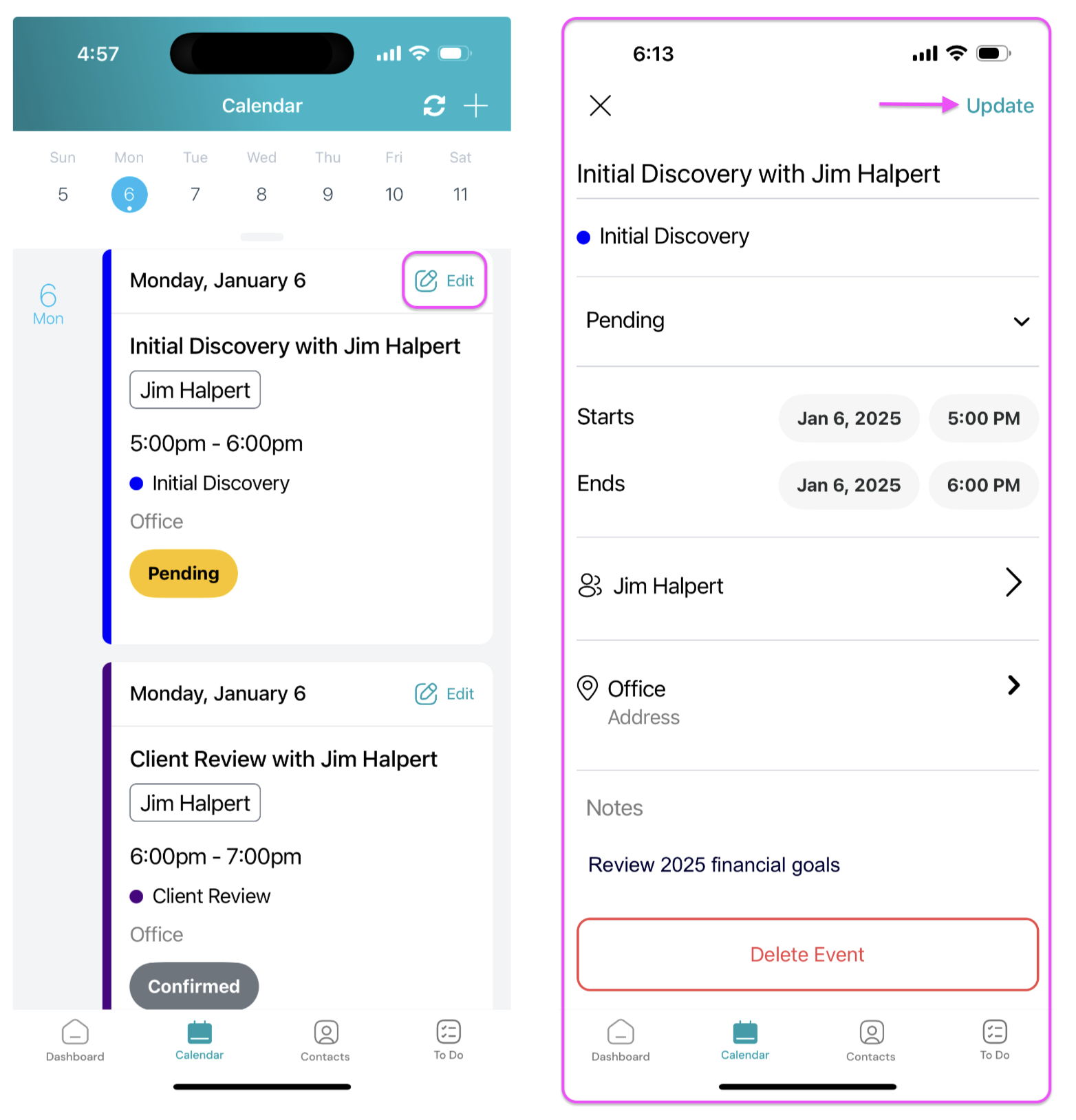
Section titled “Edit Appointment”Edit an appointment by tapping the Edit icon. Once you’re finished updating the appointment details, tap Update.
Delete Appointment
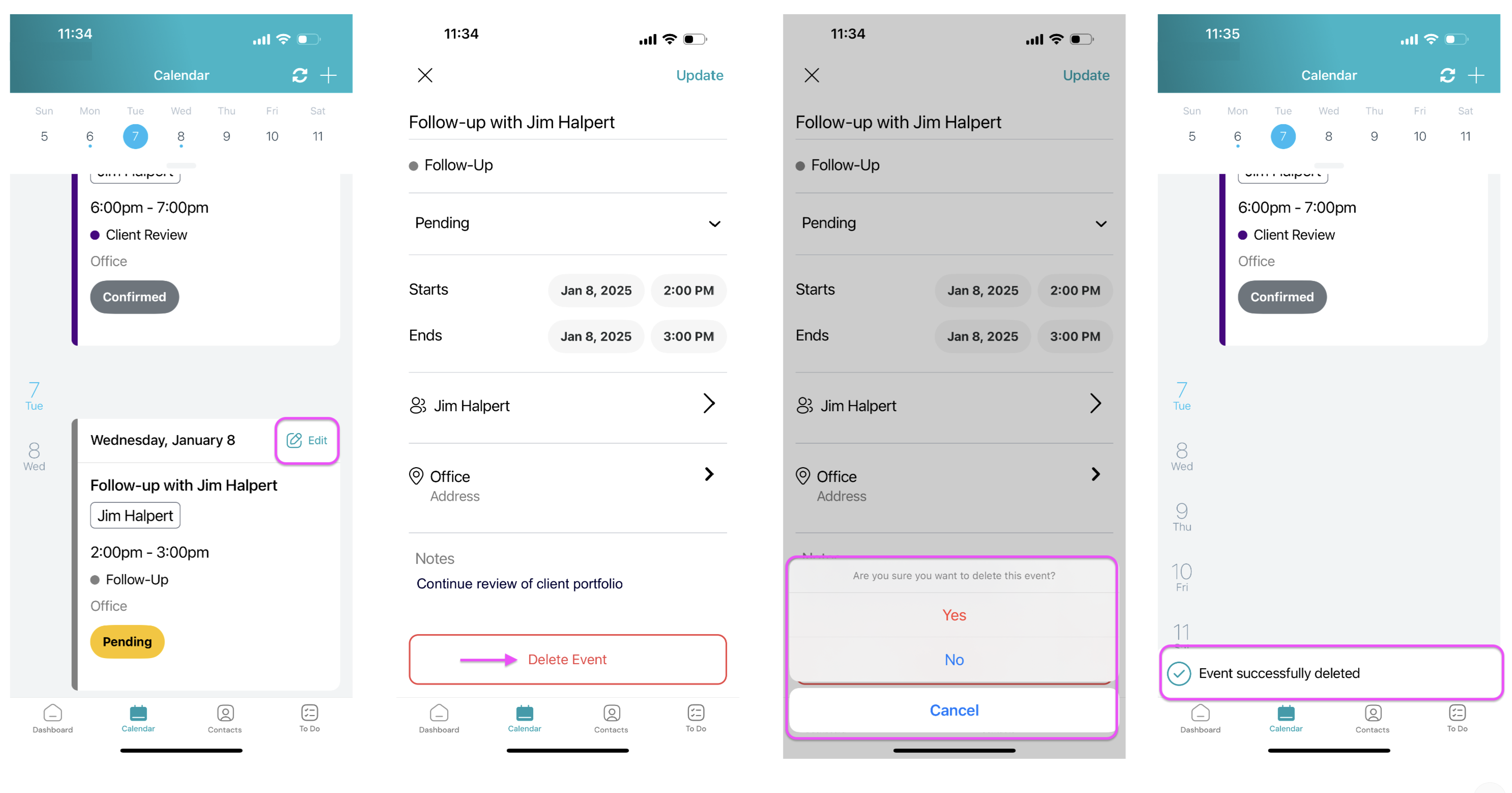
Section titled “Delete Appointment”Delete an appointment by tapping the Edit icon and clicking the Delete Event button. Tap Yes to confirm delete and remove the event from your calendar.
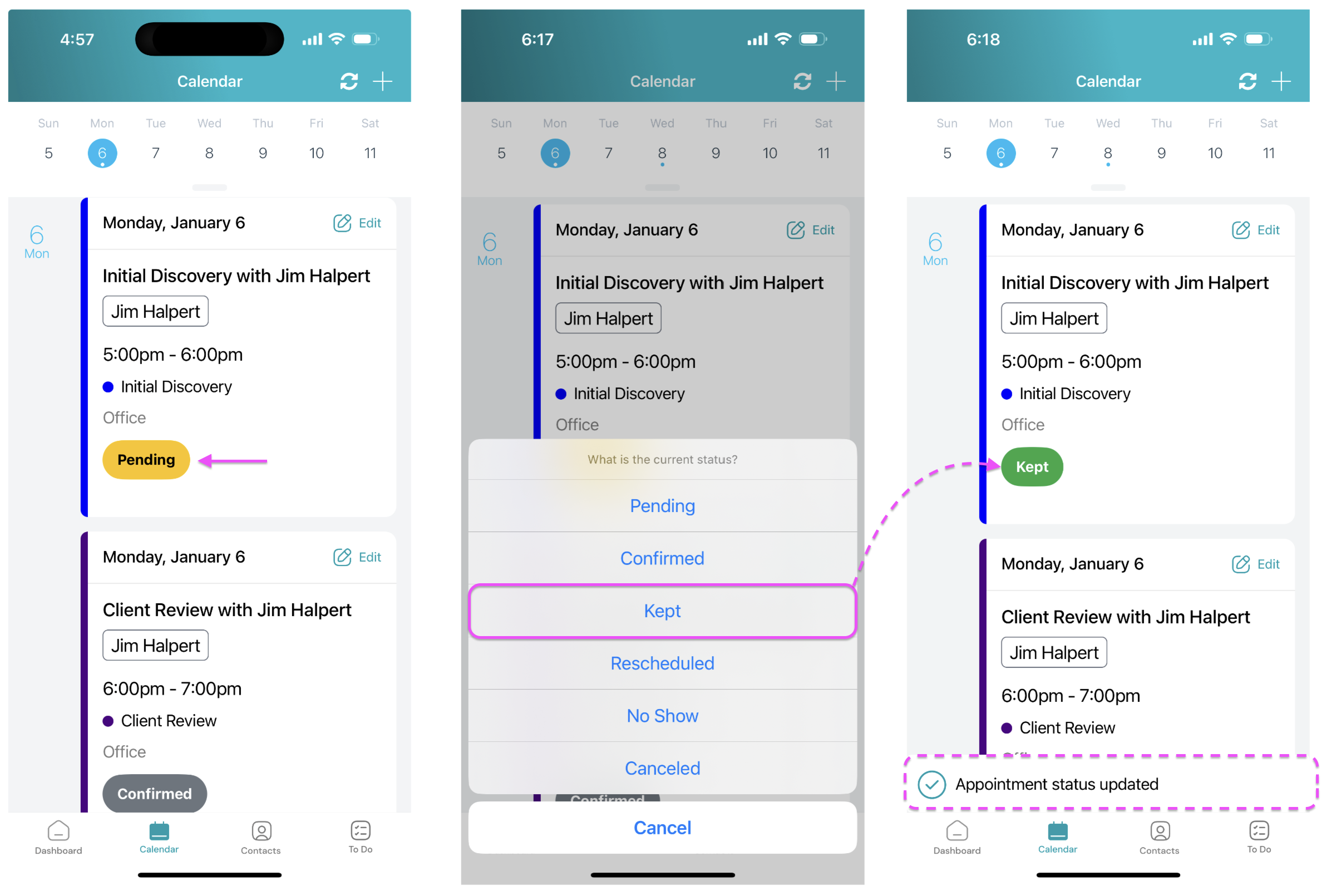
Update Appointment Status
Section titled “Update Appointment Status”You can quickly update an appointment status by tapping the Status button. You also have the option of updating the appointment status from edit appointment.