

Zapier
How to Connect Facebook Lead Ads to Swivel with Zapier
Learn how to connect Facebook Lead Ads to Swivel using Zapier. Automatically create new Swivel contacts from Facebook leads and map lead information to Swivel contact fields.
Overview
Section titled “Overview”You can use Zapier to automatically create new Swivel contacts when someone submits a Facebook Lead Ad form.
The integration works like this:
Facebook Lead Form → Zapier → Swivel Contact
Once the connection is set up and turned on, new Facebook leads are automatically sent to Swivel and created as contacts.
This article explains how to set up the Facebook Lead Ads and Swivel steps in Zapier.
Before You Begin
Section titled “Before You Begin”Make sure you have:
- A paid Zapier plan. Facebook Lead Ads is a Premium app in Zapier.
- Admin access to your Facebook Page.
- At least one Facebook Lead Ad form.
- Your Swivel username and password.
- Access to the Swivel app in Zapier.
If you haven’t connected Swivel to Zapier before, see Connect Swivel to Zapier.
Set up Facebook Lead Ads in Zapier
Section titled “Set up Facebook Lead Ads in Zapier”1. Create a New Zap
Section titled “1. Create a New Zap”Sign in to Zapier. Then:
- Click Create.
- Select Zaps.
2. Set “Facebook Lead Ads” as the Trigger
Section titled “2. Set “Facebook Lead Ads” as the Trigger”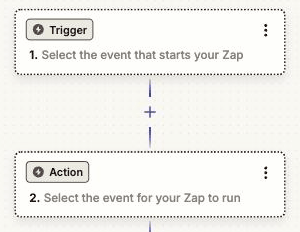
Click the Trigger box. Then:
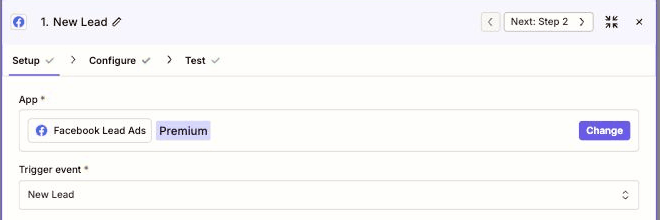
- Search for Facebook Lead Ads.
- Select Facebook Lead Ads.
- For the event, select New Lead.
- Select Continue.
3. Connect Your Facebook Account
Section titled “3. Connect Your Facebook Account”Under Account, select Sign in and follow the instructions to connect your Facebook account.
When Facebook asks which Pages Zapier can access:
- Select the Facebook Page that contains your lead form.
- Keep the required permissions enabled.
- Complete the connection.
- Select Continue in Zapier.
4. Select Your Facebook Page and Form
Section titled “4. Select Your Facebook Page and Form”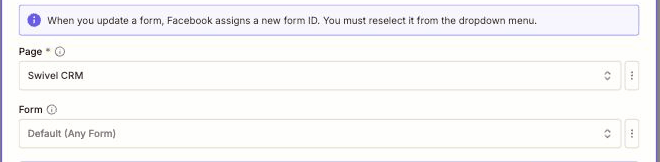
Select the Facebook Page where your lead form is located.
For Form, choose either:
- Default (Any Form) to receive leads from any form on the Page.
- A specific form if you only want leads from one form.
Select Continue.
5. Test the Facebook Connection
Section titled “5. Test the Facebook Connection”Select Test trigger.
Zapier will retrieve a recent Facebook lead and use it as sample information for the rest of the setup.
You should see information such as the lead’s name, email address, and phone number.
If you don’t have any leads yet, you can use Meta’s Lead Ads Testing Tool to create test data for your Page and form.
Connect Swivel
Section titled “Connect Swivel”1. Select Swivel
Section titled “1. Select Swivel”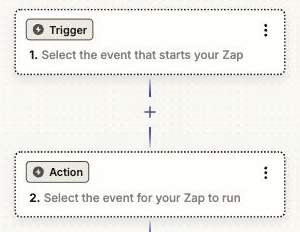
Click the Action box. Then:
- Search for Swivel.
- Select Swivel.
- For the event, select Create Contact.
- Select Continue.
If you see two Swivel apps, select Swivel, not Swivel for Marketing Partners.
2. Connect Your Swivel Account
Section titled “2. Connect Your Swivel Account”Under Account, click the blue Select button, then select + Connect a new account.
A Swivel sign-in window will open.
- Enter your Swivel username and password.
- Select Authorize when asked to allow Zapier to access Swivel.
- Return to Zapier.
- Select Continue.
If you’ve already connected your Swivel account to Zapier, select your existing account instead.
For more information about connecting Swivel to Zapier, see Connect Swivel to Zapier.
Map Facebook Information to Swivel
Section titled “Map Facebook Information to Swivel”1. Choose Which Facebook Information to Send
Section titled “1. Choose Which Facebook Information to Send”Zapier will show the fields available when creating a Swivel contact.
For each field you want to use, select the field and choose the corresponding information from your Facebook lead.
We recommend setting up these fields:
| Swivel Field | Facebook Information | Required? |
|---|---|---|
| First Name | First Name | Yes |
| Last Name | Last Name | Yes |
| No | ||
| Phone Number | Phone Number | No |
| Lead Source | Facebook Lead Ads | Recommended |
First Name and Last Name are required to create a Swivel contact. The other fields are optional.
2. Add Facebook Lead Ads as the Lead Source
Section titled “2. Add Facebook Lead Ads as the Lead Source”Enter Facebook Lead Ads in the Lead Source field.
This helps identify contacts that came from Facebook and distinguish them from contacts created through other sources.
You can also map additional Facebook information to other Swivel contact fields. Use Zapier’s field search to find the Swivel field you want to add.
Test the Swivel Connection
Section titled “Test the Swivel Connection”1. Create a Test Contact
Section titled “1. Create a Test Contact”After mapping your fields:
- Select Continue.
- Select Test step.
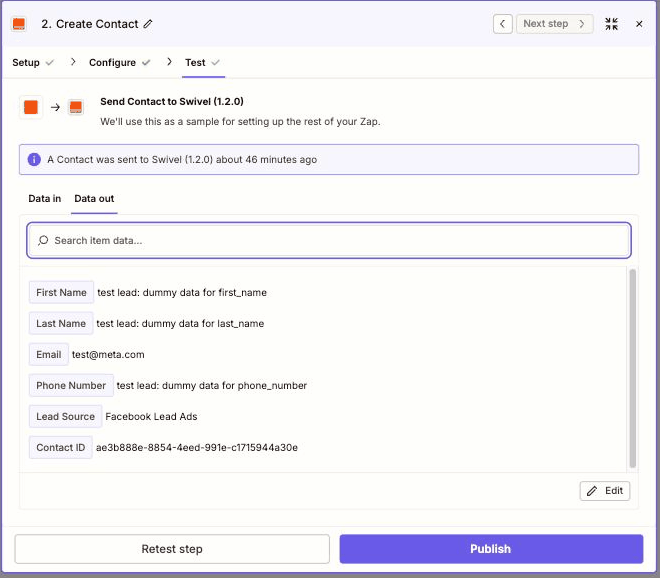
Zapier will send the sample Facebook lead to Swivel and create a contact.
Open Swivel and search for the contact to make sure the information was added correctly.
Turn On Your Zap
Section titled “Turn On Your Zap”1. Name and Publish Your Zap
Section titled “1. Name and Publish Your Zap”Give your Zap a name that makes it easy to identify, such as:
Facebook Leads → Swivel Contacts
Then select Publish.
Your Zap must be published before it will process new Facebook leads.
What Happens After You Publish?
Section titled “What Happens After You Publish?”When someone submits your Facebook Lead Ad form, Zapier sends the lead information to Swivel and creates a new contact.
You don’t need to keep Zapier open for the Zap to run.
This Zap creates new contacts only. It does not update existing Swivel contacts.
If a Facebook Lead Doesn’t Appear in Swivel
Section titled “If a Facebook Lead Doesn’t Appear in Swivel”Check your Zap’s history in Zapier to see whether the lead was successfully processed.
If Zapier shows that the lead was successfully sent to Swivel but the contact doesn’t appear in Swivel, contact Swivel Support.
For issues with Facebook Lead Ads or your Zapier setup, contact the appropriate service’s support team.
Troubleshooting
Section titled “Troubleshooting”Swivel Doesn’t Appear When I Search for It
Section titled “Swivel Doesn’t Appear When I Search for It”If you see two Swivel apps, select Swivel, not Swivel for Marketing Partners.
Zapier Says First Name and Last Name Are Required
Section titled “Zapier Says First Name and Last Name Are Required”First Name and Last Name are required to create a Swivel contact. Make sure both fields are mapped to information from your Facebook lead.
The Phone Number Is Blank in Swivel
Section titled “The Phone Number Is Blank in Swivel”Check the Phone Number field in your Zap and make sure it is mapped to the phone number information from your Facebook lead.
The Zap Stopped Working After I Edited My Facebook Form
Section titled “The Zap Stopped Working After I Edited My Facebook Form”Facebook may assign a new ID when a lead form is edited. Check the Facebook Lead Ads step in your Zap and make sure the correct form is selected.
I’m Getting Duplicate Contacts in Swivel
Section titled “I’m Getting Duplicate Contacts in Swivel”This Zap creates a new Swivel contact when it processes a Facebook lead. It does not update existing contacts.
If the same person submits a Facebook lead form more than once, multiple contacts may be created.