

Outreach & Engagement
Engage Contacts Using Lists
Once you’ve created a Contact List, you can use it to engage contacts at scale or individually. Lists make it easy to send broadcast campaigns, perform 1-to-1 outreach, create related records, and track communication activity.
When to Use This
Section titled “When to Use This”Use Contact Lists when you need to:
- Send broadcast email campaigns
- Send broadcast text message campaigns
- Perform 1-to-1 outreach
- Create opportunities, appointments, or products from a list
- Review communication activity for a list or individual contact
Send a Broadcast Email
Section titled “Send a Broadcast Email”Broadcast Emails allow you to send a marketing or outreach email to all eligible contacts within a Contact List.
- Open the desired Contact List
- Click the Email Engagement Button at the top of the list
- Complete the 4-step email creation wizard
- Review and send the campaign
Send a Broadcast Text Message
Section titled “Send a Broadcast Text Message”Broadcast Text Messages allow you to send a text campaign to all eligible contacts within a Contact List.
- Open the desired Contact List
- Click the Text Message Engagement Button at the top of the list
- Complete the 4-step text message creation wizard
- Review and send the campaign
1-to-1 Communication with Contacts on a List
Section titled “1-to-1 Communication with Contacts on a List”Lists are typically an easy way to engage with a large list of contacts, but there can also be a need to send a 1-to-1 message or call to a contact within a saved list. To do so, select either the Email, Call, or Text icon on a given contact within a list.
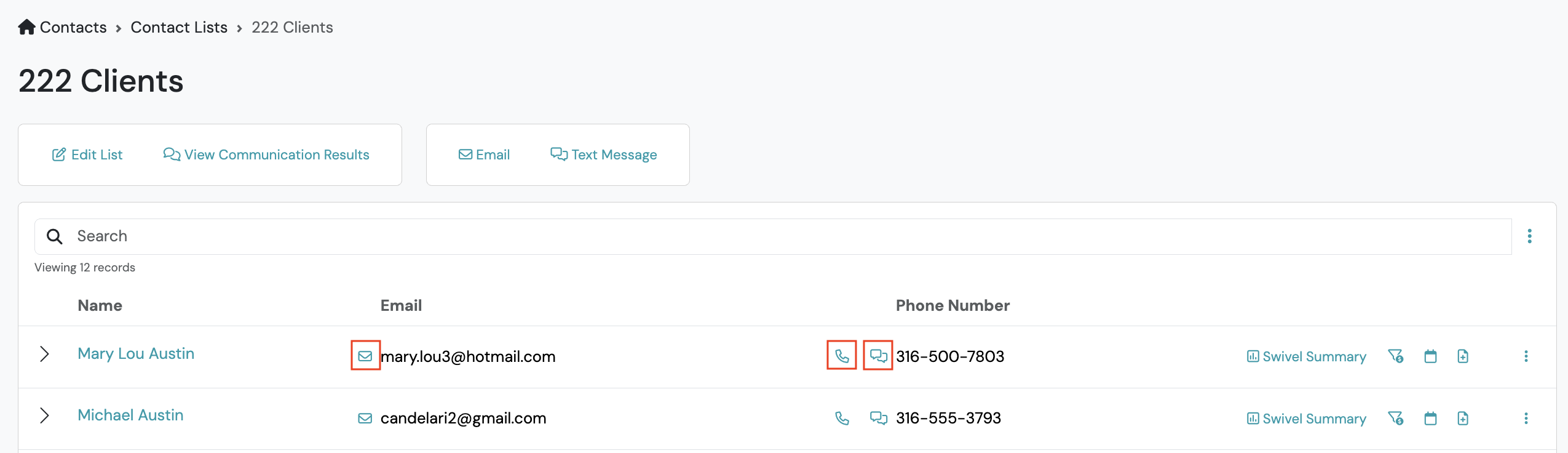
Create Related Records from a Contact List
Section titled “Create Related Records from a Contact List”Each contact row includes quick-action icons that allow you to create related records directly from the list.
Available actions include:
- Create Opportunity
- Create Appointment
- Create Product
Action Icons
Section titled “Action Icons”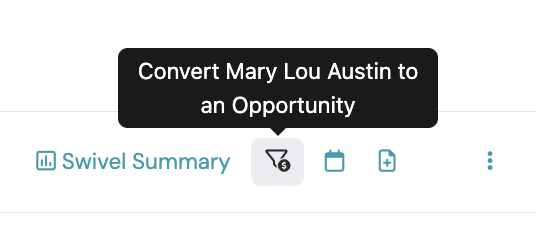 | Using this icon, a user can convert the contact to an opportunity. By selecting, this will open the +Create Opportunity modal. |
|---|---|
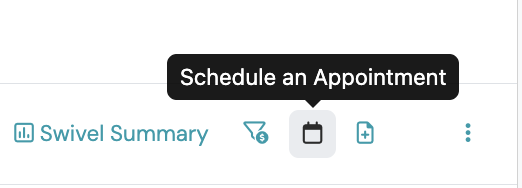 | This icon allows you to create a new appointment by selecting from configured appointment types and then opens the +New Appointment Form and will automatically assign the given contact to the appointment |
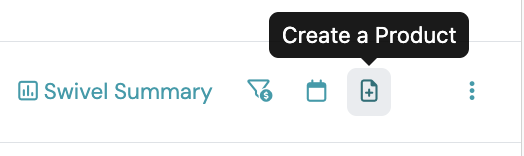 | Use this icon in order to create a new product associated to this contact. This will open the +New Product form to complete all applicable fields. |
View Communication Results
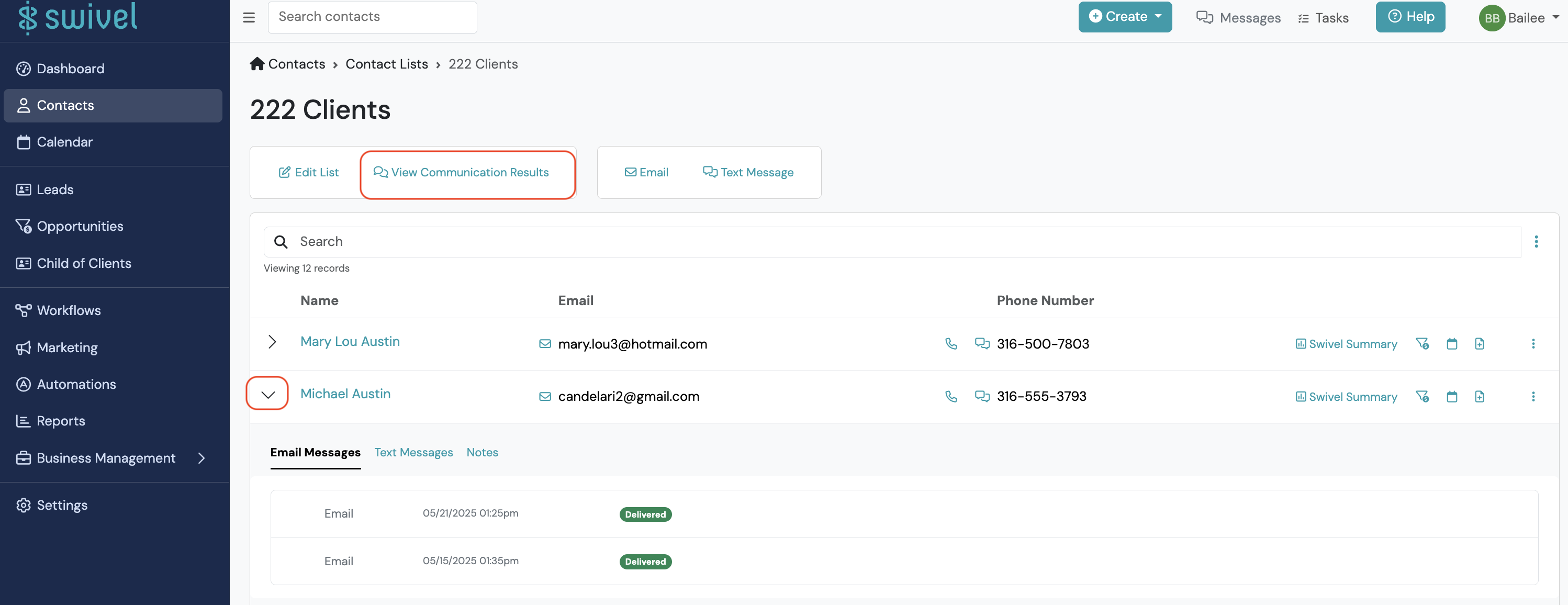
Section titled “View Communication Results”When viewing a contact list, users can view communication results for the list as a whole, or for individual contacts.
View List Communication Results
Section titled “View List Communication Results”Select this option when you want to view all broadcast engagements you have sent to this entire contact list.
- From left side navigation menu, go to either the Contacts or Contact Lists
- Search and select a desired list to view.
- Go to View Communication Results button on the engagement bar.
View Individual Communication Results
Section titled “View Individual Communication Results”Individual Communication Results - to view the engagements you have sent to an individual contact, both broadcast or 1-to-1, select the chevron next to a given contact in the list.
Best Practices
Section titled “Best Practices”Review your audience before sending campaigns
Section titled “Review your audience before sending campaigns”Before launching an email or text campaign, confirm:
- the correct list is selected
- the audience count looks accurate
- filters and exclusions are expected
Use Static Lists for one-time campaigns
Section titled “Use Static Lists for one-time campaigns”If you need a fixed audience that will not change before sending, use a Static List.
Use 1-to-1 outreach for personalized follow-up
Section titled “Use 1-to-1 outreach for personalized follow-up”The communication icons make it easy to quickly follow up with contacts during outreach campaigns or call-down workflows.