

Start Here
Workflows FAQs & Troubleshooting
Find answers to common Swivel Workflow questions and troubleshoot issues with workflow templates, default assignees, steps, and workflows that aren't working as expected.
Workflow Setup
Section titled “Workflow Setup”Can I assign workflow steps to Groups?
Yes. Before assigning a workflow step to a Group, you must first create the Group.
Once created, the Group will appear as an option when assigning a workflow step.
When a step assigned to a Group is completed, the workflow step displays the name of the individual user who completed it.
You can also set a Group as the Default Assignee in a workflow template.
Do I have to manually assign steps?
No. Swivel allows you to set a Default Assignee so that the workflow and all associated steps will be automatically assigned when the workflow runs. Swivel also allows you to select a Responsible user for each specific workflow step.
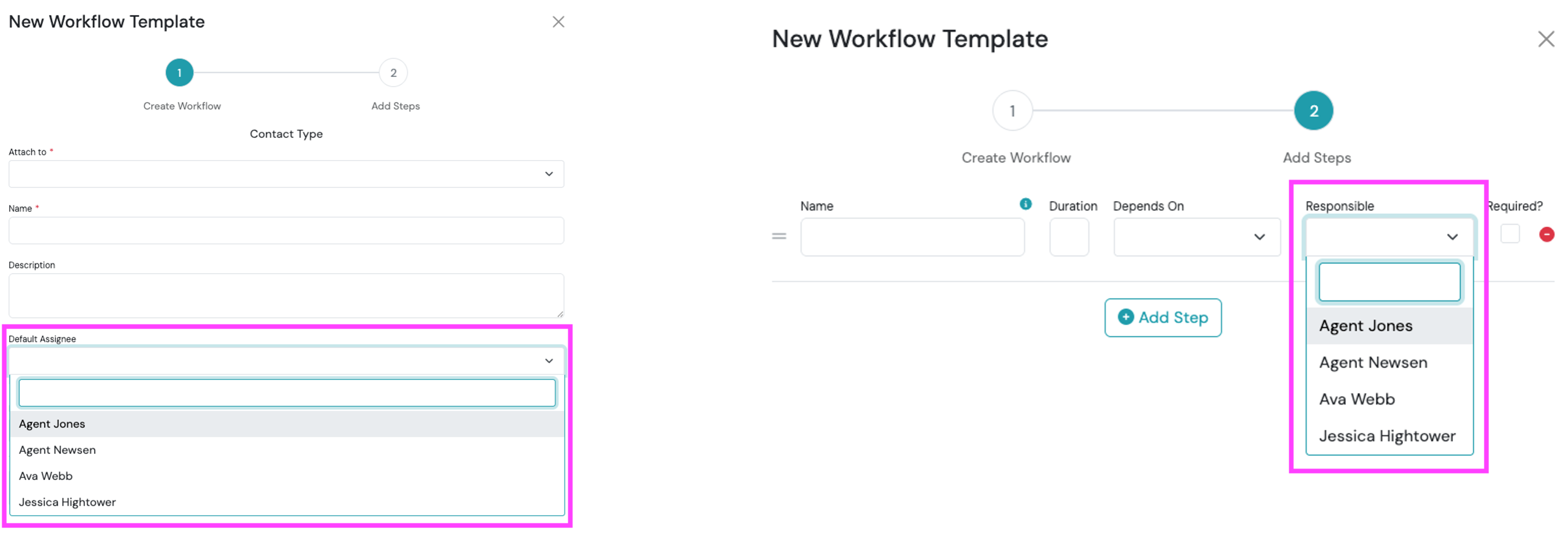
How do I change the default assignee on a workflow?
You can update the Default Assignee on a workflow template when responsibilities change or a different team member should be assigned to the workflow by default.
Update the Default Assignee
Section titled “Update the Default Assignee”- Navigate to Workflows.
- Select Workflow Templates.
- Find the workflow you want to update. You can use the Default Assignee column to see who is currently assigned.
- Click the three-dot action menu next to the workflow.
- Select Edit.
- Under Default Assignee, select the new assignee.
- Click Next.
- Click Save.
The workflow template will now use the new default assignee.
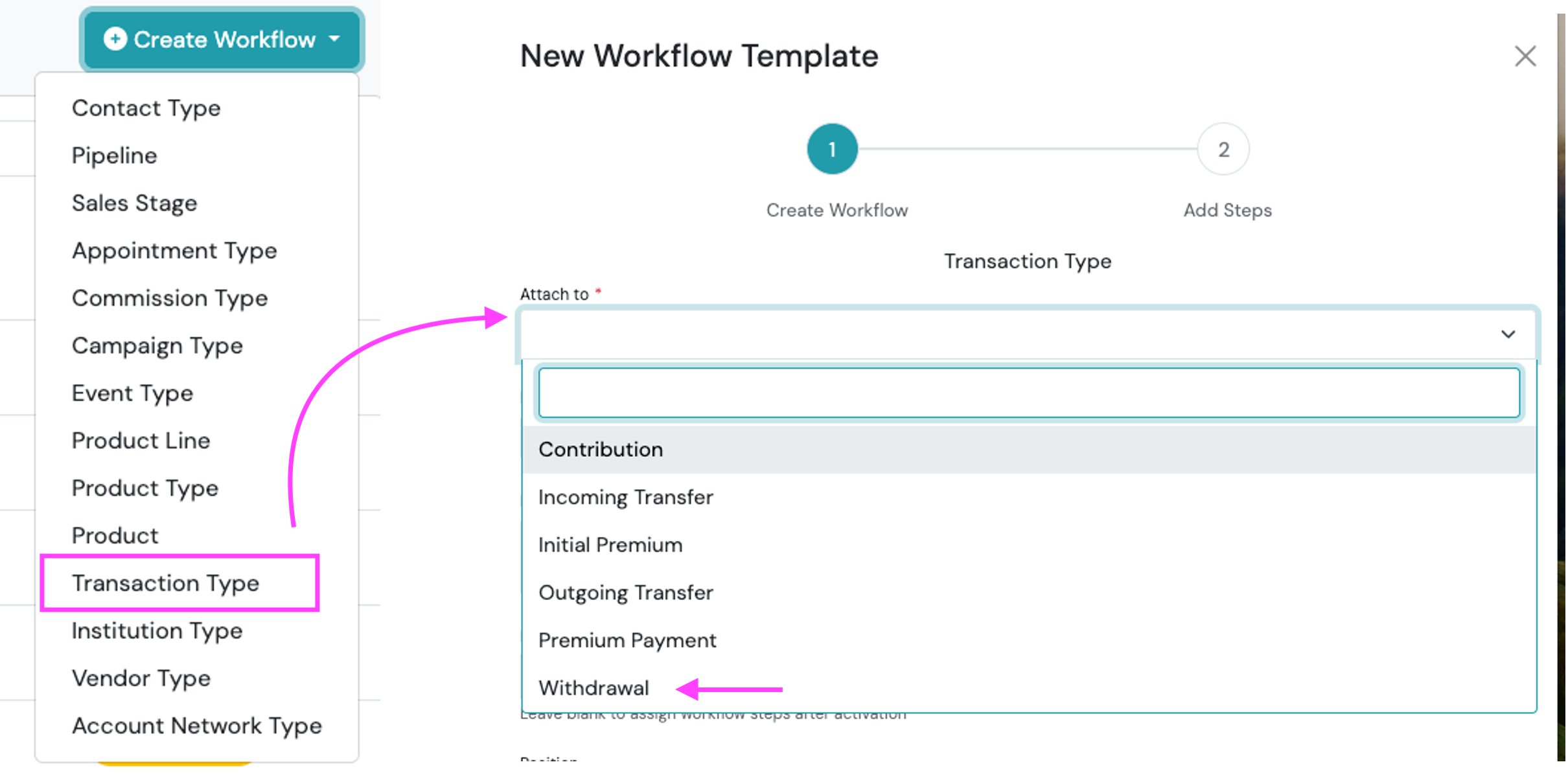
Can workflows attach to transactions (e.g. Incoming Transfer, Withdrawal, etc.)?
Yes. When you click the +Create Workflow button, select Transaction Type and then the desired transaction as pictured below.
Managing Workflows
Section titled “Managing Workflows”How do I view completed workflows?
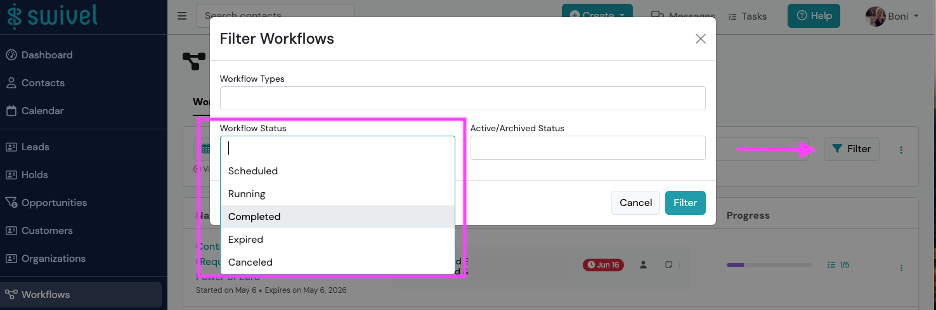
To view Completed workflows, navigate to the Workflows tab and Filter by Completed in the Workflow Status.
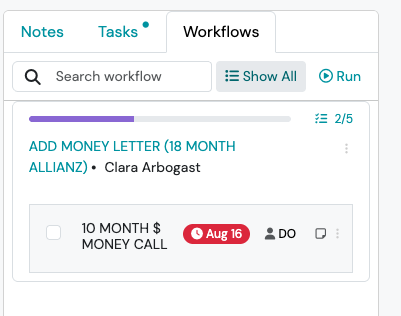
To view Completed Workflows for a specific contact, navigate to the contact’s record and click Workflows and Show All. This will display all workflows tied to this contact, including completed.
Why don’t I see completed workflows in the Workflows view?
Completed workflows are attached to the contact record.
They do not always appear in global or consolidated workflow views.
How to find completed workflows
- Open the contact record
- Click the Workflows tab
- Toggle the filter to include Completed
Common misunderstanding
Filtering by Completed in the workflow builder does not show historical workflow activity. The workflow builder displays workflow configuration, not execution history.
Notifications
Section titled “Notifications”Can I turn off the workflow email notifications?
Not at this time. We recommend creating an email inbox rule and sending the notifications to a specific folder in your email. That way, the task notifications do not take up value real estate in your primary in box. Please check with your email provider to learn more on in box rules and creating folders.
Troubleshooting
Section titled “Troubleshooting”Why didn’t my workflow run?
Section titled “Why didn’t my workflow run?”Step 1: Verify the workflow has been published
Workflows in draft status are not available to run or trigger automatically. To check: Workflows → Workflow Templates → Locate Workflow
Confirm the workflow status is Published. If not, publish the workflow and try again.
Step 2: Confirm an Automation Trigger is Configured (Automated Workflows Only)
Automated workflows require an Automation Trigger to start automatically.
Examples:
- Create Contact
- Advance Sales Stage
- Create Appointment
- Attach Product
If the Automation Trigger field is blank, the workflow is configured as a Manual Workflow and must be started by a user.
Step 3: Verify the Triggering Action Actually Occurred
Workflows only run when the configured action occurs.
Example: Configured trigger: Advance Sales Stage → Proposal
The workflow will only start when the opportunity moves into that specific stage.
Updating unrelated fields will not trigger the workflow.
Step 4: Confirm the Workflow is Attached to the Correct Object Type
Workflows only run for the object type they were created on.
Examples:
| Workflow Attached To | Runs When |
|---|---|
| Contact Type | Contact created or manually started |
| Product | Product attached |
| Appointment Type | Appointment created |
| Pipeline/Sales Stage | Opportunity created or stage updated |
If attached incorrectly, the workflow will not trigger.
Step 5: Check Whether the Workflow Was Intended to Be Manual
Manual workflows require users to select: Run Workflow. The workflow will not start automatically.
Why can’t I find my workflow?
Section titled “Why can’t I find my workflow?”Step 1: Check Workflow Status Filters
The workflow may exist under another status. From Workflows → Filter, Review Running, Scheduled, Completed, Expired, and/or Canceled
Step 2: Check Whether You’re Looking in Templates or Active Workflows
These are different:
- Workflow Templates = Configuration/Build Area
- Workflows = Active or Completed Workflow executions
Step 3: Check the Related Record
Workflows live on associated records.
Step 4: Review User Filters
Workflows assigned to another user may not appear in your current filtered view.
Review: Workflows → Filter → User
Why isn’t my scheduled workflow starting?
Section titled “Why isn’t my scheduled workflow starting?”Step 1. Confirm Scheduling Is Enabled on the Workflow Template
Open the workflow template and verify: Automatically start scheduled workflows at specified start date is enabled. Without this setting, users will have to manually run the workflow at the scheduled start date.
Step 2: Confirm the Workflow Was Published
Only published workflows can start automatically.
Step 3: Review Scheduled Workflow Status
Go to Workflows → Filter → Scheduled and locate the workflow.
Scheduled workflows display Scheduled status until activated.
Still Having Trouble?
Section titled “Still Having Trouble?”Review:
👉 Create & Manage Workflow Templates
👉 Schedule a Workflow to Run Later