

Compensation
Compensation Overview
The Compensation page allows you to track compensation, manage agent splits, and and view projected payouts across your agency.
Navigating to the Compensation Page
Section titled “Navigating to the Compensation Page”From the main navigation menu, click Business Management
and select Compensation. There are three tabs available:
- Compensation - displays a list of all compensation records. Use this view to search compensation records, filter by status, product, or compensation type.
- Agent Compensation - displays compensation broken down by agent payout. Use this page to analyze agent earnings, split compensation, and compensation payment status.
- Projected Compensation - displays estimated compensation for the year broken down by month. For more information, please visit our Projected Compensation article
Understanding the Compensation View
Section titled “Understanding the Compensation View”The Compensation View is a report of compensations including the date, Compensation Type, Product, Contact, Compensable Amount and anticipated Net Compensation.
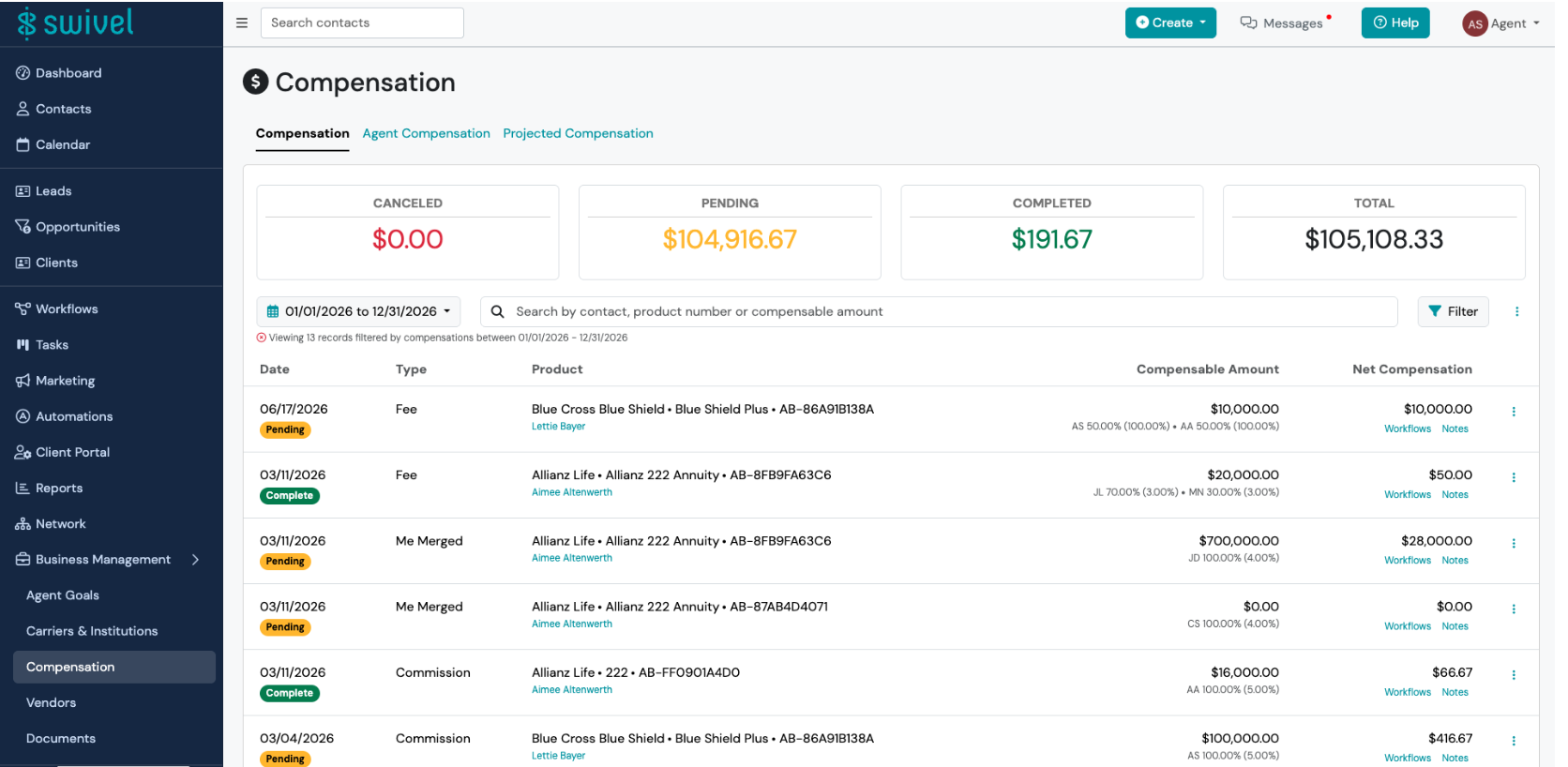
At the top of the page you’ll see metric tiles displaying the totals for Pending, Completed, Canceled compensation to equal the Total Compensation.
Edit Compensation
Section titled “Edit Compensation”- From the main navigation menu, select Business Management and > click Compensation.
- Click the three dot Action Menu next to the desired compensation and select Edit.
- Complete the Edit Compensation form.
- Click Save.
Filter Compensations
Section titled “Filter Compensations”- From the main navigation menu, select Business Management and > click Compensation.
- Select the Compensation tab and > click Filter.
- Complete the Filter Compensations form and click Filter.
Export Compensation
Section titled “Export Compensation”-
From the main navigation menu, select Business Management and > click Compensation.
-
Select Compensation tab and, if desired, > click the Filter button and input filtered criteria.
Please note, if no Filters selected it will default to commissions between the current calendar year.
-
Click the three dot Action Menu next to the Filter button and > click Export.
Agent Compensation Page
Section titled “Agent Compensation Page”The Agent Compensation is similar to the Compensation view but shows calculated net compensation payout for each agent and allows you to manage the payment status
Calculating Compensation
Section titled “Calculating Compensation”The Net Compensation shows the per-period amount, not the annual amount. The rate is treated as an annual rate and divided by the number of periods per year:
- Monthly = annual rate / 12
- Quarterly = annual rate / 4
- Yearly = annual rate / 1
For example, a $10,000 compensable amount with a 10% annual rate on a monthly commission shows a Net Compensation of $83.33.
Agent Compensation: Update Payment Status
Section titled “Agent Compensation: Update Payment Status”-
From the main navigation menu, select Business Management and > click Compensation
-
Select Agent Compensation and > click the corresponding Payment Status Badge and select the desired payment status from the drop-down.
*Please note: Each status corresponds to a unique metric tile to display a running total.
- Canceled
- Disputed
- Pending
- Unpaid
- Paid
- Total
-
Repeat as needed.